Account & Login
Settings open from your avatar in the app bar, in two groups:
- Your account: Profile & security, and Appearance & language for the theme, colour and language. These follow you to every device you sign in on, and so do your favourite apps
- This device: General, POS, Kitchen (KDS), Alerts and Printer. These stay on the device, for everyone who uses it
The search box above the list finds a setting by name and shows the page it is on.
Selecting a workspace
If you have access to multiple Smatyx accounts (different restaurants or organizations), you'll see a workspace selector after logging in.
To switch workspace later:
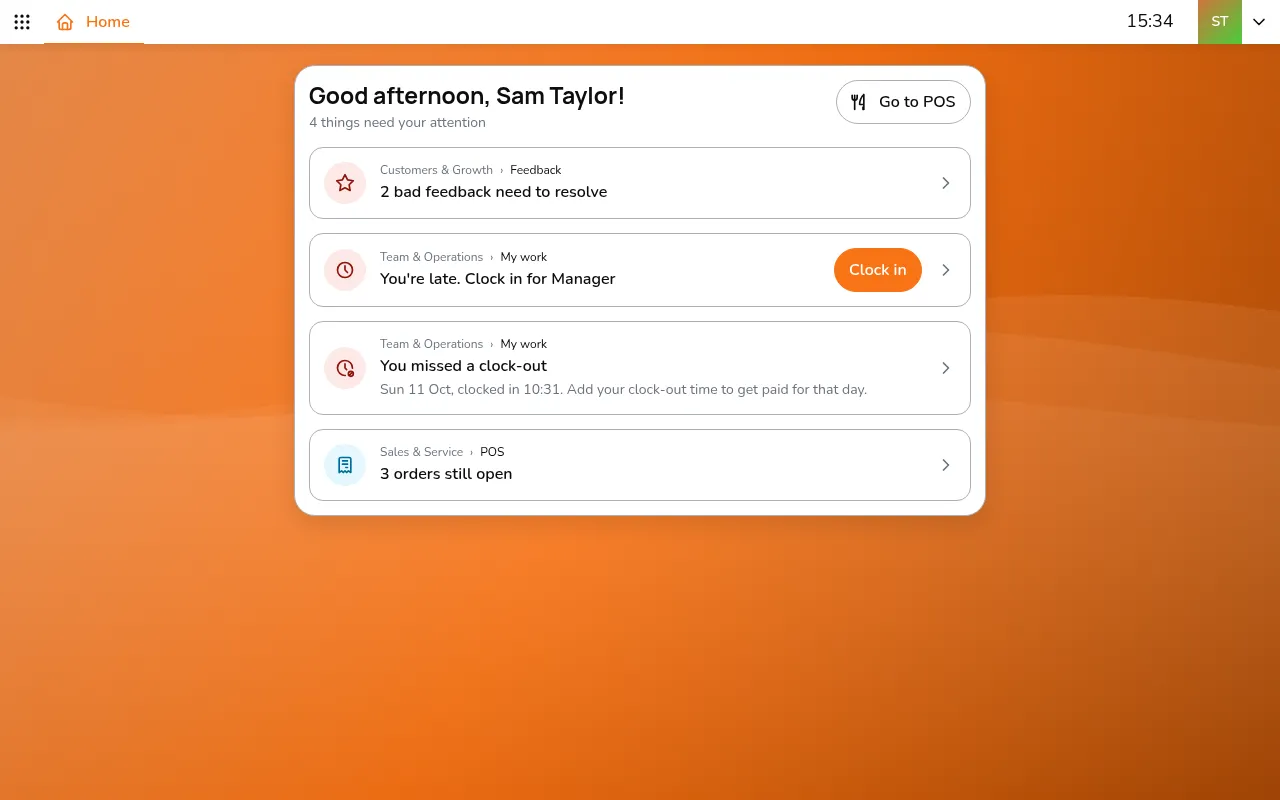
Step 1/4Tap your avatar in the app bar
- Tap your avatar in the app bar
- Open Profile & security
- Tap Select workspace
Accepting an invitation
When someone adds you as an employee in Smatyx, you get an email invitation.
- Check your email for the invitation
- Click the link
- Create your password
- Log in
Your status changes from Not Invited to Invited to Joined.
Changing your password
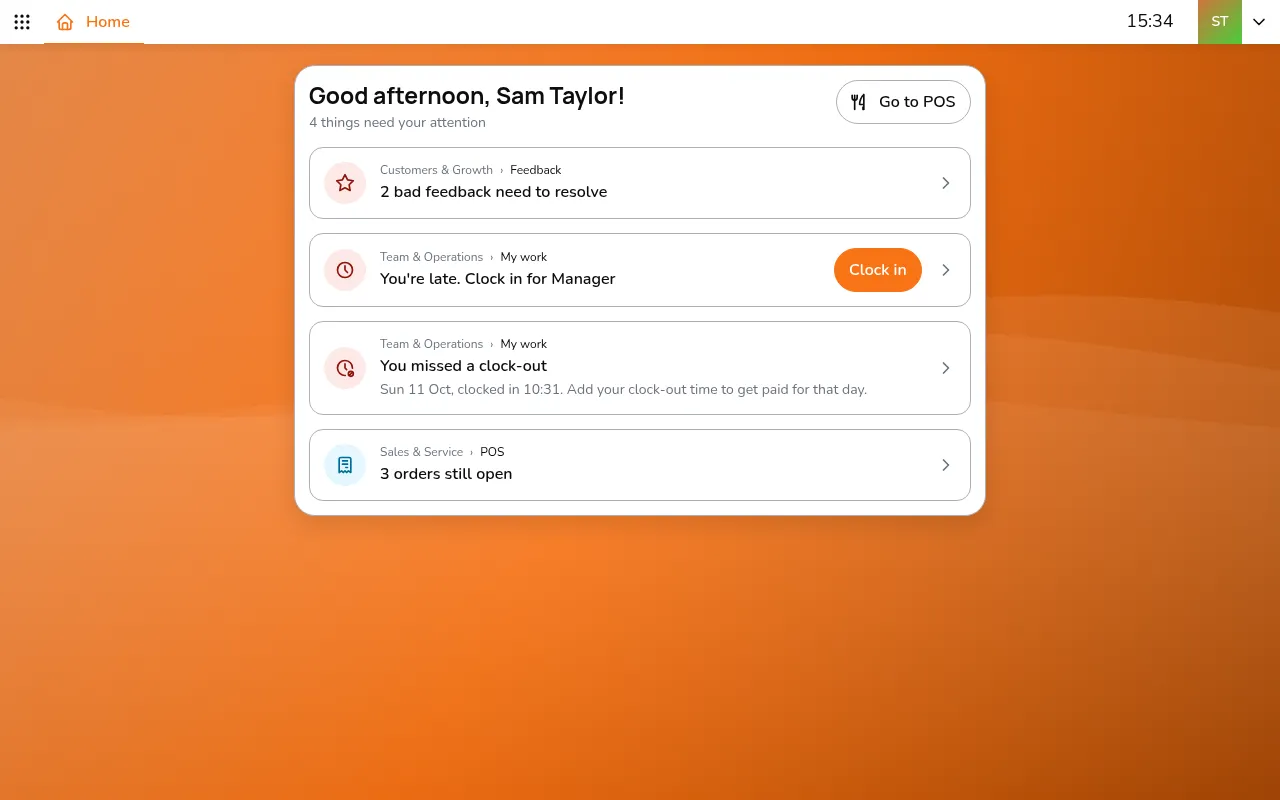
Step 1/7Tap your avatar in the app bar
- Tap your avatar in the app bar
- Open Profile & security
- Tap Setup new password
- Enter your current password and new password
- Tap Update password
Forgot your password
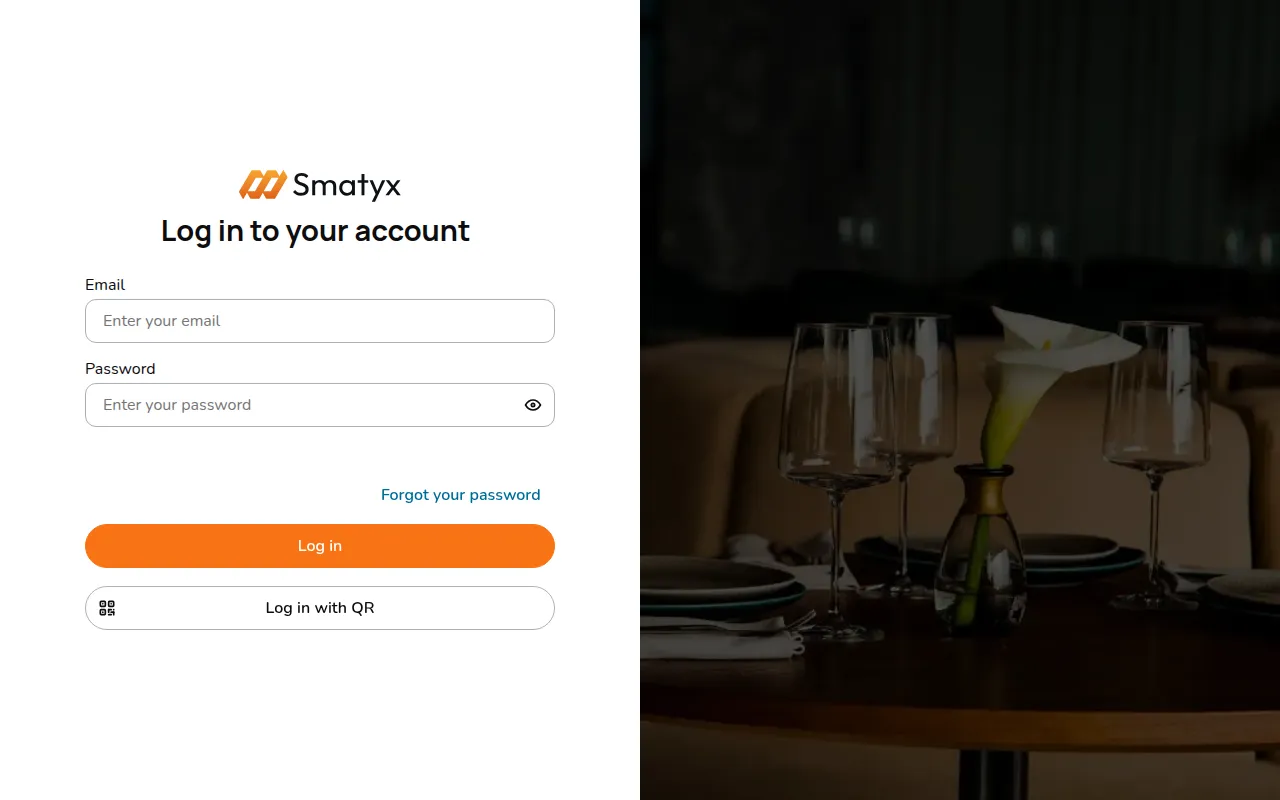
Step 1/8On the login page, tap Forgot your password
- On the login page, tap Forgot your password
- Enter your email address
- Check your email for the code
- Enter the code and create a new password
Logging out
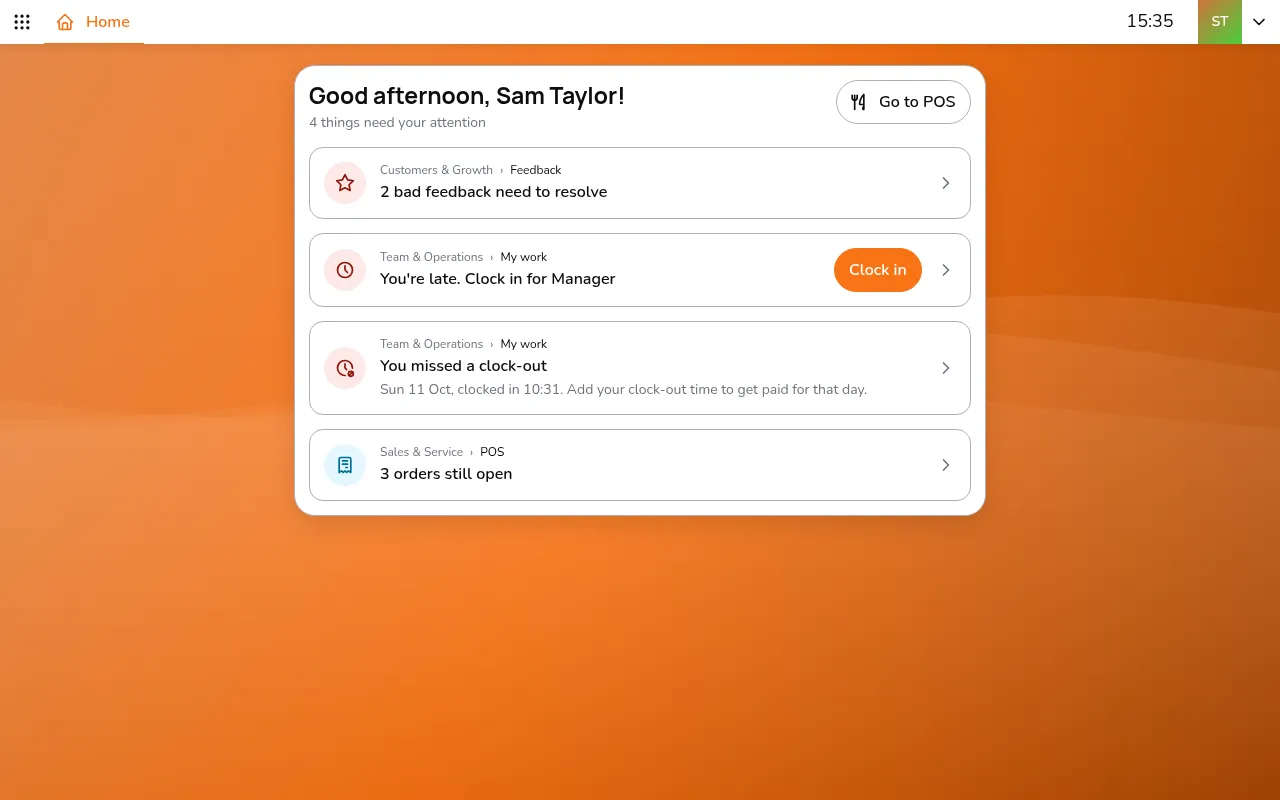
Step 1/3Tap your avatar in the app bar
- Tap your avatar in the app bar
- Tap Logout, in red at the bottom of the list
- Tap Sign out of this device