Scan Supplier Invoices
Who is this article for?
Account owners, or team members whose role has:
- Stock movements and Suppliers set to Manage
- Menus and items set to Manage
- Income and expenses set to Manage
Set roles in All apps > Setup > Roles.
Included in the Grow plan.
Instead of typing each invoice, photograph it. AI reads the supplier, the lines and the totals, and Smatyx turns each invoice into a delivery and an expense.
Scan
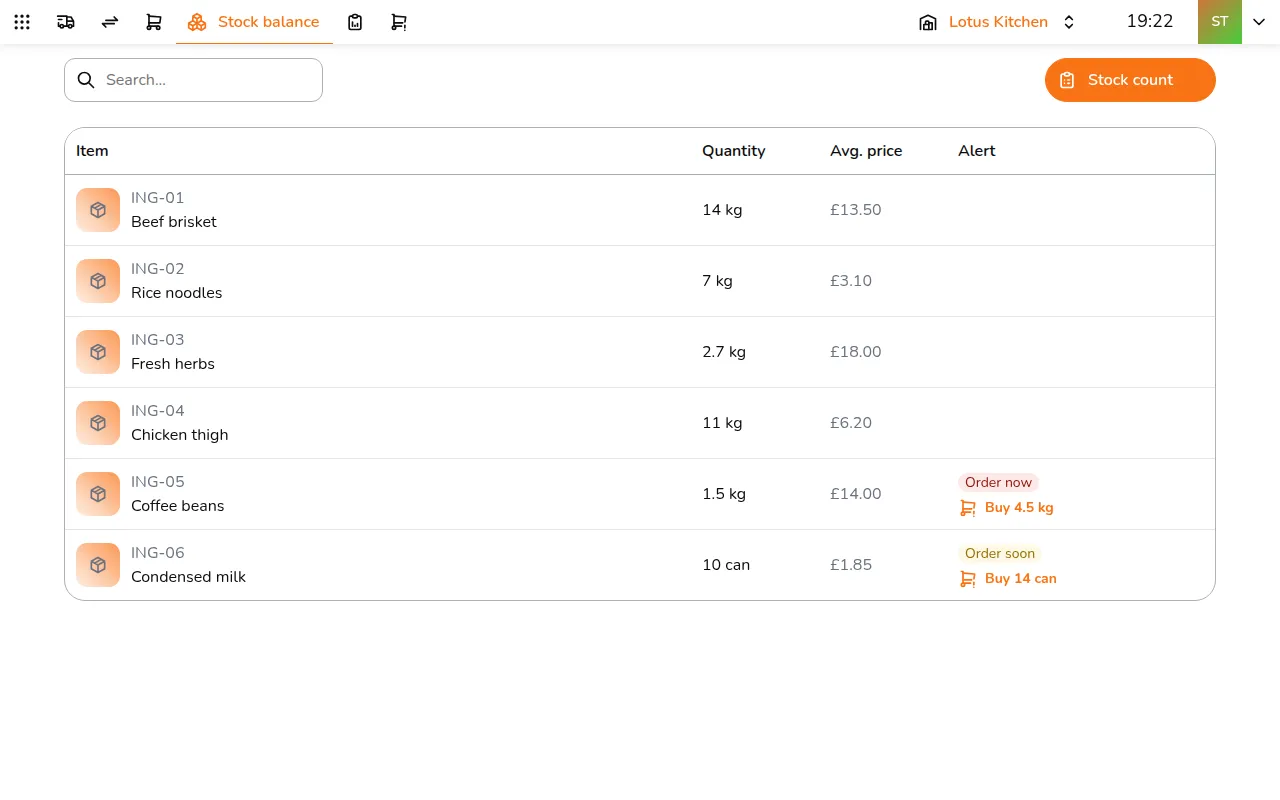
Step 1/6Go to All apps > Inventory & Purchasing > Stock movements and tap Scan invoices
- Go to All apps > Inventory & Purchasing > Stock movements and tap Scan invoices
- Drop in photos or PDFs, up to 50 images. Each image starts its own invoice; drag pages together when one invoice runs over several
- Tap Process with AI
Check and create
The steps that follow only appear when needed:
- Suppliers: add the suppliers the invoices come from that you do not have yet
- Units and Items: add any new ones
- Goods receipt: for each invoice, pick the store, whether it is stock or an expense only, and whether it is paid or still owed with a due date. Tap Create receipt & expense
Each invoice becomes a delivery in draft, ready to check and receive, and an expense for its total in Income & Expenses.