Income and Expenses
Who is this article for?
Account owners, or team members whose role has:
- Income and expenses set to View to see them, or Manage to record them
Set roles in All apps > Setup > Roles.
Included in the Grow plan.
Sales are recorded by the POS. Income & Expenses holds the rest of the money: rent, bills, supplier invoices, catering deposits. Together they make the cash flow on the dashboard.
See the entries
Go to All apps > Finance & Insights > Income & Expenses. Each entry shows whether it is income or an expense, its date, what it was and the amount. Unpaid bills show Debt with their due date.
Use This week, This month and Filter to pick the dates, and Debts only to see what you still owe.
Record an entry
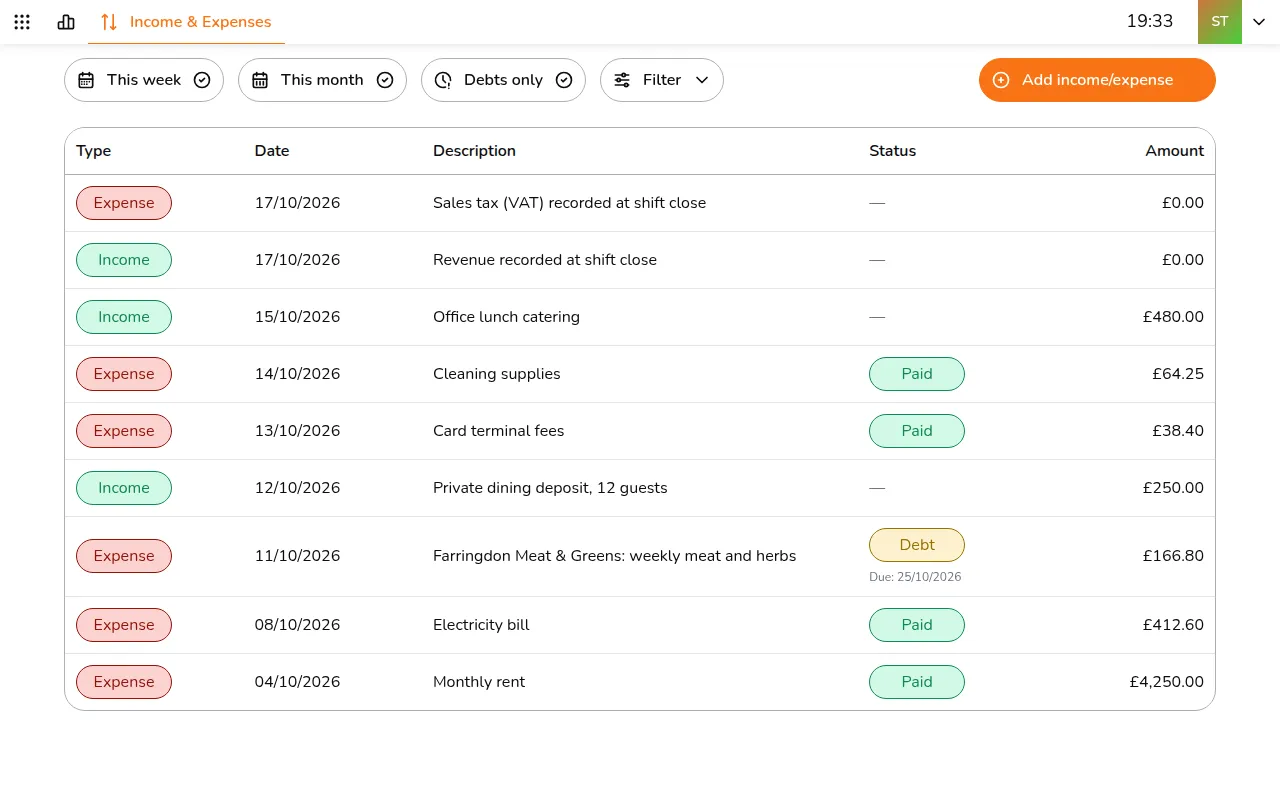
- Tap Add income/expense
- Pick the Transaction type: income or expense
- Pick the store and the Date
- Enter a Description and the Amount
- For an expense, set it as Paid with the date it was paid, or Debt (unpaid) with the date it is due
- Tap Create
Entries Smatyx makes for you
- Closing a sales shift records the shift's sales as income and its VAT as an expense
- Scanning a supplier invoice records its total as an expense, linked to the supplier and the delivery. See Scan supplier invoices
A shift's entries cannot be changed here: they follow the closed shift. An invoice's entry can be corrected or deleted like one you added yourself.