Work Schedule
Who is this article for?
Account owners, or team members whose role has:
- Work schedule and timesheet set to View to see the schedule, or Manage to plan it
Set roles in All apps > Setup > Roles.
Included in the Manage and Grow plans.
The work schedule is the plan of who works when. It is also what the rest of Team & Operations measures against: clock-ins are matched to shifts, the timesheet flags late arrivals and missed shifts, and pay follows the hours of each shift.
Open the schedule
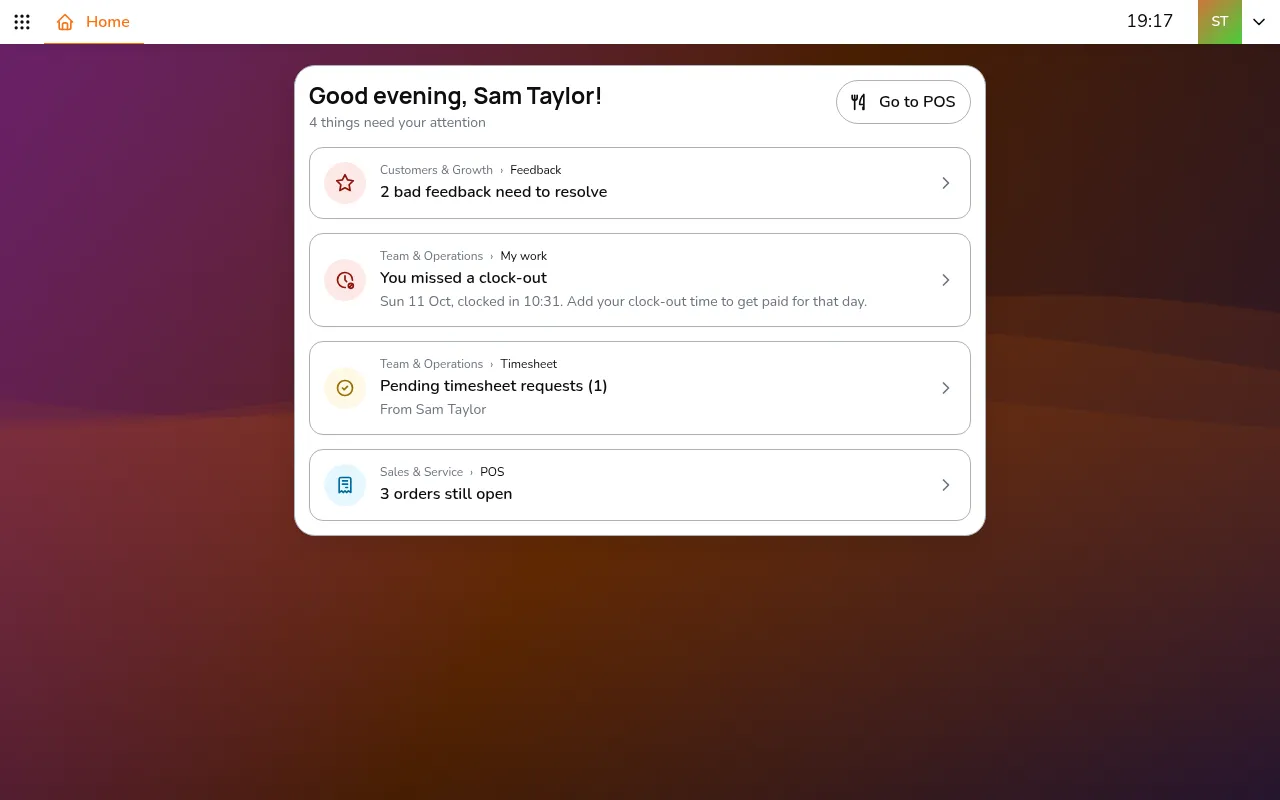
- Go to All apps > Team & Operations > Work schedule
- Pick the store with in the top bar
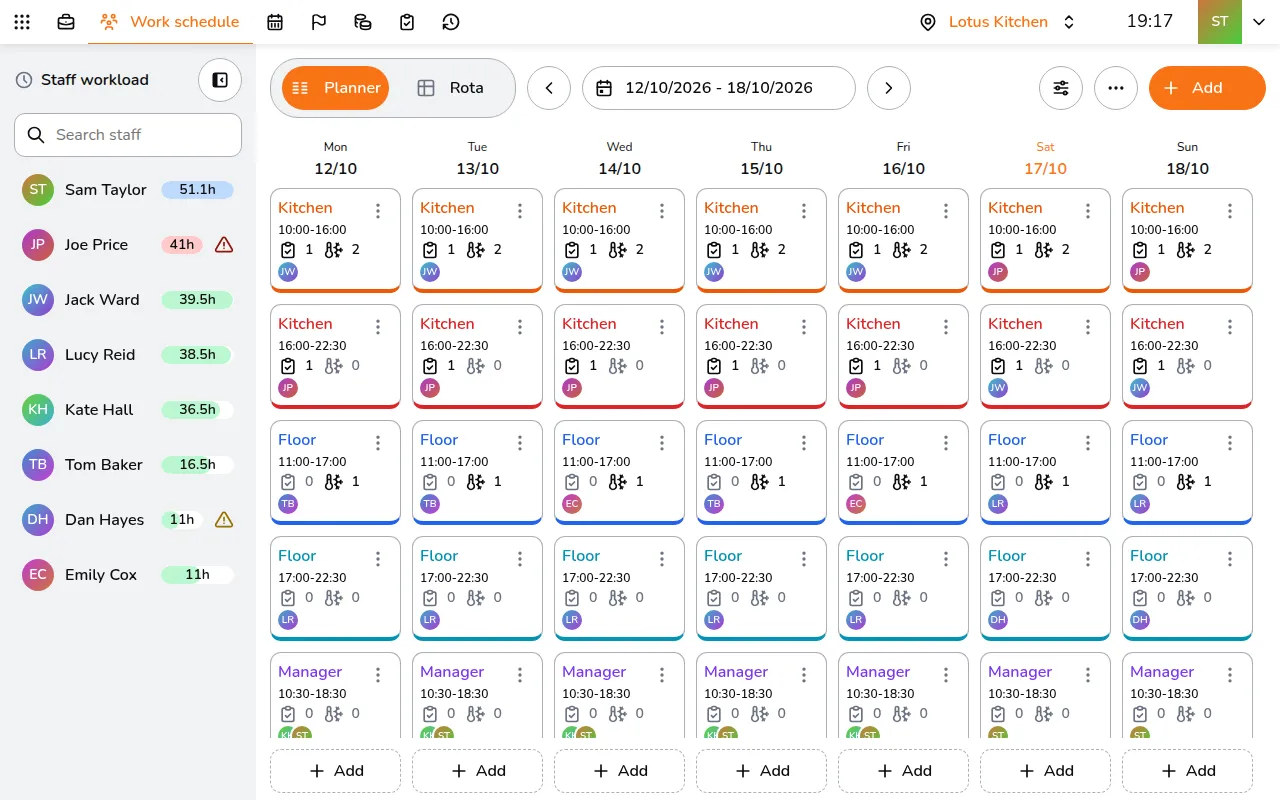
The Planner shows the week as columns of shift cards. Each card shows the shift's name (the work area, such as Kitchen or Floor), its hours, how many checklists and fridges it looks after, and who works it. On a phone it shows one day at a time: pick the day in the strip at the top.
Staff workload on the left adds up each person's paid hours for the week. It turns red when someone is over their maximum weekly hours and amber when they are under their minimum. Set those limits on the employee's profile. It is shown on a computer only.
Add a shift
- Tap Add in the toolbar (+ on a phone), or the dashed Add under a day
- Enter the Name, Date, Start and End. An end at or before the start means the shift finishes the next day
- Enter the Unpaid break in minutes. The line under it shows the paid hours: the shift's length minus the break
- Pick a Color and add a Note if needed
- Under Assigned, tap Add and tick the people who work it
- Under Checklists and Temperatures, tap Add to hand this shift the daily checks and fridges it is responsible for
- Tap Save
If a checklist or fridge is not on any shift that day, the day warns Not scheduled on any shift today: with the names (on a phone, how many checks are not on any shift), so nothing is left without an owner.
Change the week
- Tap a card to edit it
- Tap ⋮ on a card to Duplicate to other days, Move to day… or Delete
- Drag a card to another day to move it
- Drag a person from Staff workload onto a card to add them. You are warned if it overlaps another of their shifts
- To start next week from this one, tap ⋮ in the toolbar, then Copy to next week. It copies every shift, so run it once per week
Share the rota
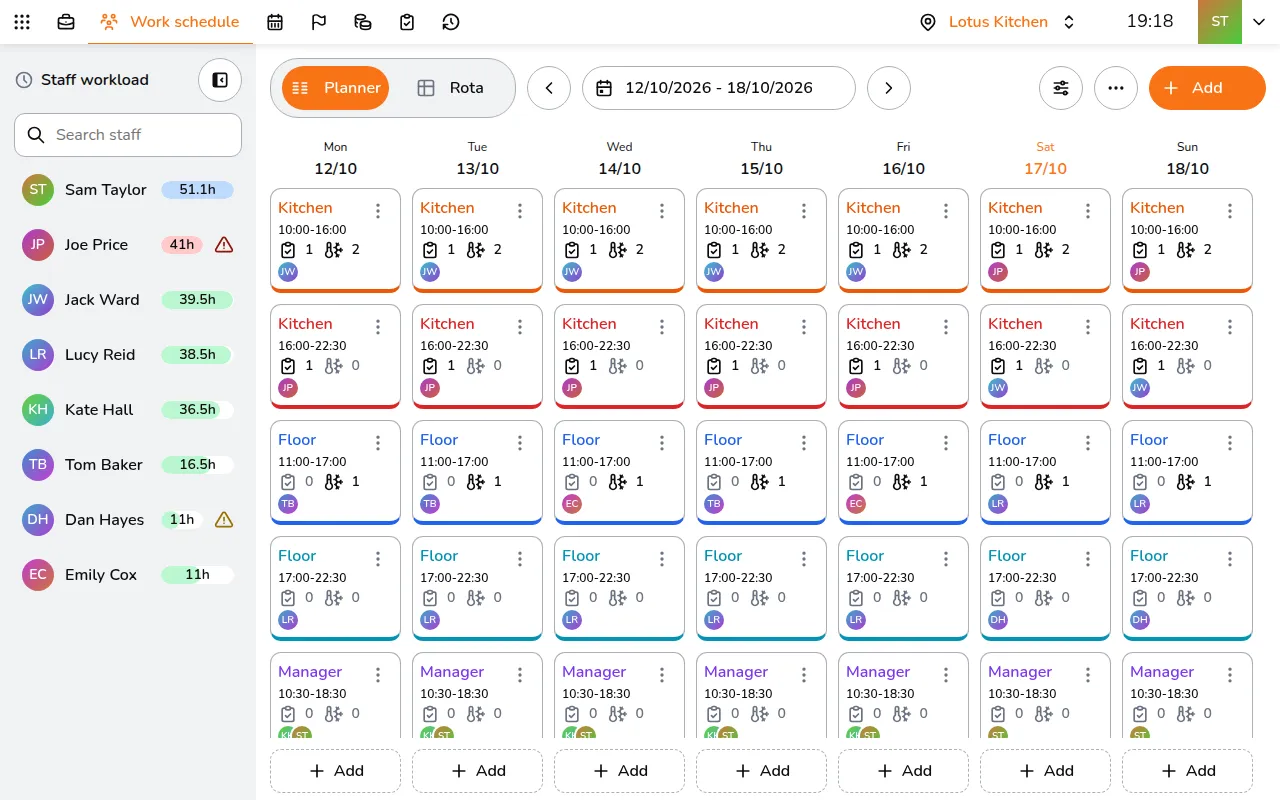
- Switch from Planner to Rota (two icons at the top left on a phone). The week shows as one row per person
It is the easiest view to check or share with the team.
Staff see their own shifts in My work. See Clock in and out.