Receiving Self-Orders
Who is this article for?
Account owners, or team members whose role has:
- Take orders
Set roles in All apps > Setup > Roles.
Included in the Manage and Grow plans.
A guest scans the QR code on the table, orders from their phone, and pays. What reaches the POS, and what staff do next, depends on how the store takes self-orders and how the guest pays. The store needs an open sales shift: without one, guests are told the store is closed.
How guests order
The store's When guests pay setting decides the flow. See Self-ordering setup.
- Counter service: guests order and pay before the food is made
- Table service: guests order through the meal. Each Send to kitchen from their phone goes to the kitchen straight away, and they pay once at the end
Take-away orders always pay first. With counter service, the guest's phone goes like this:
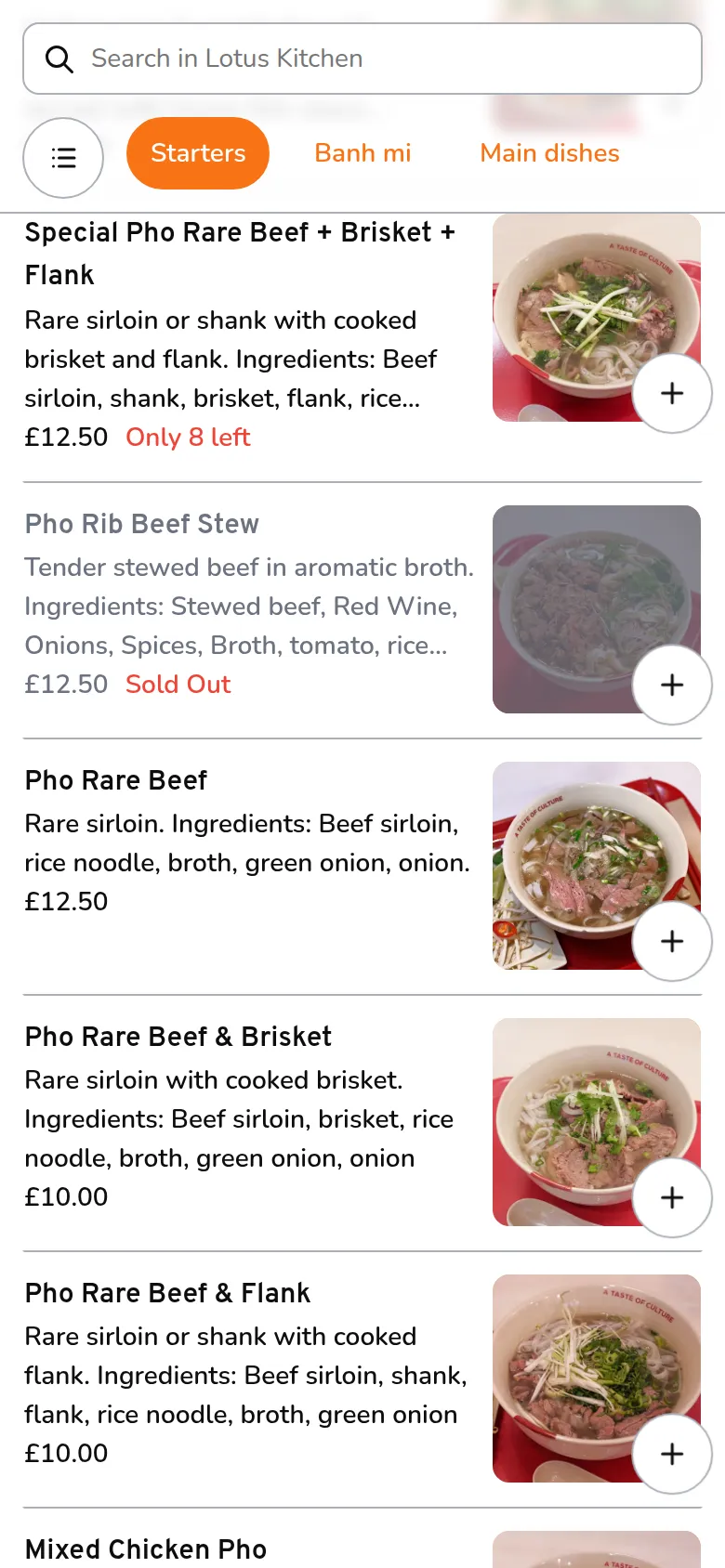
- The guest taps a dish, then Add to basket
- They tap Checkout. Here they can also apply a voucher and add a tip
- They enter their name and tap Proceed
- They choose Pay online or Pay at Counter
Orders that go straight to the kitchen
A guest who paid online, or a table ordering in table service, needs nothing from staff. The order appears on the POS with its number and a QR icon next to the table, and its dishes are already on the kitchen display. Later rounds from the same table add to the same order.
When a guest pays at the counter
A guest who chooses Pay at Counter is asked to come to the counter, and the POS gets a payment request.
The request is the red #---- card at the top of the order list, marked Asks to pay. Nothing is made until staff act on it.
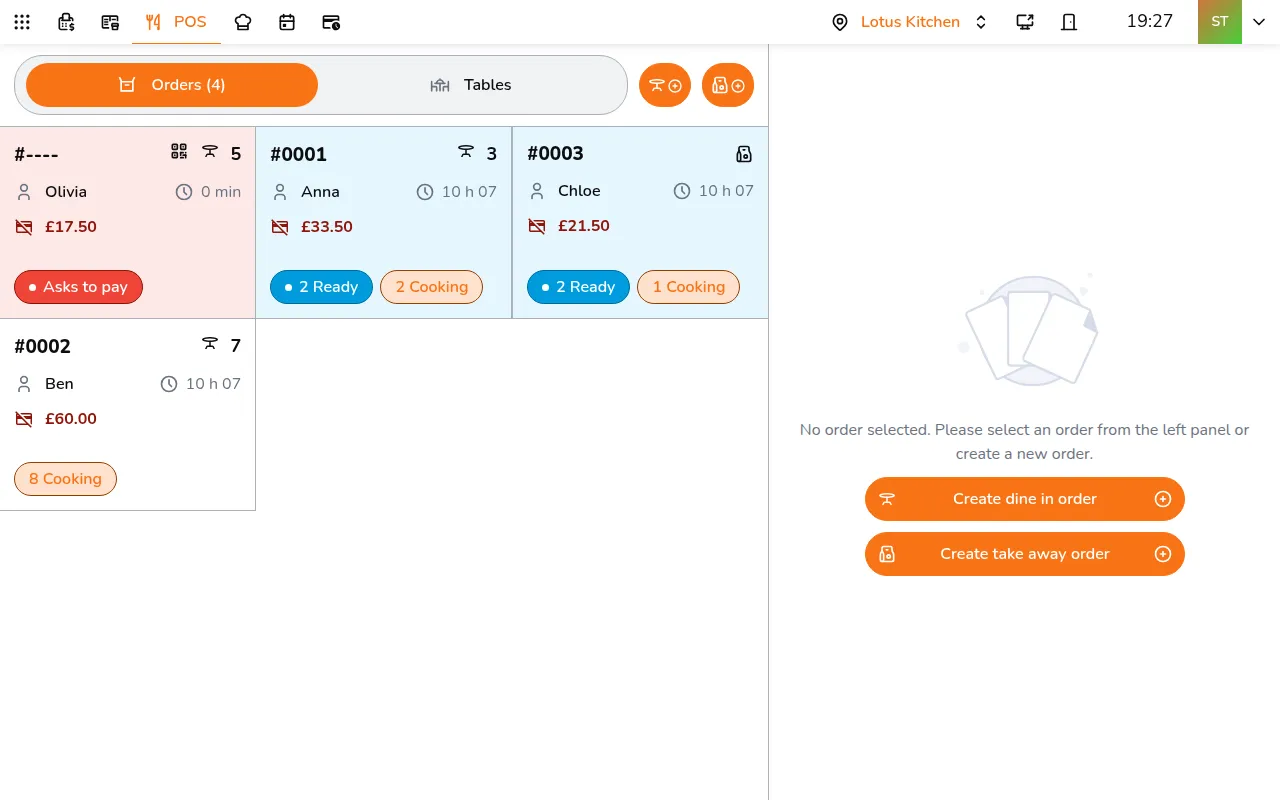
- Tap the red card. The cart shows the guest's name, their dishes and the total
- Tap Create order. The order gets its number, and its dishes wait as New
- Tap Send 2 to kitchen, and take the payment with Pay
To turn a request down, tap ⋯ on it, then Cancel order. The guest's phone says staff cancelled it, and they keep their basket to try again.
When a table asks for the bill
In table service, turning on Guest can ask staff for the bill lets guests ask from their phone. The request shows as a red card for that table. Open the table's own order, the one with a number, and take payment there with Pay. The red card clears when the order is completed.
New order alert
With Alert me when a new order arrives on, the POS rings and shows New order arrived, or Payment request for a pay-at-counter guest, with Open order. Turn it on for each POS device: tap your avatar in the top bar, then Alerts under This device. It rings only on the POS order screen, and only when nobody has touched the POS for a minute, so it never interrupts someone taking an order.