Kitchen Display System
Who is this article for?
Account owners, or team members whose role has:
- Kitchen display
Set roles in All apps > Setup > Roles.
The KDS replaces paper tickets with a digital screen. Orders appear instantly when placed from POS or self-ordering.
Accessing the KDS
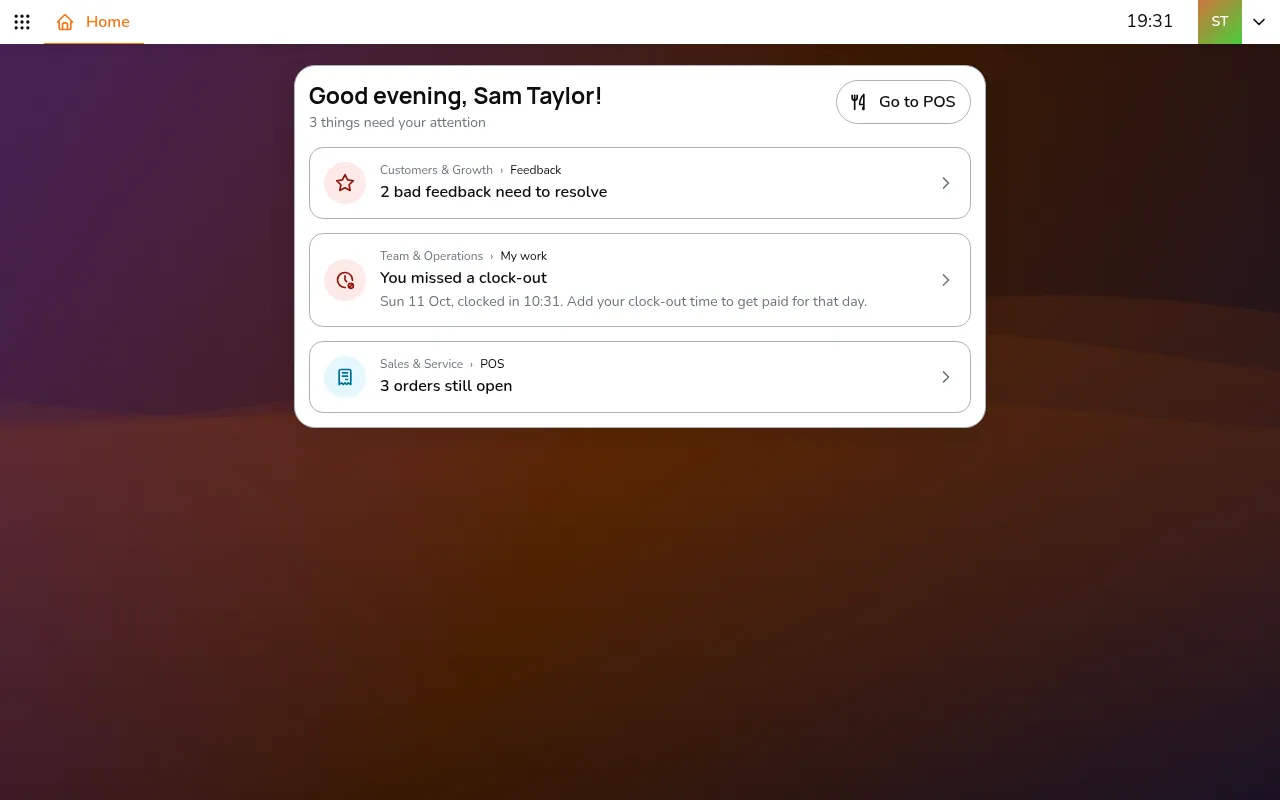
- Go to All apps > Sales & Service > POS
- Select your store using the store selector
- Go to KDS
Kitchen stations (optional)
If your kitchen has separate prep areas (grill, cold, drinks), you can set up stations so each screen only shows relevant items:
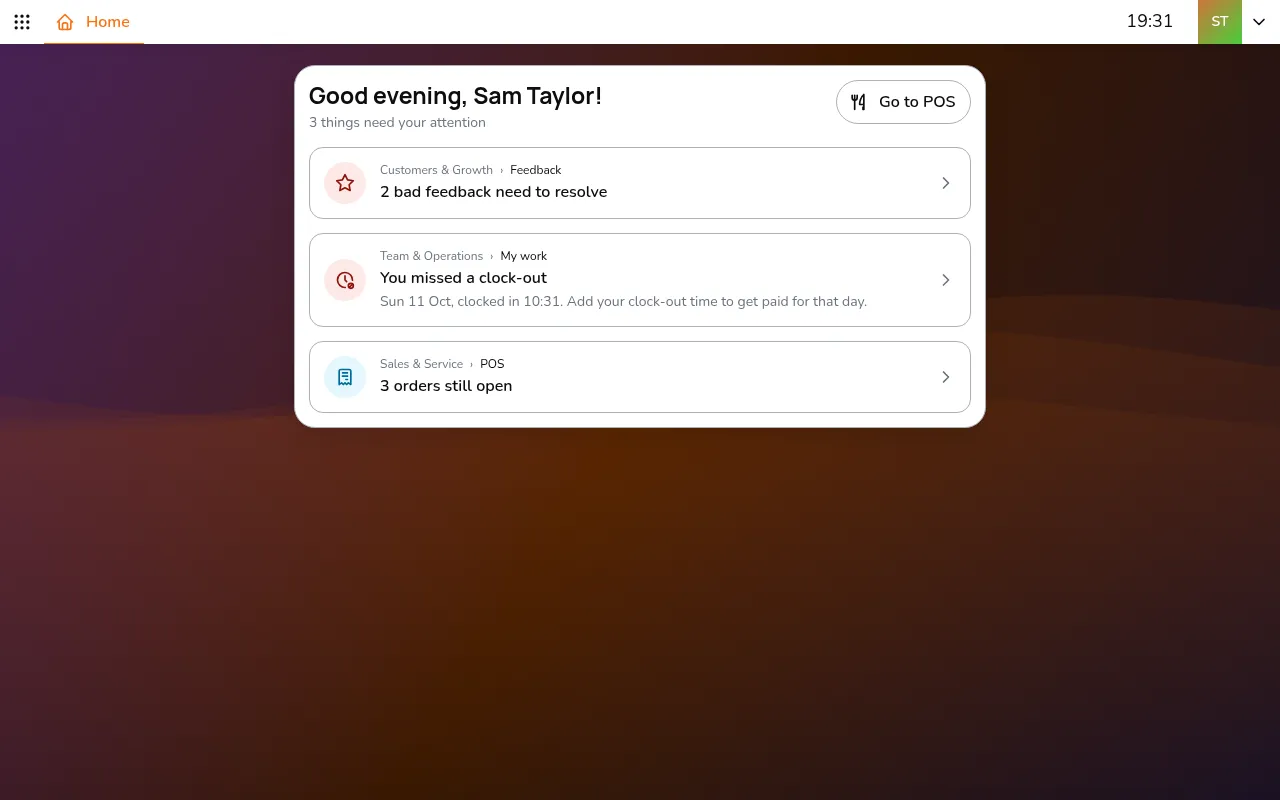
- Go to All apps > Setup > Sales and pick your store with in the app bar
- Open Kitchen stations and tap Add kitchen station
- Name the station and tap Select menu items to give it its dishes. A menu group's button picks all its dishes
Enable kitchen stations turns stations on for the store. On the KDS, tap Select station(s) in the app bar to pick which stations this screen shows.
Without stations, the KDS shows all items.
The kitchen screen
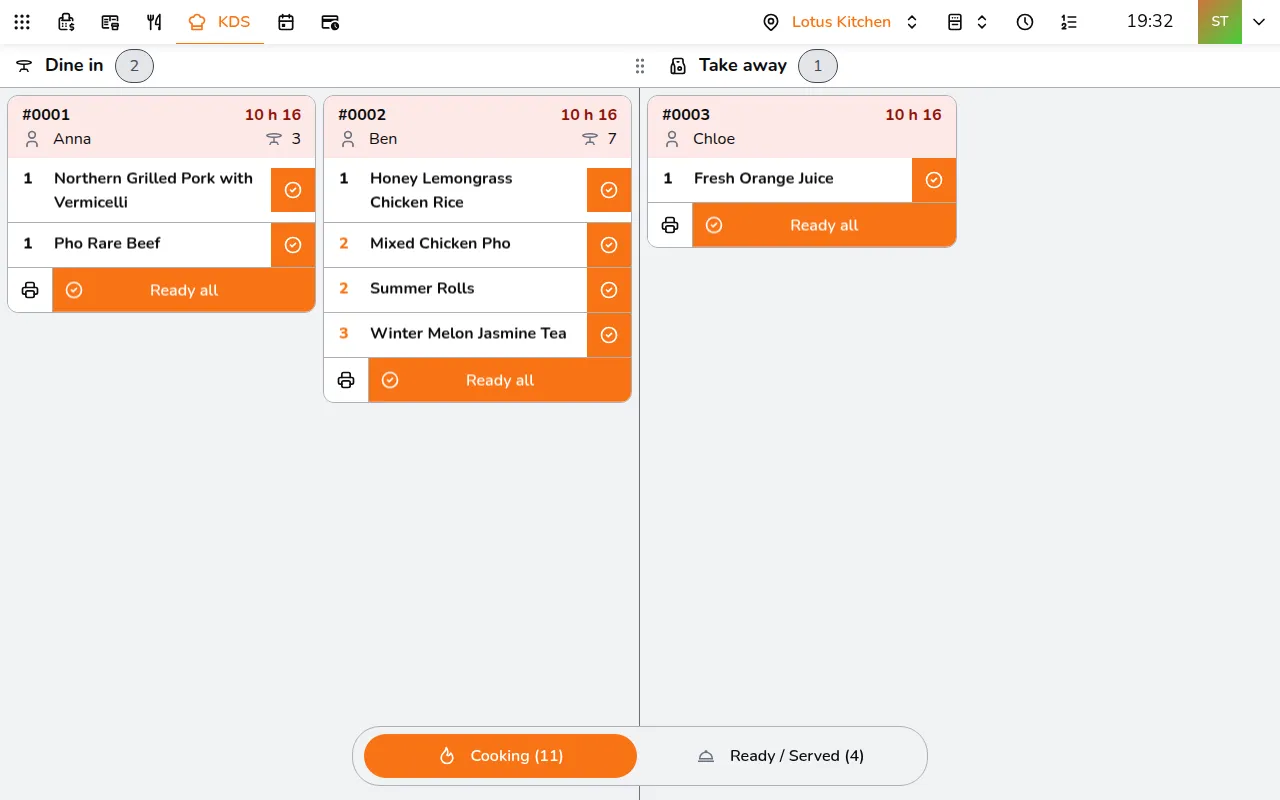
The KDS opens on the Cooking tab. Tickets sit in one column per order type: Dine in, Take away and Delivery, for the types your store takes. A column is cut into lanes, and its tickets fill them left to right, oldest first. When a ticket is done, the next ones close up.
Each ticket shows:
- The order number and how long the order has waited. The ticket turns yellow after 10 minutes and red after 20
- The guest's name, and the table for dine-in
- Each dish with its quantity, its add-ons on a red "+" line, and its note
Column widths: drag the handle between two columns to give one more lanes. A column dragged to nothing waits as a chip in the column header: tap the chip to bring it back. Auto shares the lanes out again by itself.
All day: tap All day in the app bar to see, beside the tickets, how many of each dish are waiting. Tap a dish there to light it up on the tickets. It shows on the Cooking tab.
On a phone, the KDS shows the tickets still cooking, one order type at a time, picked with the tabs at the top. Ready and served dishes are on the Ready / Served tab of a computer or tablet.
The KDS flow
1. Order comes in
When an order is sent to the kitchen, its ticket appears in the Cooking tab, in the column of its order type.
2. Mark dishes as ready
Kitchen staff prepares the food and marks it done:
- The button at the right of a dish marks that dish ready
- Ready all at the bottom of the ticket marks the whole ticket ready
- Tap a dish to mark only some of it ready, when a line has more than one
Ready dishes move from Cooking to the Ready / Served tab. Switch tabs with Cooking and Ready / Served at the bottom of the screen.
3. Serve dishes
The Ready / Served tab has two columns: Ready to serve and Served. When food reaches the guest:
- The button at the right of a dish marks that dish served
- Serve all marks the whole ticket served
4. Complete the order
A ticket in Served has Complete. Tap it to finish the order. If the order still has dishes to serve, the KDS asks first, and Complete anyway closes it.
5. Call to pick up
For take-away or counter service, tap on the order's ticket in Served, then Call to pick up order to announce the order number using text-to-speech. The customer hears their order called out.
Sending items back
Sometimes things need to go back. Tap a dish on the Ready / Served tab:
- Return to cooking - sends a ready dish back to the Cooking tab
- Return to ready - sends a served dish back to Ready to serve
- Remove item - removes a dish entirely
For a whole ticket, tap on it, then Return all to cooking or Return all to ready.
Printing
- at the bottom left of a ticket on the Cooking tab prints all its dishes. On the Ready / Served tab it is under : Print all items
- in a dish's window prints that dish
Item states
- Sent - the dish just arrived, on its ticket in the Cooking tab
- Ready - marked ready with its button or Ready all, now in Ready to serve on the Ready / Served tab
- Served - marked served with its button once it reached the guest
- Dishes can move back if needed: tap one for Return to cooking
Modern or Classic
The screen above is the Modern look, the default. Each device can switch to Classic, the earlier board with one column per order type and no lanes: tap your avatar in the app bar, then under This device open Kitchen (KDS) and set KDS display.