Màn hình bếp (KDS)
Bài viết này dành cho ai?
Chủ tài khoản, hoặc nhân viên có vai trò:
- Màn hình bếp
Cài đặt vai trò tại Tất cả > Thiết lập > Vai trò.
KDS thay phiếu giấy bằng một màn hình số. Đơn hiện ngay khi được tạo từ POS hoặc từ tự gọi món.
Mở KDS
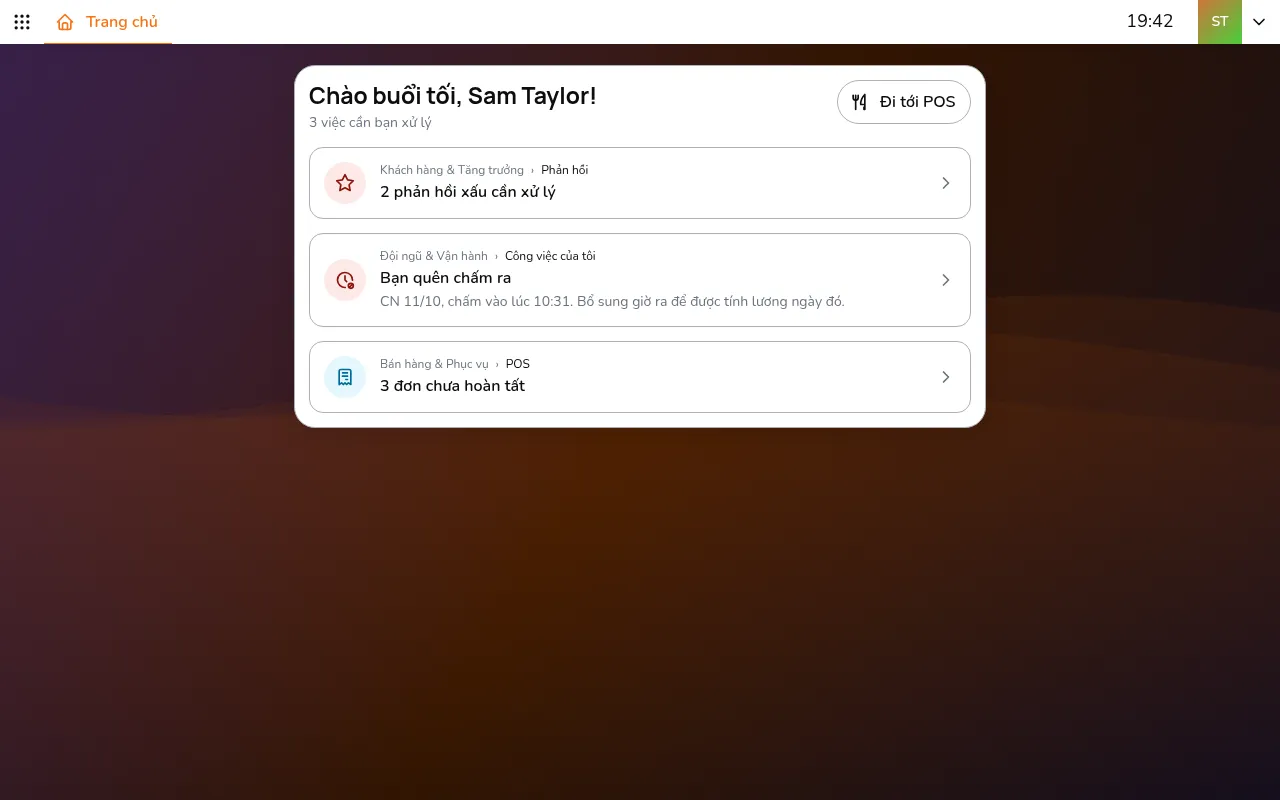
- Vào Tất cả > Bán hàng & Phục vụ > POS
- Chọn cửa hàng bằng bộ chọn cửa hàng
- Vào KDS
Trạm bếp (không bắt buộc)
Nếu bếp có các khu sơ chế riêng (nướng, đồ nguội, đồ uống), bạn có thể tạo trạm bếp để mỗi màn hình chỉ hiện những món của khu đó:
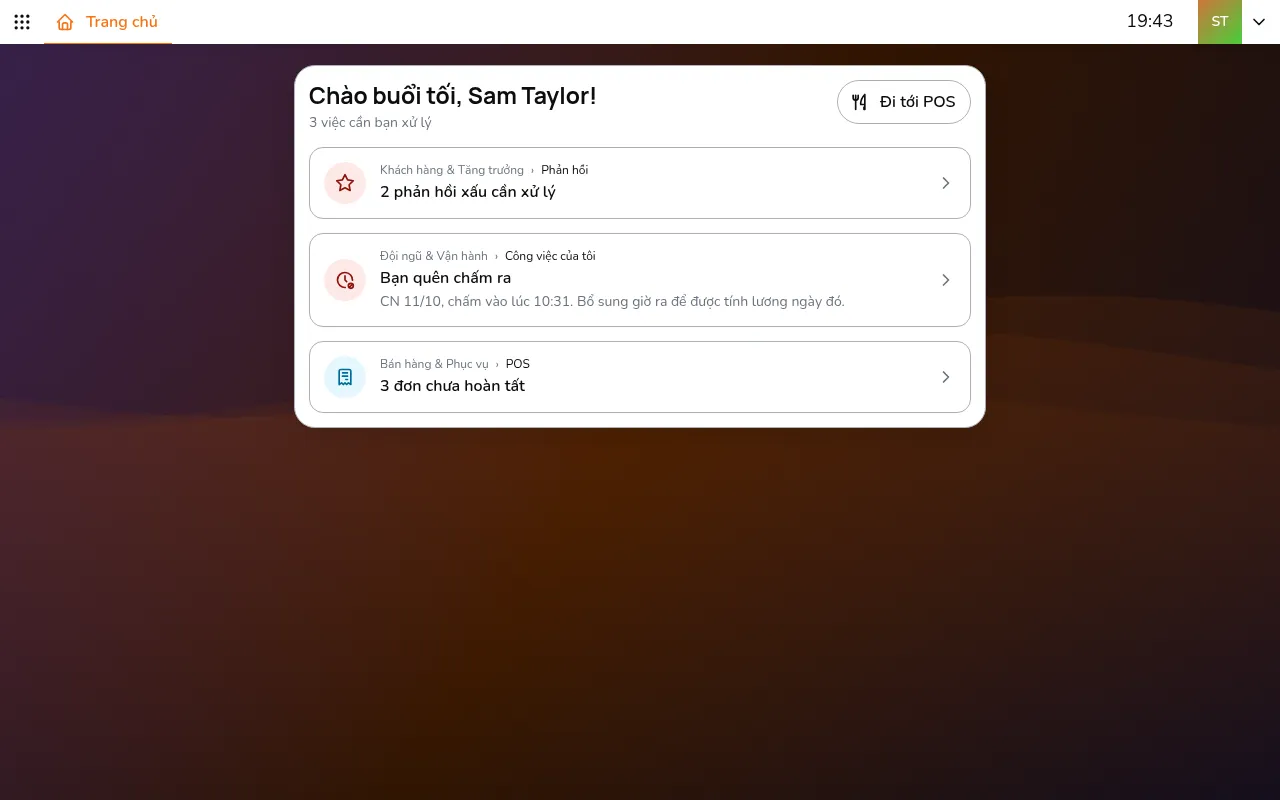
- Vào Tất cả > Thiết lập > Bán hàng và chọn cửa hàng bằng trên thanh ứng dụng
- Mở Trạm bếp rồi bấm Thêm trạm bếp
- Đặt tên trạm và bấm Chọn món để giao món cho trạm. Nút của một nhóm món chọn mọi món trong nhóm đó
Bật trạm bếp để cửa hàng dùng trạm bếp. Trên KDS, bấm Chọn trạm bếp trên thanh ứng dụng để chọn những trạm màn hình này hiện.
Không có trạm bếp thì KDS hiện mọi món.
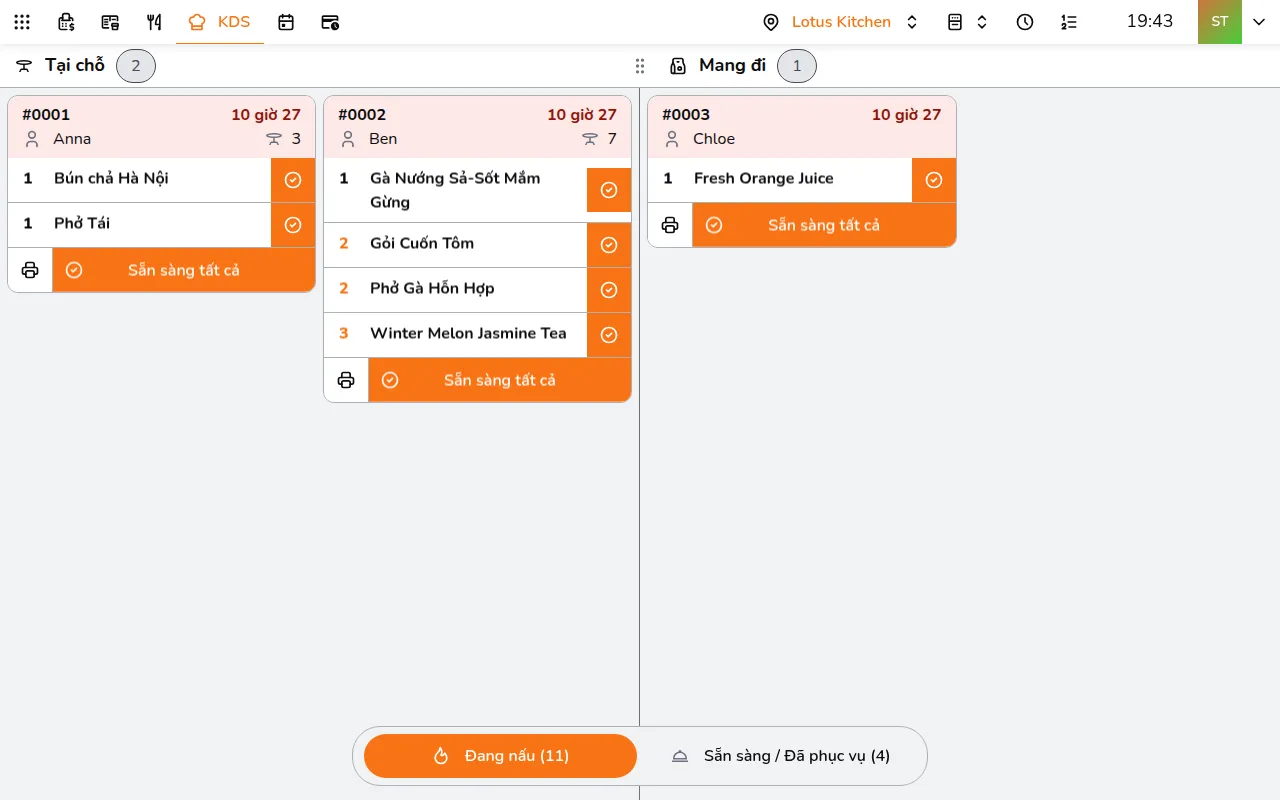
Màn hình bếp
KDS mở ở tab Đang nấu. Phiếu nằm theo cột, mỗi cột một phương thức đặt hàng: Tại chỗ, Mang đi và Giao hàng, theo những phương thức cửa hàng nhận. Mỗi cột chia thành nhiều làn, phiếu xếp vào các làn từ trái sang phải, phiếu cũ nhất trước. Khi một phiếu xong, các phiếu sau dồn lên.
Mỗi phiếu cho biết:
- Số đơn và đơn đã chờ bao lâu. Phiếu chuyển vàng sau 10 phút và đỏ sau 20 phút
- Tên khách, và số bàn với đơn tại chỗ
- Từng món với số lượng, tùy chọn thêm trên một dòng "+" màu đỏ, và ghi chú
Độ rộng cột: kéo tay nắm giữa hai cột để cho một cột thêm làn. Cột bị kéo về không sẽ nằm chờ thành một nhãn trên đầu cột: bấm nhãn để đưa cột trở lại. Tự động chia lại các làn như ban đầu.
Tổng món: bấm Tổng món trên thanh ứng dụng để xem, bên cạnh các phiếu, mỗi món đang chờ bao nhiêu phần. Bấm một món ở đó để tô sáng món đó trên các phiếu. Chỉ có ở tab Đang nấu.
Trên điện thoại, KDS hiện các phiếu đang nấu, từng phương thức đặt hàng một, chọn bằng các tab ở trên cùng. Món đã sẵn sàng và đã phục vụ nằm ở tab Sẵn sàng / Đã phục vụ trên máy tính hoặc máy tính bảng.
Quy trình trên KDS
1. Có đơn mới
Khi đơn được gửi xuống bếp, phiếu của đơn hiện ở tab Đang nấu, trong cột theo phương thức đặt hàng của đơn.
2. Đánh dấu món đã sẵn sàng
Nhân viên bếp làm món rồi đánh dấu xong:
- Nút bên phải một món đánh dấu món đó đã sẵn sàng
- Sẵn sàng tất cả ở cuối phiếu đánh dấu cả phiếu đã sẵn sàng
- Bấm vào một món để đánh dấu sẵn sàng một phần, khi dòng đó có nhiều phần
Món đã sẵn sàng chuyển từ Đang nấu sang tab Sẵn sàng / Đã phục vụ. Chuyển tab bằng Đang nấu và Sẵn sàng / Đã phục vụ ở cuối màn hình.
3. Phục vụ món
Tab Sẵn sàng / Đã phục vụ có hai cột: Sẵn sàng phục vụ và Đã phục vụ. Khi món được mang ra cho khách:
- Nút bên phải một món đánh dấu món đó đã phục vụ
- Phục vụ tất cả đánh dấu cả phiếu đã phục vụ
4. Hoàn thành đơn
Phiếu trong cột Đã phục vụ có nút Hoàn thành. Bấm vào để kết thúc đơn. Nếu đơn vẫn còn món chưa phục vụ, KDS hỏi lại trước, và Vẫn hoàn thành sẽ đóng đơn.
5. Gọi khách lấy đơn
Với đơn mang đi hoặc phục vụ tại quầy, bấm trên phiếu của đơn trong cột Đã phục vụ, rồi bấm Gọi khách lấy đơn để máy đọc to số đơn. Khách nghe số đơn của mình được gọi.
Đưa món về bước trước
Đôi khi món cần quay lại. Bấm vào một món ở tab Sẵn sàng / Đã phục vụ:
- Quay lại đang nấu: đưa một món đã sẵn sàng về tab Đang nấu
- Quay lại sẵn sàng: đưa một món đã phục vụ về Sẵn sàng phục vụ
- Xóa món: bỏ hẳn một món
Với cả phiếu, bấm trên phiếu, rồi Trả tất cả về đang nấu hoặc Trả tất cả về sẵn sàng.
In phiếu
- ở góc dưới bên trái của phiếu ở tab Đang nấu in mọi món của phiếu. Ở tab Sẵn sàng / Đã phục vụ, nút này nằm trong : In tất cả món
- trong cửa sổ của một món in riêng món đó
Trạng thái món
- Đã gửi bếp: món vừa đến, nằm trên phiếu ở tab Đang nấu
- Sẵn sàng: đã đánh dấu bằng nút của món hoặc Sẵn sàng tất cả, giờ nằm ở Sẵn sàng phục vụ trong tab Sẵn sàng / Đã phục vụ
- Đã phục vụ: đã đánh dấu bằng nút của món khi món đến tay khách
- Món có thể quay lại bước trước khi cần: bấm vào món để chọn Quay lại đang nấu
Hiện đại hay Cổ điển
Màn hình ở trên là giao diện Hiện đại, mặc định. Mỗi máy có thể chuyển sang Cổ điển, bảng cũ với mỗi phương thức đặt hàng một cột và không chia làn: bấm ảnh đại diện trên thanh ứng dụng, rồi ở mục Máy này mở Bếp (KDS) và chọn Hiển thị KDS.