Pickup Screen & Sound
Who is this article for?
Account owners, or team members whose role has:
- Take orders
Set roles in All apps > Setup > Roles.
TV Pickup Screen
A customer-facing display that shows which orders are being prepared and which are ready for pickup. It opens in a new browser tab so you can drag it to a second monitor or TV connected to your computer.
Setting up
- Connect a second monitor or TV to your computer
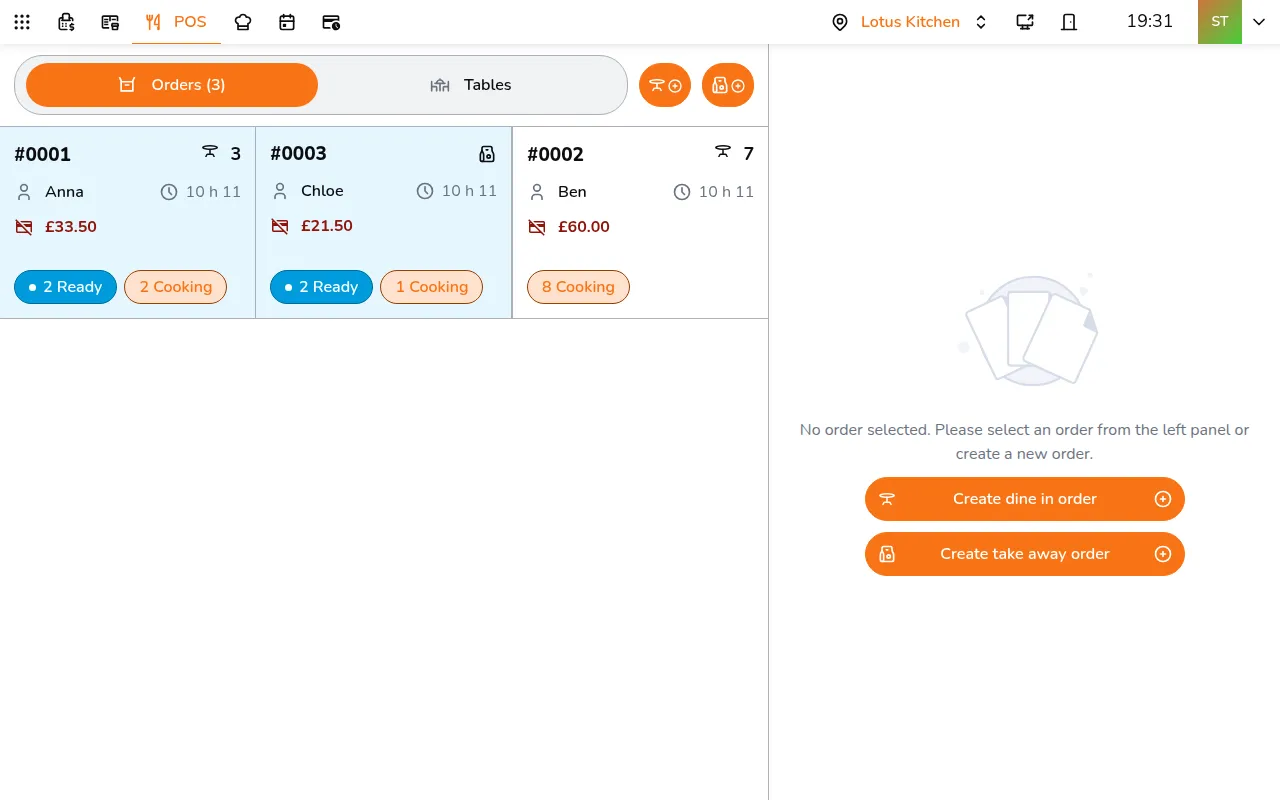
- In the POS, tap Open pickup screen in the top bar, then pick the screen under Select display
- A new browser tab opens with the pickup screen
- Drag the tab to the second monitor
- Full-screen the browser
The Open pickup screen button is on the POS of a computer or tablet, not of a phone.
What it shows
The screen has two sections:
- Preparing (left) - orders currently being cooked. Close to done, an order shows the minutes left, then Almost ready
- Pickup (right) - orders ready for the customer to collect, showing the customer name if available
If there are more orders than fit on screen, the display rotates through them automatically.
How it looks
The look belongs to the store, so every TV at the store shows the same, whoever uses the POS. Go to All apps > Setup > Sales, pick your store with in the app bar, and open Pickup screen (TV):
- Theme: Light or Dark
- Language on the TV: the language guests read on the screen. Same as the TV's browser follows the TV
- Primary color: the brand color from self-order, unless you pick another
Preview shows the screen as you change it. After you save, a pickup screen already open takes the new look at once.
Order Announcement Sound
When an order is ready, Smatyx can announce the order number or table number using text-to-speech.
Enabling
Tap your avatar in the app bar, then under This device open Alerts and turn on Voice call-out for ready orders. Pick a Speech rate and tap Test to hear it. The setting belongs to the device, so turn it on where the speaker is.
You can also announce a specific order by tapping Call to pick up order on the order.
On the KDS, Call to pick up order on a served ticket announces the order.