Sales Shifts
Who is this article for?
Account owners, or team members whose role has:
- Sales shifts set to Manage, to open and close shifts
- Take orders, to join a shift and sell
Set roles in All apps > Setup > Roles.
Included in every plan.
A sales shift groups everything that happens at one store's POS between opening and closing: orders, payments and the cash in the drawer. The POS only takes orders while a shift is open and you have joined it.
A sales shift is not a work shift. Work shifts plan when people work; sales shifts track what the POS sells.
Pick your store
The POS always works for one store. The first time you open POS, it asks which one:
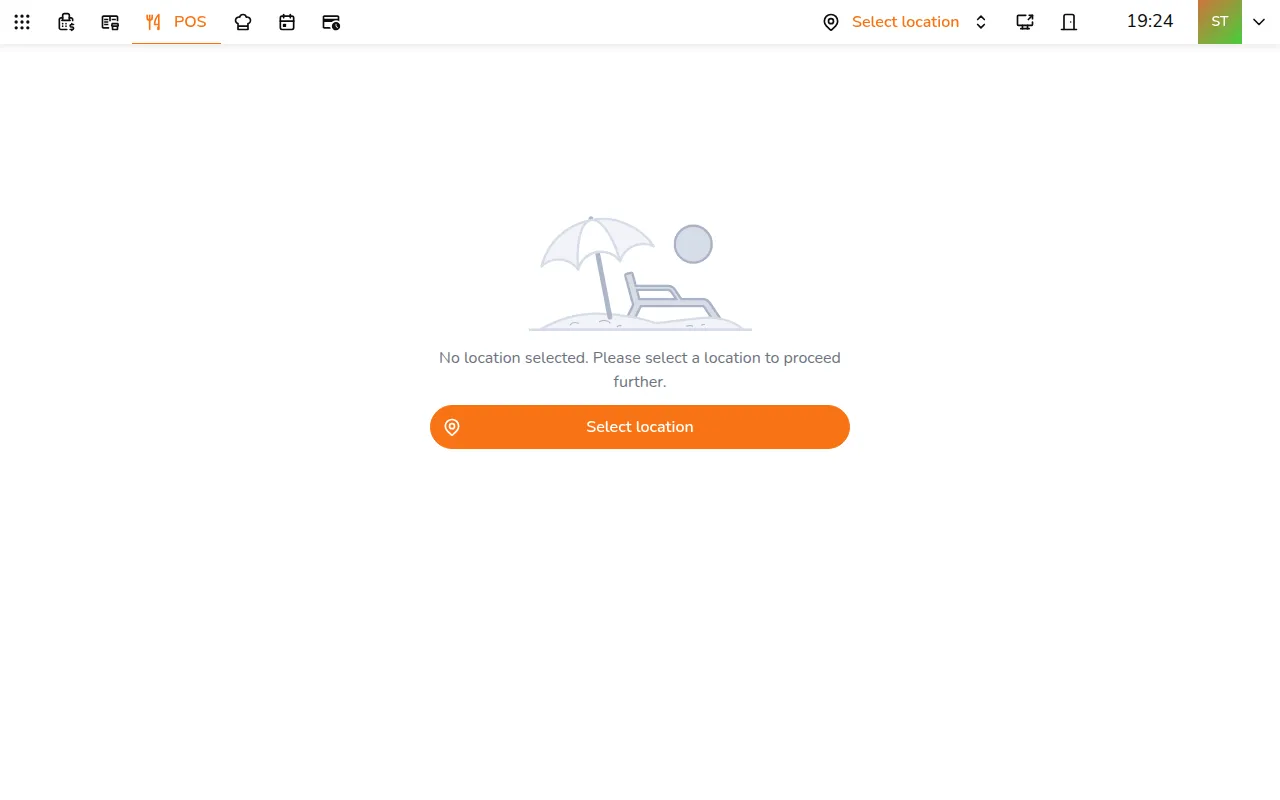
- Tap Select location
- Tap your store
To change store later, tap the store picker in the top bar. A phone shows only the pin.
Open a shift
If nobody has opened a shift at this store yet, the POS says No sales shift is open at this store.
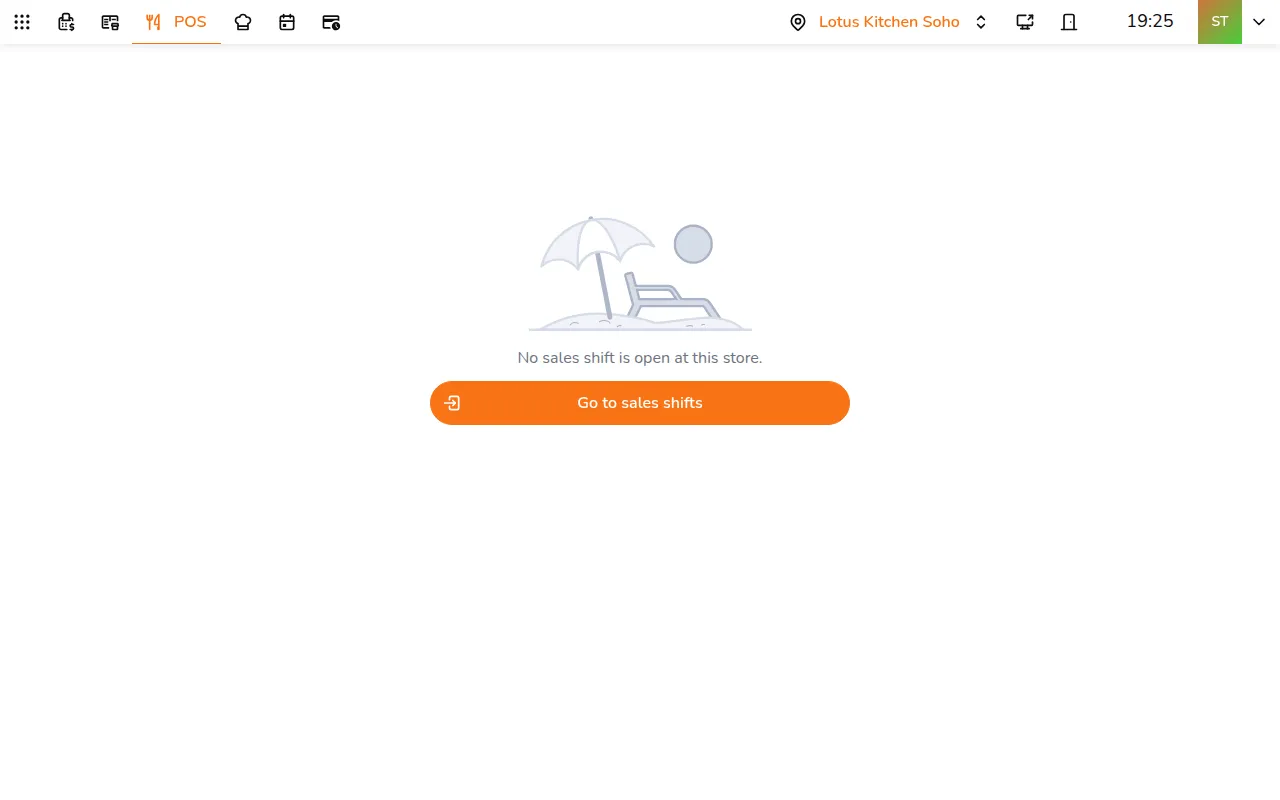
- Tap Go to sales shifts, or open Shift
- Tap Open new shift
- Enter the Opening cash: the money in the drawer before the first sale
- Add a note if you need one
- Tap Open new shift
You join the shift you open, and the POS is ready to take orders.
Join a shift
Everyone else who sells at the store joins the open shift. When you open the POS at a store whose shift you have not joined yet, it asks you to join. There is no code to type.
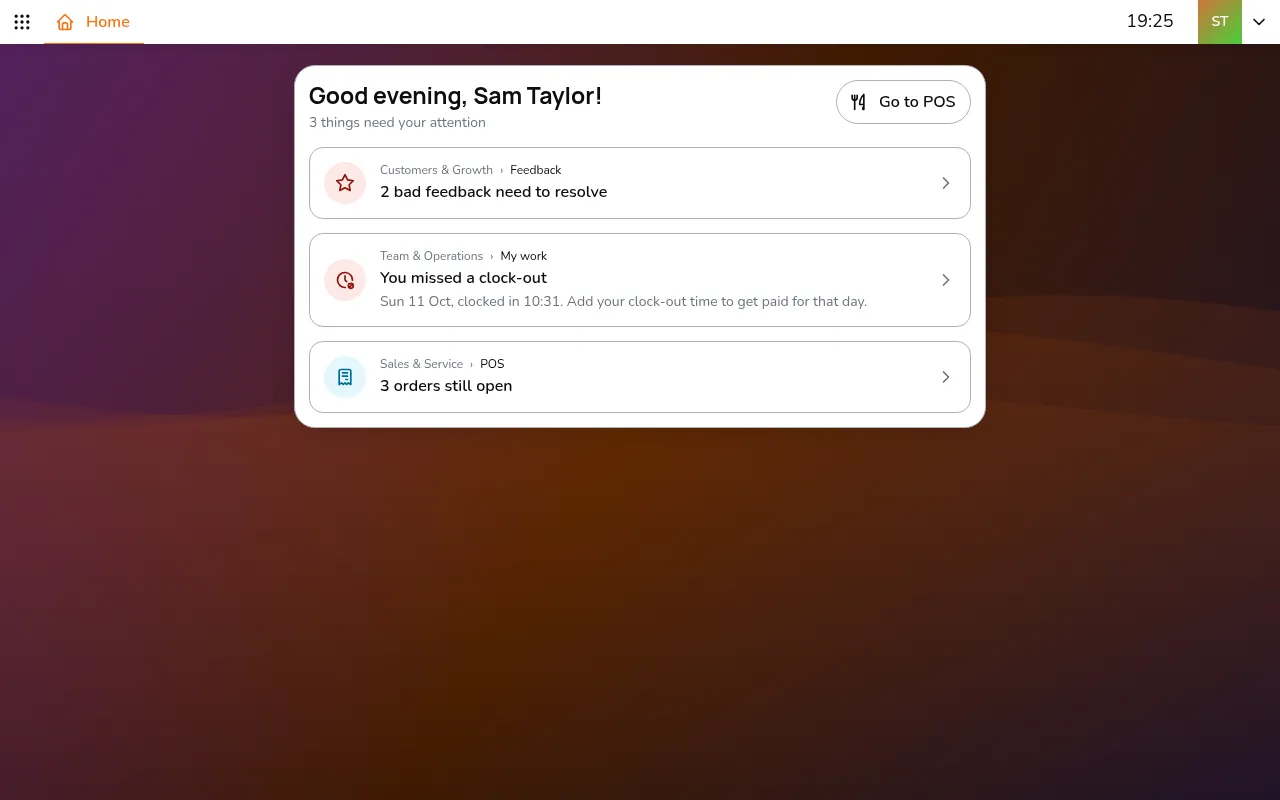
- Go to POS
- Tap Join shift
You can be on one shift at a time. Joining a shift at another store takes you off the one you were on, and the POS tells you so before you tap.
If the store asks staff to clock in before they sell, the POS sends them to clock in first.
During a shift
Every order and payment is recorded under the shift, with the name of whoever took it.
On Shift, the card at the top shows the open shift: how long it has run, its sales so far, and the cashier. On a phone it is the View and close current shift button.
Close a shift
At the end of the day, count the drawer and close the shift:
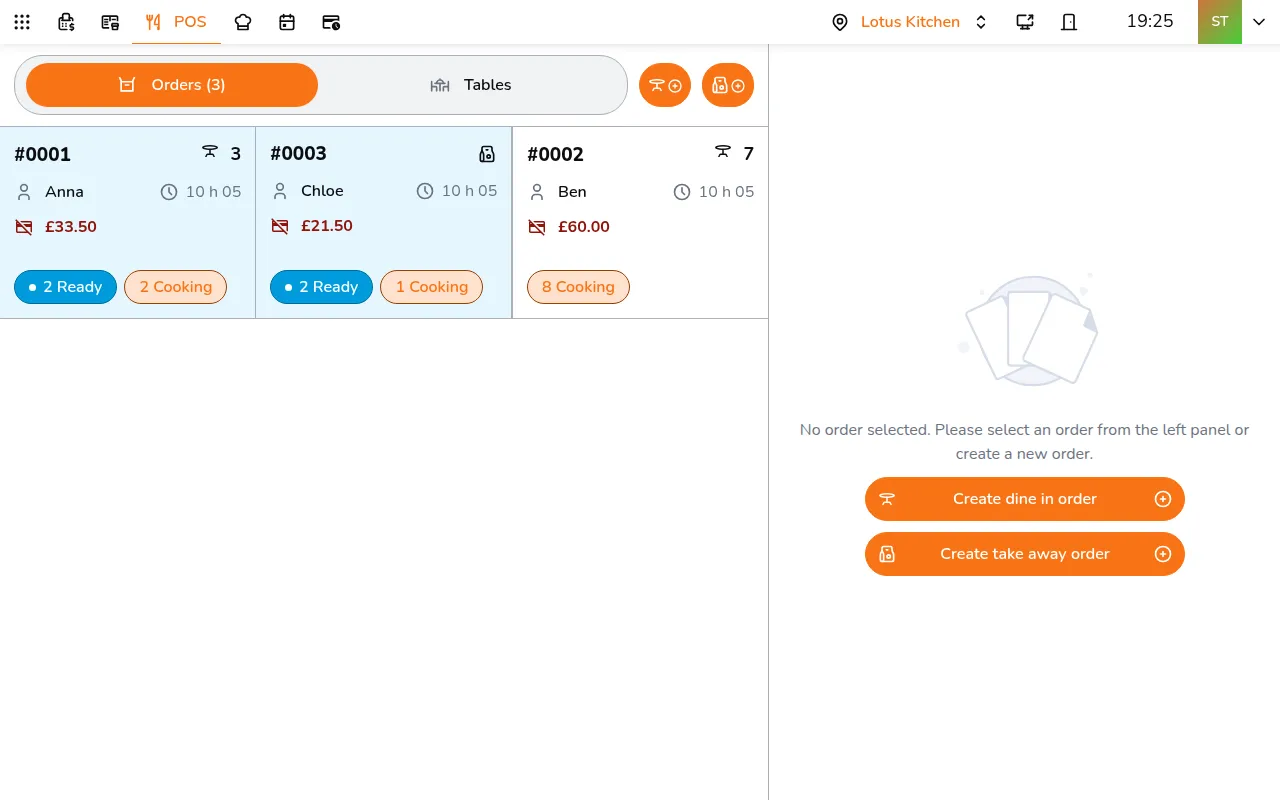
- Open Shift and tap the open shift
- Under Shift Close Information, enter Cash in: cash added to the drawer that did not come from sales
- Enter Cash out: cash taken out of the drawer, for example for a supplier
- Add a close note if you need one
- Check Shift Statistics and Payment Breakdown
- Tap Close shift, then Yes, close this shift (Confirm on a phone)
Closing cannot be undone, so count the cash before you confirm.