Split Payments
Who is this article for?
Account owners, or team members whose role has:
- Take orders
- Sales shifts set to Manage
Set roles in All apps > Setup > Roles.
Customers want to split the bill? Smatyx lets you split an order into multiple payments.
Step 1: Select payment methods
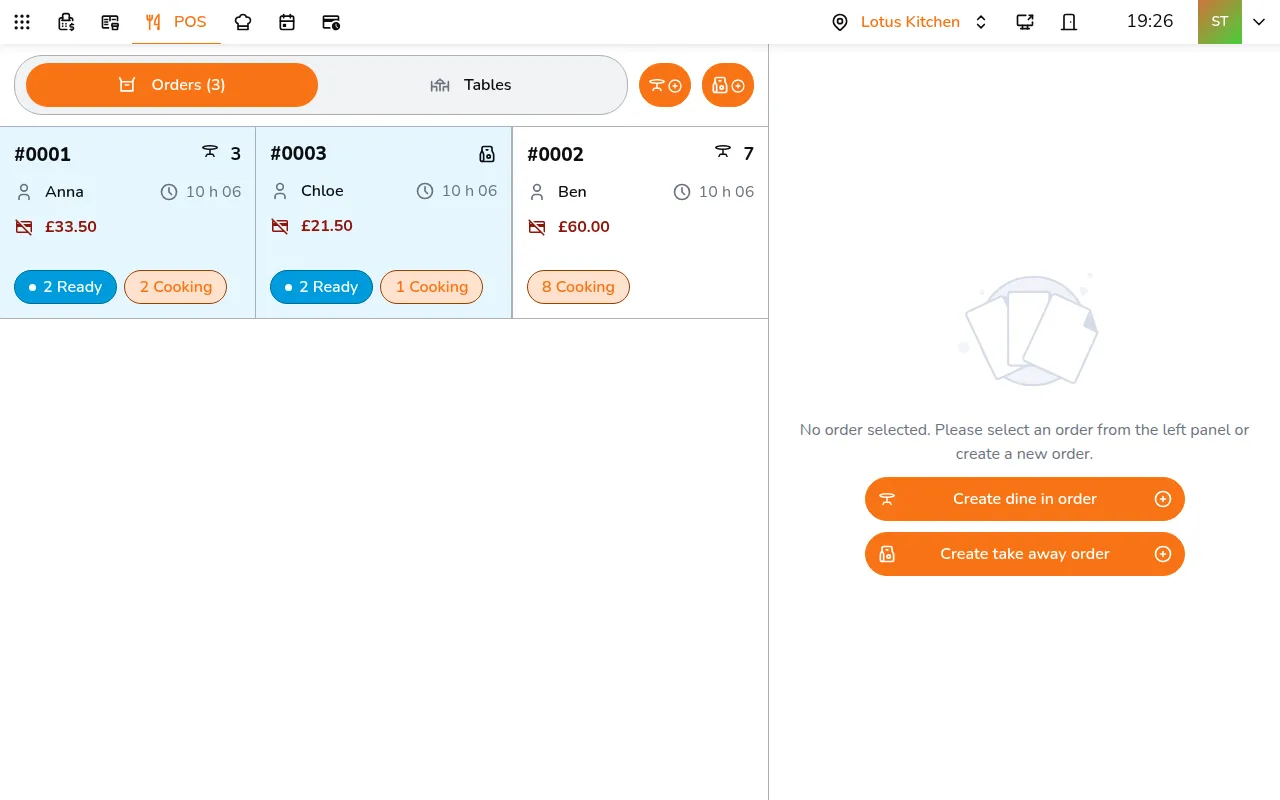
Step 1/8Open the order and tap Pay
- Open the order and tap Pay
- Tap Multiple methods
- Select the payment methods this order will be split across (e.g., Cash and Dojo card terminal)
- Each method appears in the list below with a sequence number. You can remove a method by tapping the trash icon
- Tap Next when you have at least 2 methods selected
Step 2: Distribute the bill
You can split either by items or by amount using the tabs at the top.
By items
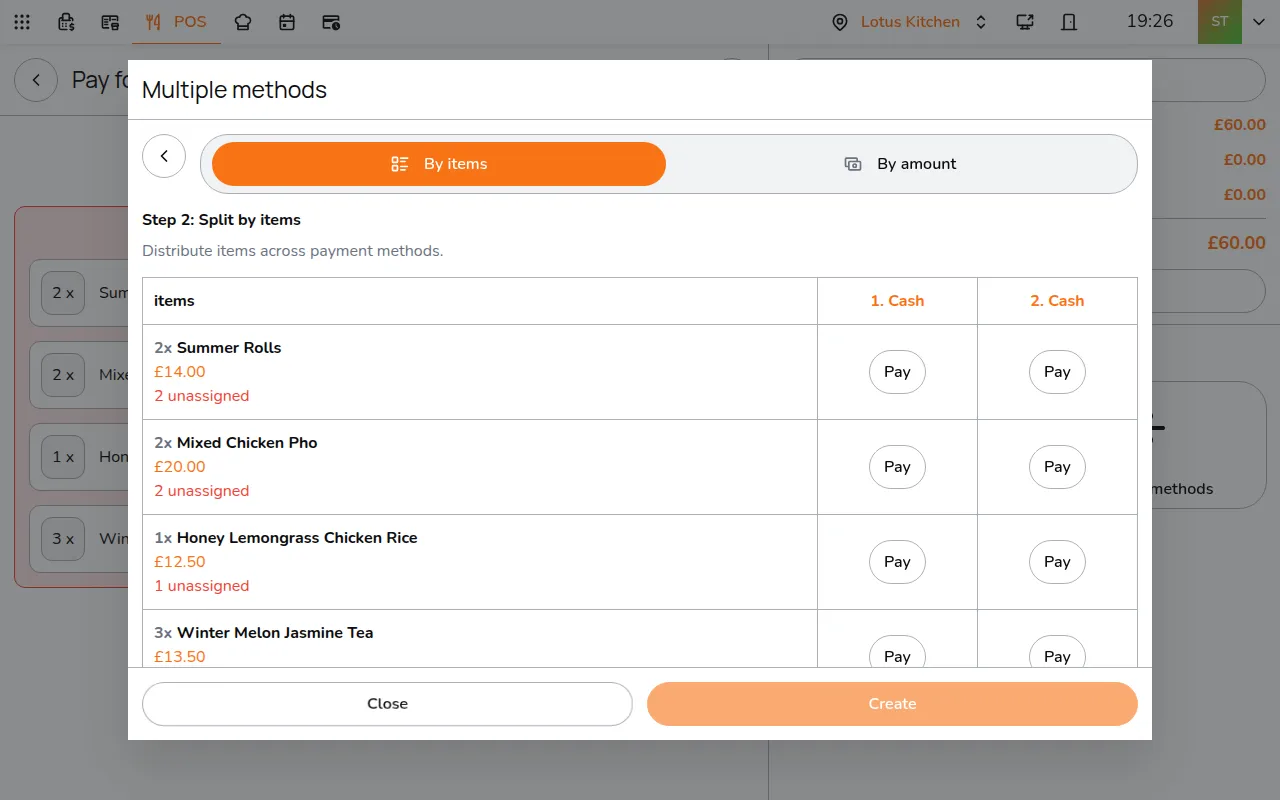
Step 1/7Tap Pay under the payment method that pays for each item. An item shows in red how many are still unassigned, and Assigned in green once every one has a payment method
- Tap Pay under the payment method that pays for each item. An item shows in red how many are still unassigned, and Assigned in green once every one has a payment method
- To split a quantity, use the +/- controls (e.g., 2 of the same item, one paid by Cash and one by Dojo)
- Tap Create to process the payments
By amount
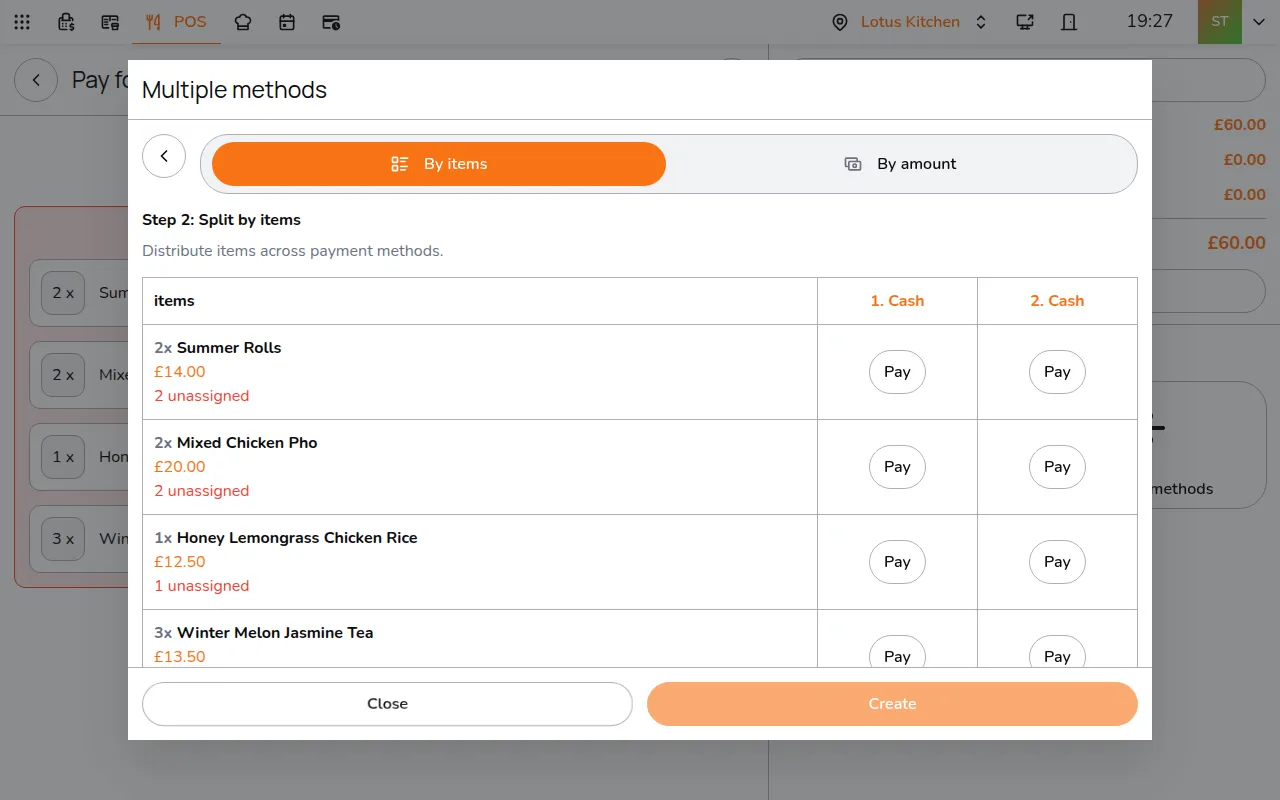
Step 1/4Tap By amount
- Tap By amount
- Enter the amount for each payment method. The others auto-balance as you edit, so the total always matches the order. Good for splitting evenly or by a specific amount
- Tap Create to process the payments