Fix Your Clock Times or Ask for Overtime Pay
Who is this article for?
- Staff: everyone with an employee profile, for their own attendance
- Managers: team members whose role has Work schedule and timesheet set to Manage
Set roles in All apps > Setup > Roles.
Included in the Manage and Grow plans.
Pay follows the shift. Staff change their own clock times by sending a request, and a manager approves it:
- A wrong time. A clock-in or clock-out at the wrong time, such as a clock-out tapped by mistake.
- A missed clock-out. A day with a clock-in but no clock-out pays nothing until the clock-out time is added and approved.
- Overtime. Time worked after the shift is paid only when a manager approves it. Time before the shift starts is not paid.
Staff ask in My work, on a phone or a computer; managers answer in the timesheet.
Fix a wrong clock-in or clock-out time
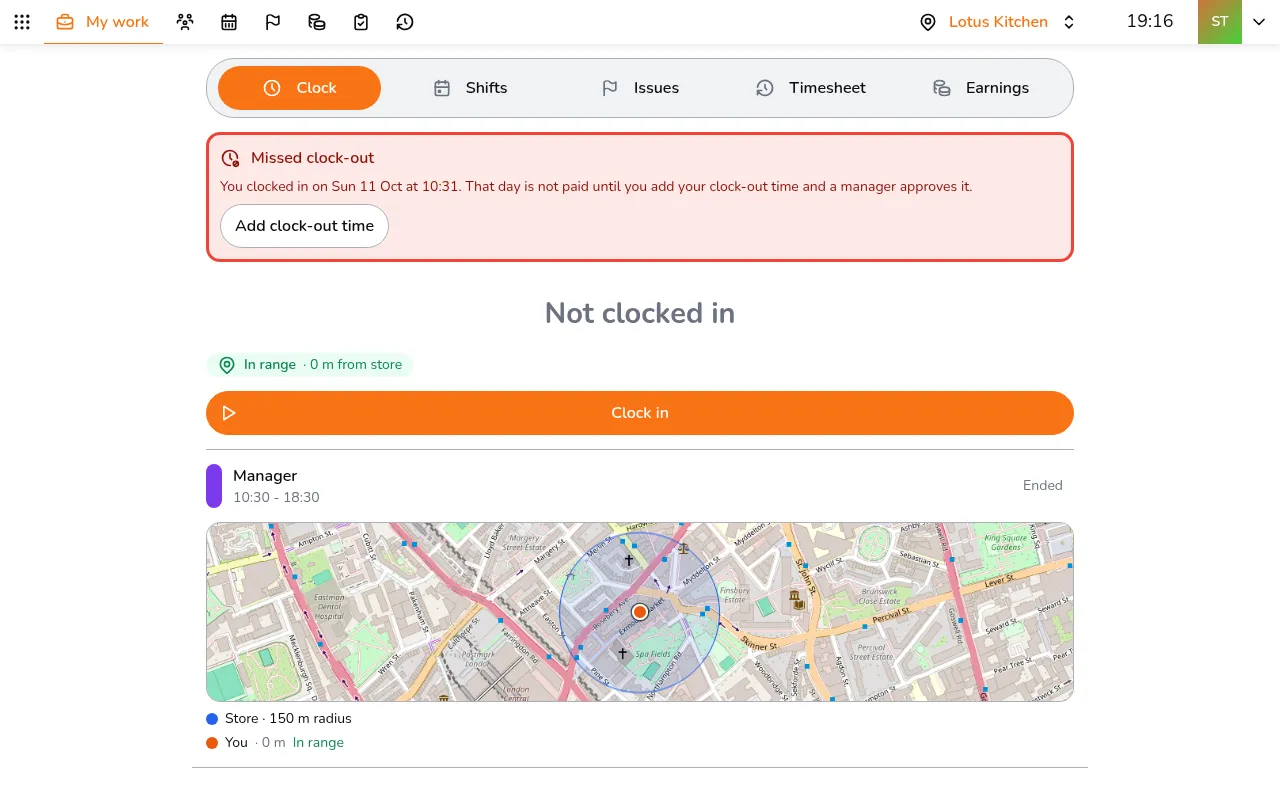
- In My work, open the Timesheet tab and tap the day
- Correct the Clock-in time and the Clock-out time
- Say why in Reason
- Tap Send to manager
A day can be fixed once you have clocked out, and the clock-out time cannot be later than now. So a clock-out tapped by mistake can stay as it is: send the right times after you finish work. A changed time always needs a reason.
Add a missed clock-out time
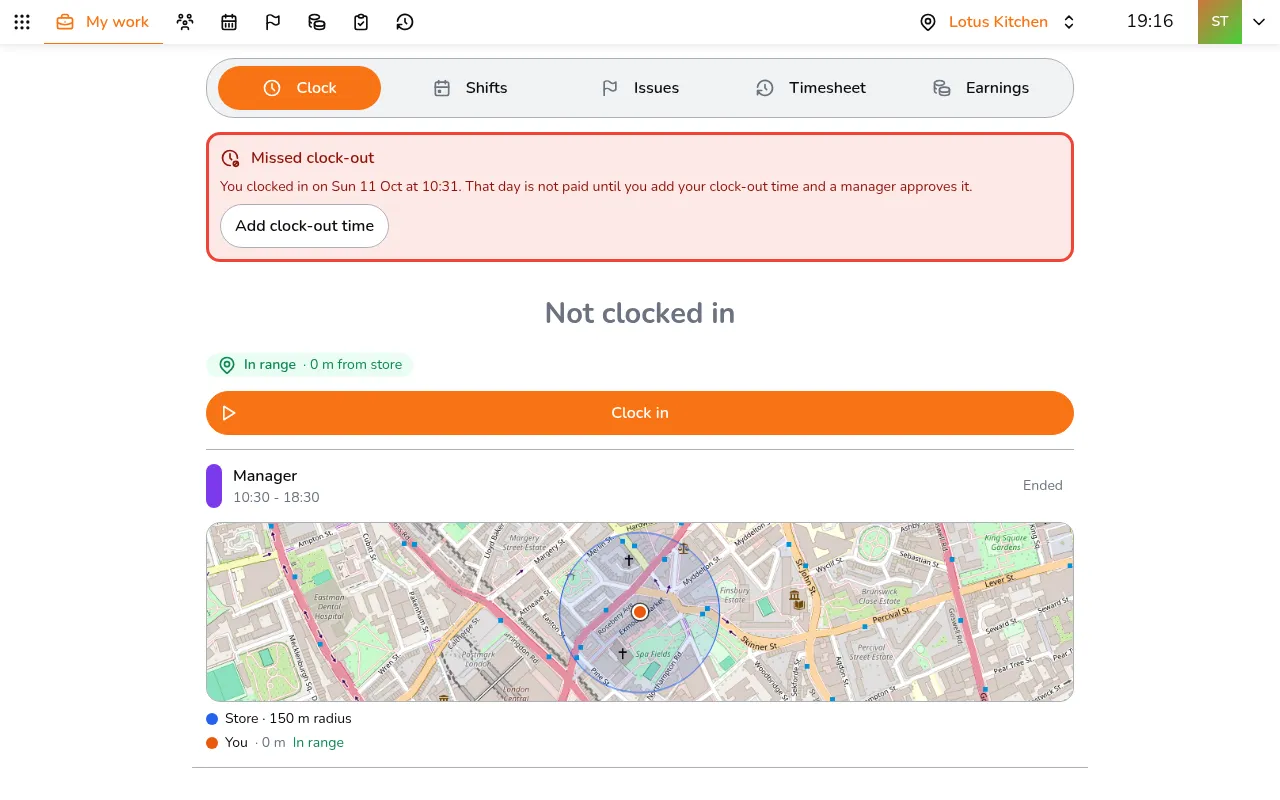
- Open My work. A red Missed clock-out card shows the day
- Tap Add clock-out time
- Enter the Clock-out time. Correct the Clock-in time too if it was wrong
- Add a reason if you changed the times
- Tap Send to manager
Ask for overtime pay
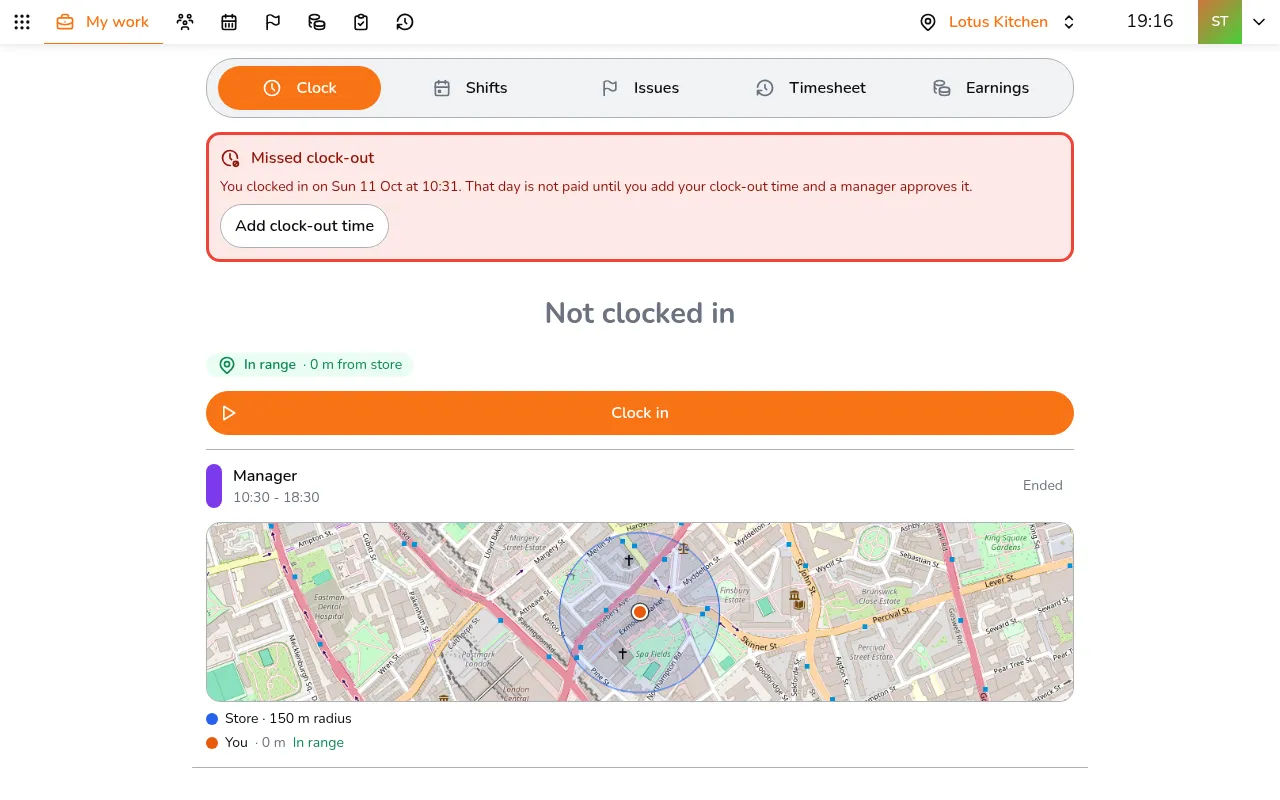
- In My work, open the Timesheet tab and tap the day
- Turn on Request overtime pay
- Say why in Reason
- Tap Send to manager
Request overtime pay shows only on a day that ran past the shift. The day shows Pending approval until a manager answers, then Declined if they said no. Sending again replaces the pending request: on a day that has one, the button reads Update request.
Approve or decline, as a manager
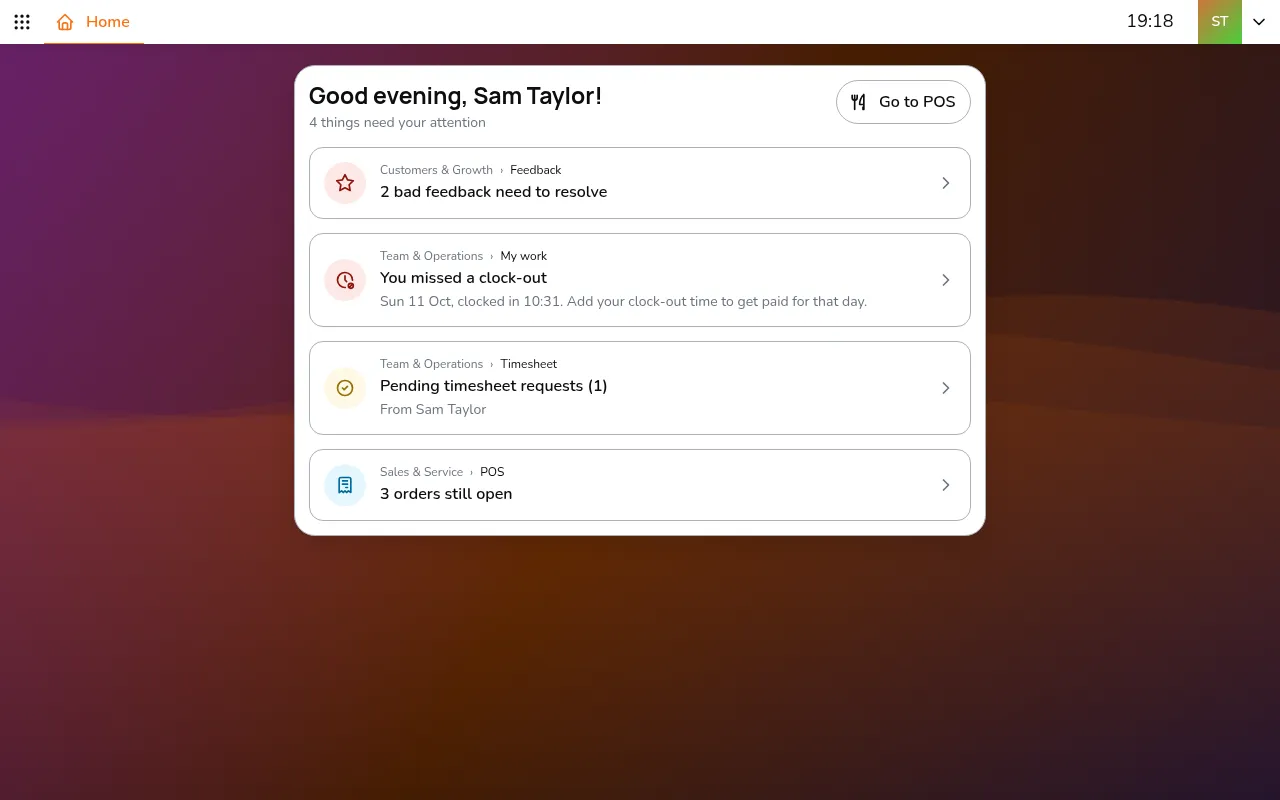
- Open All apps > Team & Operations > Timesheet
- Tap Pending timesheet requests. Each request shows who, the day, the shift, the recorded times and what they ask for
- Tap a request. It opens with the requested times already filled in
- Change the times if you agree only in part
- To pay only part of the overtime, lower Minutes to pay
- Tap Approve, or Decline
Pending timesheet requests shows only while a request is waiting, and Home lists it too.
Approving writes the times and pays the overtime minutes set. It cannot be undone, but you can still edit the record later in the timesheet.