Payroll
Who is this article for?
Account owners, or team members whose role has:
- Payroll turned on, to see pay
- Employees set to Manage, to set hourly rates
Set roles in All apps > Setup > Roles.
Included in the Manage and Grow plans.
Payroll turns the timesheet into gross pay: paid hours times each person's hourly rate. It is gross pay, before tax and deductions, ready for your payroll provider or accountant.
Set hourly rates
- Go to All apps > Setup > Employees and tap the person
- Under Pay rate, tap Set hourly rate. For a raise, tap Change rate
- Enter the Hourly rate. A raise also needs its Effective date
- Tap Save, then save the employee
Anyone without a rate is listed under a note on the Payroll screen, and their pay is 0.
Days before a raise's effective date keep the old rate, so a raise in the middle of the month pays each part at its own rate. The table keeps every rate and marks the one in use as Current. Tap a rate to correct or delete it.
See the pay
- Go to All apps > Team & Operations > Payroll
- Pick the store in the top bar and the dates in the toolbar. It opens on this month
The cards show the Gross pay and Paid hours for everyone. The table shows each person's hourly rate, paid hours, overtime and gross pay. When a rate changed within the dates, Hourly rate shows each rate in turn, such as £11.00 → £12.00.
Labels on a name show what can still change the pay: Missed clock-out and Request pending approval. The note above the table links to the timesheet days that need a clock-out time.
- Tap a person to see how their pay adds up, with a line per rate and the paid hours day by day. Tap a day to open it in the timesheet
Narrow the list with All employees and Filter (No hourly rate set, Missed clock-out). Export gives a CSV with a line per rate.
How paid hours are worked out
- Paid time is the time worked inside the person's shifts, less the shift's unpaid break
- It starts at the shift start. Clocking in early adds nothing, and a clock-in within the store's late threshold counts as on time
- Overtime, time worked after the shift, is added once a manager approves it: all of its minutes or only some. Overtime within the late threshold counts as none
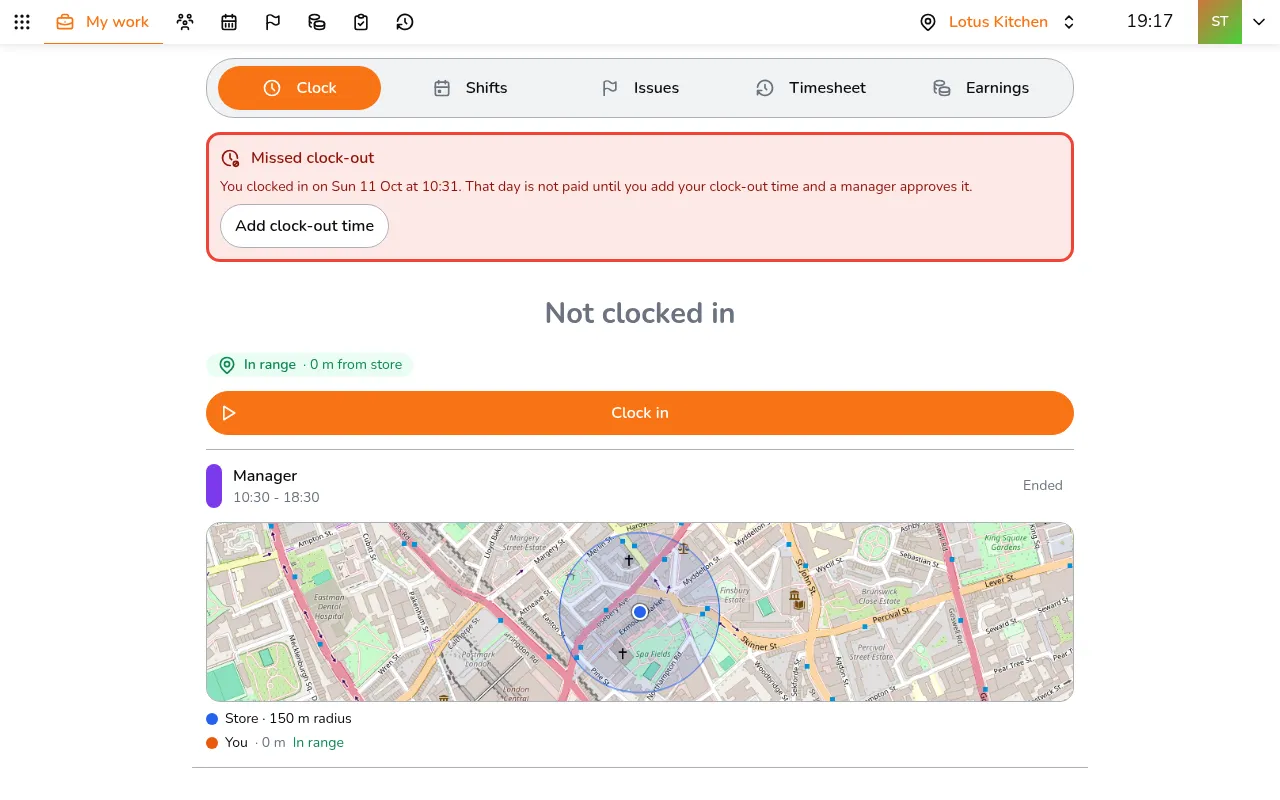
- A day with a missed clock-out pays nothing until its clock-out time is approved
- Changing a shift recalculates the pay of the days it covers. Approved overtime stays, up to the new overtime
- Penalties in Issues do not change pay
What staff see
Each person sees their own estimate of pay:
- Open My work
- Tap the Earnings tab. It shows a line per rate, this week so far, and the days that still need something