Discounts and Vouchers
Who is this article for?
Account owners, or team members whose role has:
- VAT, discounts and website set to View to see discounts, or Manage to create them
- Take orders, to apply them at the POS
Set roles in All apps > Setup > Roles.
Included in every plan.
A discount is one offer with its rules: how much it takes off, on what, where, when and for whom. Guests reach it with a voucher code, or it applies by itself when the rules are met.
See your discounts
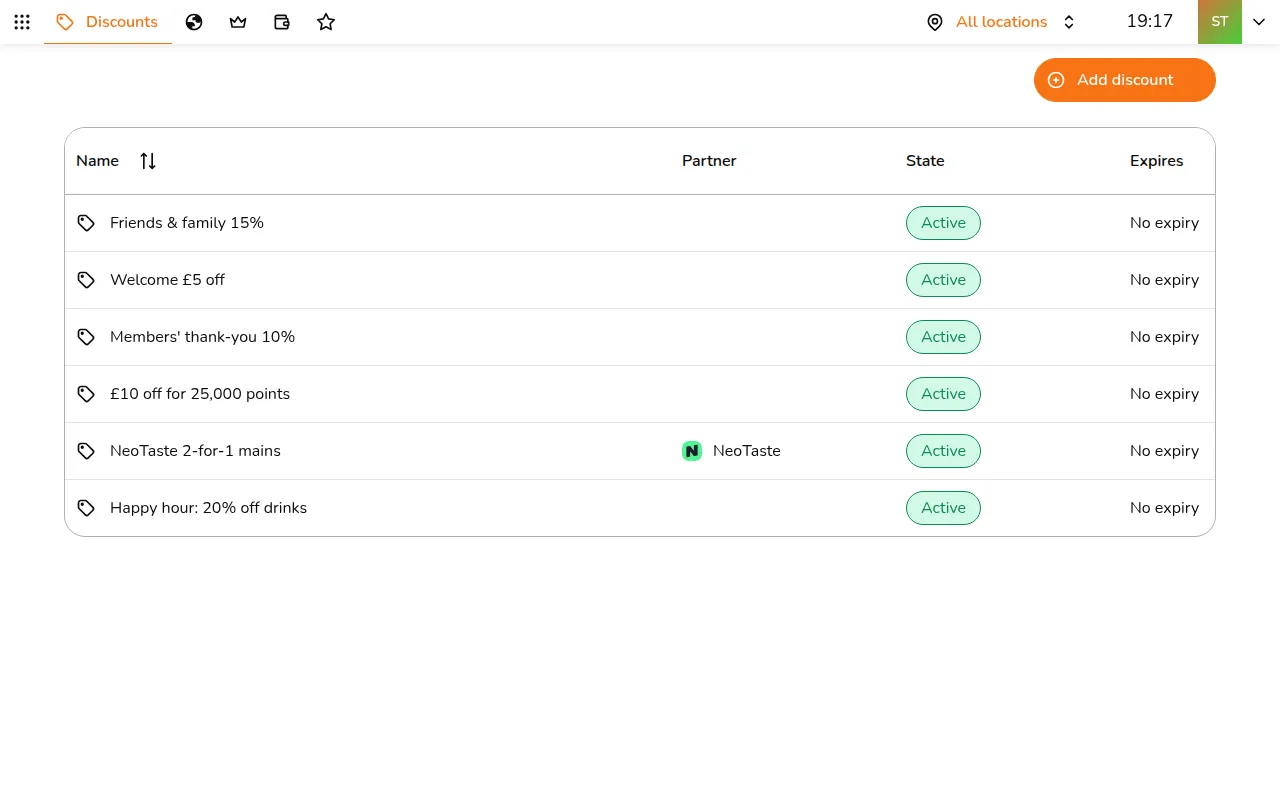
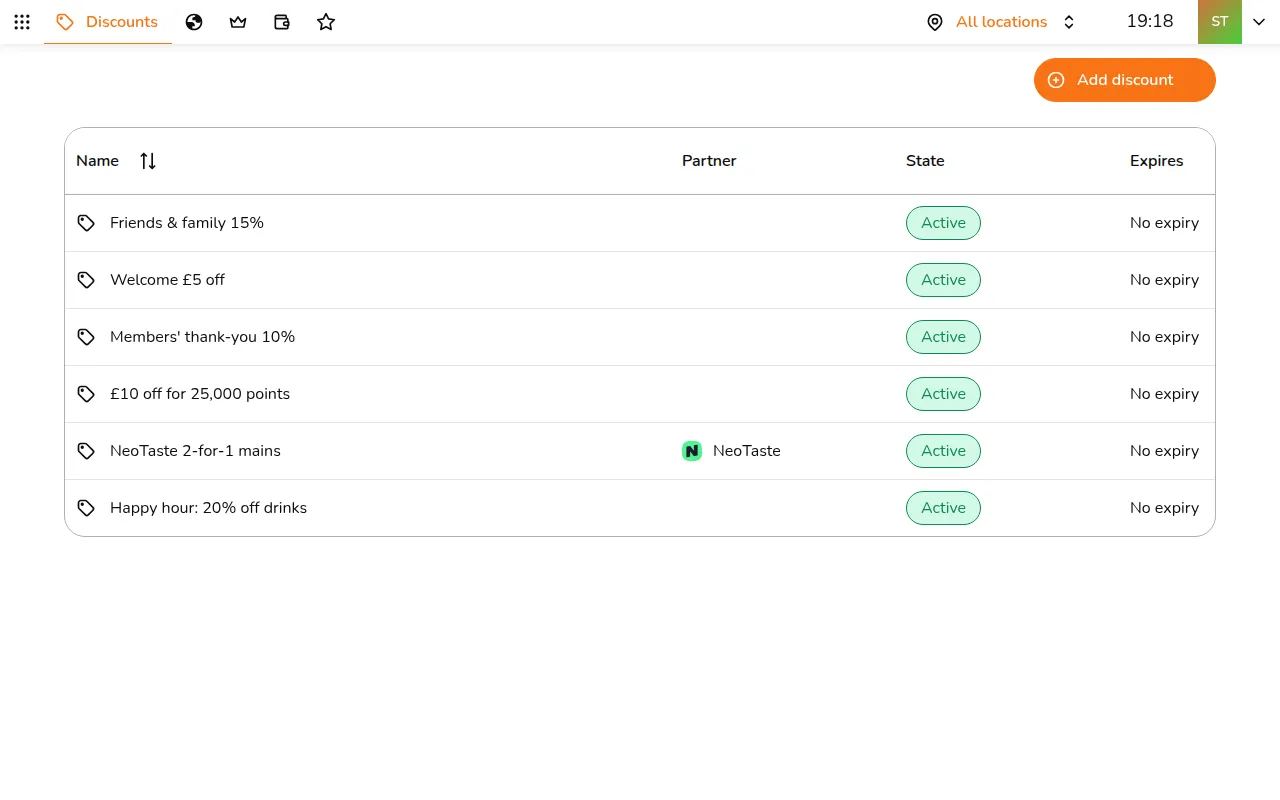
- Go to All apps > Customers & Growth > Discounts. Each line shows the offer, its partner, whether it is active and when it expires
Create a discount
Tap Add discount and work down the six sections. A new discount is live as soon as you tap Create.
- Details: the Name, Whose offer is this (yours, or a partner such as EatClub or NeoTaste, which marks every order that uses it), the Discount type and the Minimum spend
- Percentage off the bill, with an optional Maximum discount
- Fixed amount off the bill
- Buy X, get Y, such as two-for-one mains
- Locations: the stores and service types it runs at. Leave empty for all
- Items: the dishes it comes off. Leave empty for the whole bill
- Schedule: an expiry date, and Only at certain times for happy hours. Pick the days and hours, and set Max applies to cap how many times each window can be used
- Customers: Anyone with the code, Free for members, or Members buy it with points, and how many times each member may use it
- Vouchers: turn on Applies automatically, no vouchers, or give it codes
Voucher codes
- Open the discount and go to Vouchers
- Tap Add code to type a code of your own, such as WELCOME5, or Generate codes to make a batch of single-use codes with a prefix
- The table shows how often each code has been used. Export CSV gives you the list to print or send
Deactivate stops a discount and its codes; Reactivate brings them back. A discount can be deleted once it is inactive.
Apply a discount at the POS
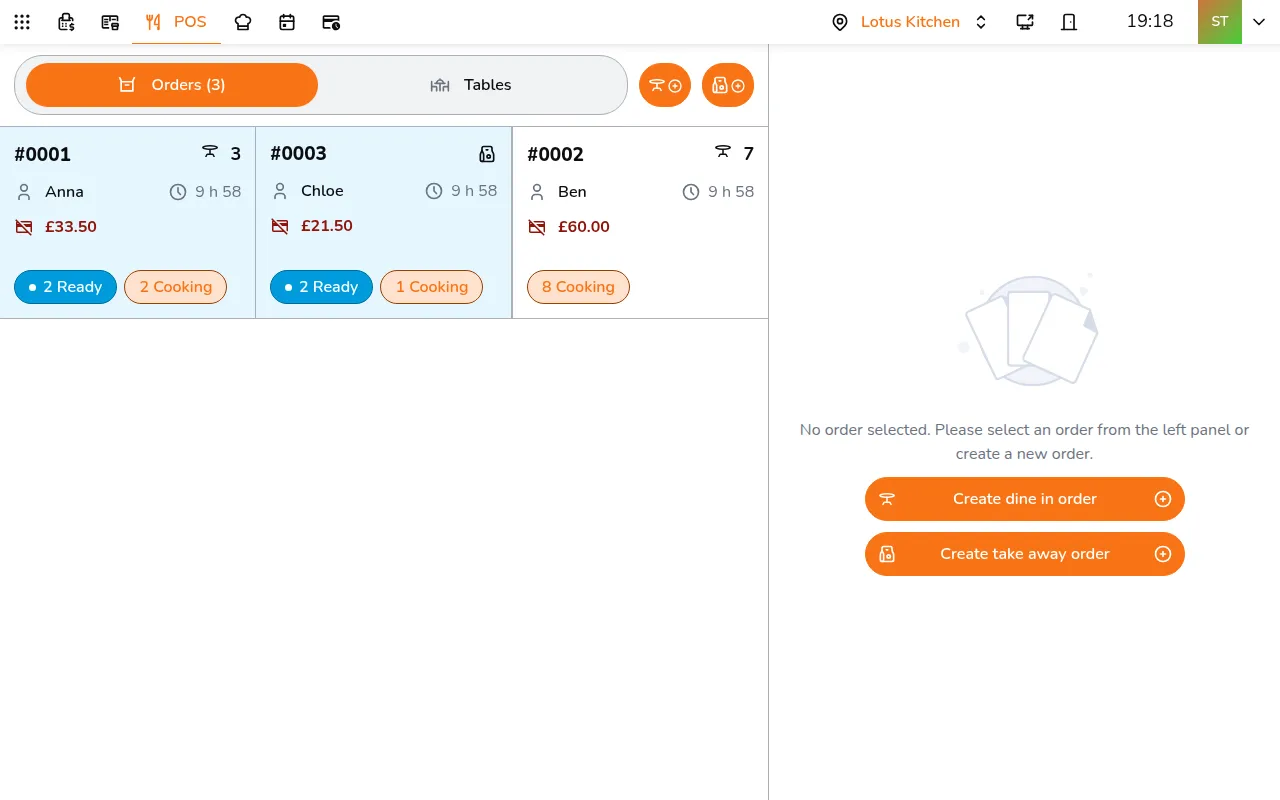
- Open the order on the POS and tap ⋯
- Tap Edit Surcharge, Discount and Tip
- Choose how:
- Add discount: a one-off amount or percentage
- Select voucher: pick one of your live offers
- Redeem code: type the guest's code
- Check the Discount line and the new Total, then tap Save. The bin next to a discount takes it off again
Automatic discounts are added by themselves when an order qualifies, with an Auto tag. Staff can remove them. Guests ordering from their phone enter codes under Have a voucher? at checkout.
Put an offer on a guest's QR code
A guest who orders from their own phone can get the offer on the QR code itself, such as a NeoTaste guest at the counter. They scan, and the offer comes off their basket without typing a code.
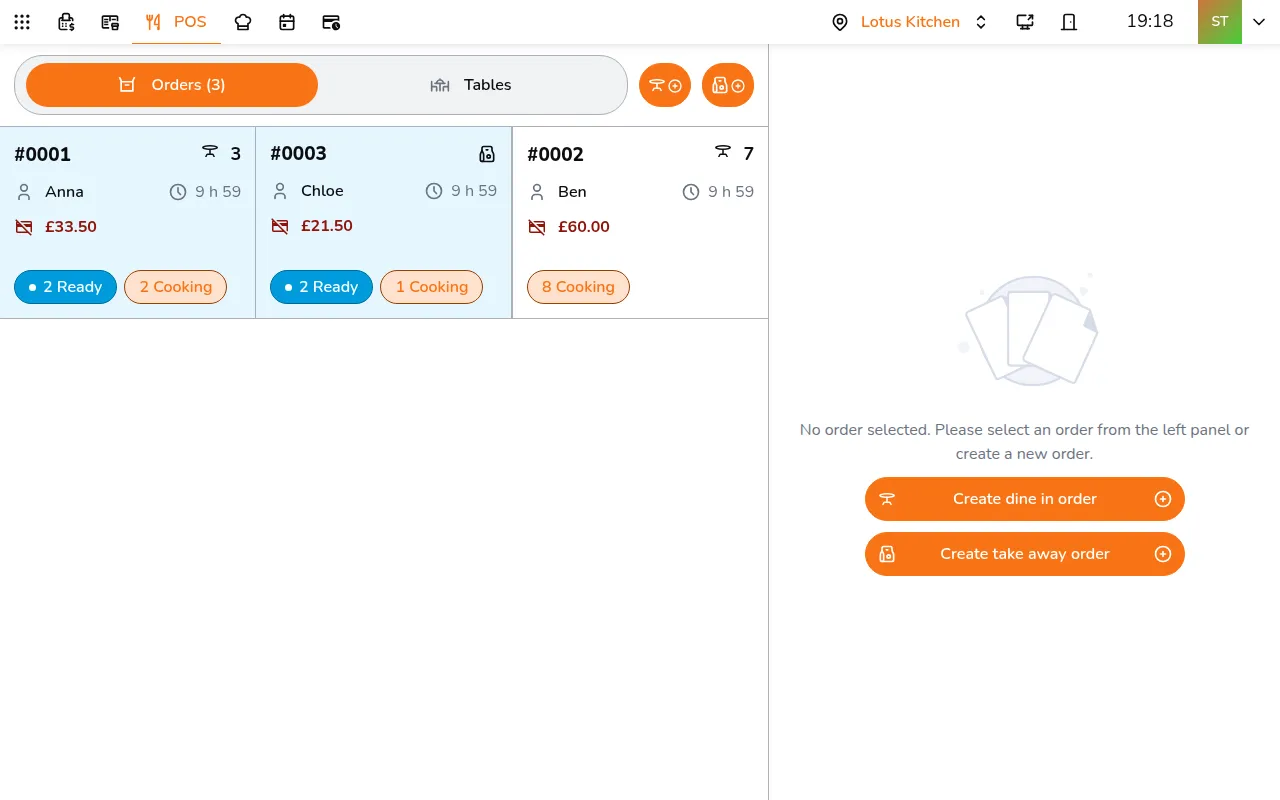
- On the POS, tap your avatar in the top bar, then POS under This device, and turn on Require customer details before creating an order. It is a setting of this device only
- Start a new order. The POS asks about the guest first
- Open the Self-order tab and pick the offer. The POS issues a single-use code for this guest and shows it next to the offer, for a guest who would rather type it
- Ask the guest to scan the QR, or tap Print QR to hand them a slip
One QR, one phone. The code on the QR works once, and the first phone that opens it keeps it, even before anything is in the basket. Ask only the guest who is ordering to scan it. If someone else at the table scanned first, the guest sees "We can't find that code". Apply the offer on the POS instead, with Select voucher.
The Self-order tab shows when the store takes self-orders. It lists every live offer that runs at this store, except automatic ones. At a store where staff give guests a code for their table, open the order, tap ⋯, then Show guest QR: it has the same list of offers.