Loyalty Points and Wallet Card
Who is this article for?
Account owners, or team members whose role has:
- Take orders, to see and add members
- Locations and terminals set to Manage, to set up the wallet card
Set roles in All apps > Setup > Roles.
Included in the Manage and Grow plans. Smatyx switches loyalty on when you are ready to start.
How points work
- Members earn 100 points for every £1 they pay. Tips and service charges earn nothing
- An order paid through EatClub earns on what EatClub pays you, once it settles
- Points are spent on rewards: discounts with a points cost, set up in Discounts and Vouchers
- Points are shared across all your stores
- A balance lapses after 12 months without earning or spending, with a warning email about a month before. Staff can reinstate lapsed points for about six months
- Refunds take back the points the order earned
How guests join
- At the POS: on the order, tap Select customer. Search the Member tab by name, email, phone or card code, or add a new customer with Collect loyalty points on
- On their phone: guests who give their email when they order from the table collect points, unless they opt out
A guest is matched by email, then by phone number, so the same person is never counted twice.
Members
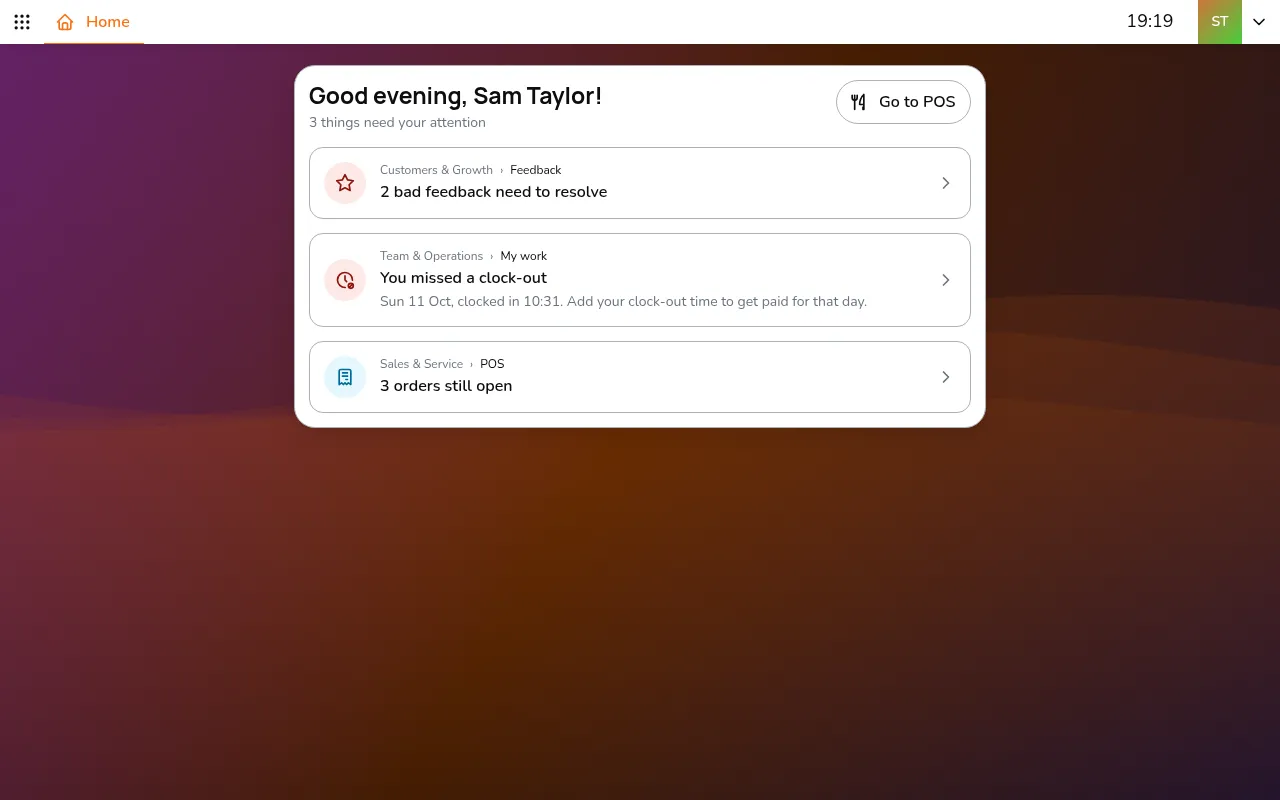
Step 1/11Go to All apps > Customers & Growth > Loyalty members to see each member's points, when they last earned and when they joined
- Go to All apps > Customers & Growth > Loyalty members to see each member's points, when they last earned and when they joined
- Tap Add member to add someone by name, email or phone
- Tap a member to edit their details, reinstate lapsed points, or delete them
The wallet card
Members can keep their card in Google Wallet and show it at the counter. Set up how it looks in Wallet card:
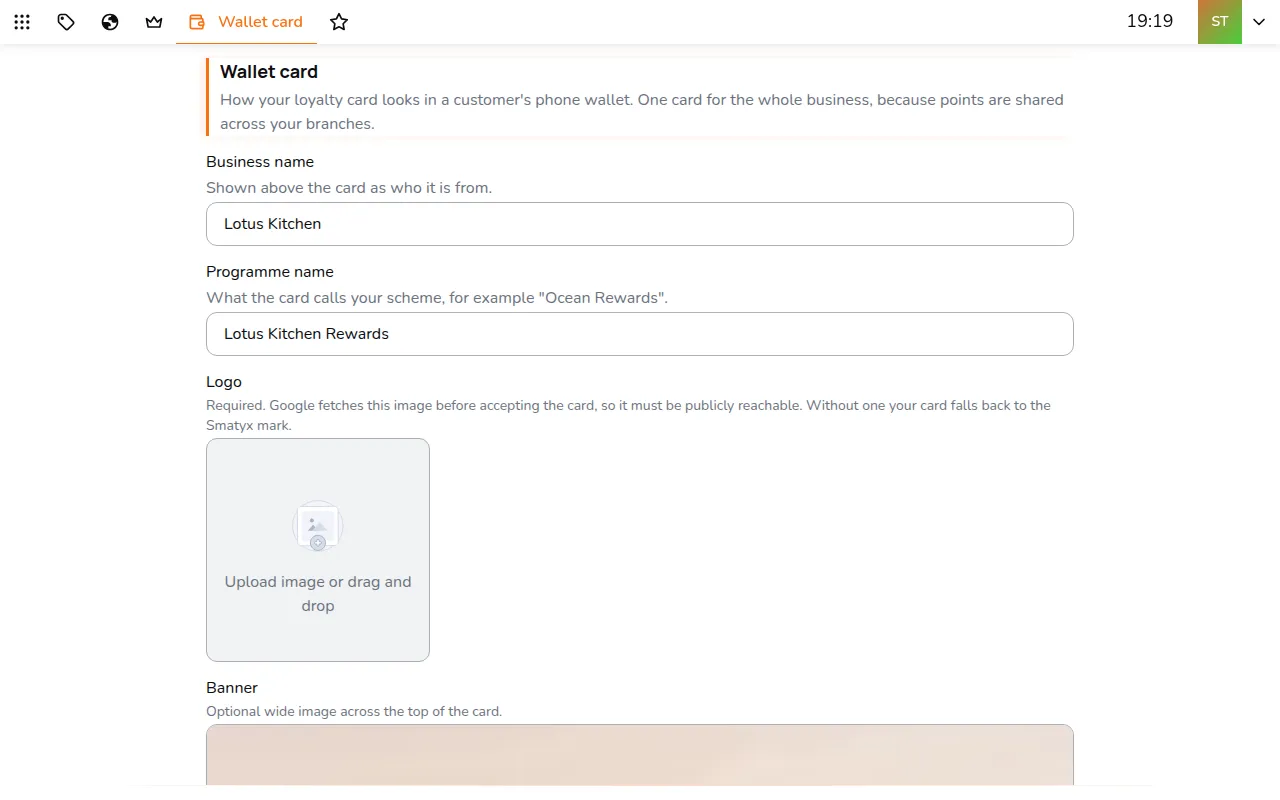
Step 1/7Enter the Business name and Programme name
- Enter the Business name and Programme name
- Add a Logo and a wide Banner, and pick the Card colour
- Tap Save. The card is sent to Google, and Status shows when it was last synced
Apple Wallet is not available yet.