Roles and Permissions
Who is this article for?
Account owners, or team members whose role has:
- Roles set to View to see roles, or Manage to change them
Set roles in All apps > Setup > Roles.
Included in every plan.
A role is a job, such as Cashier, Waiter or Shift Lead, with what that job may see and do. Each person gets one or more roles, and a change to a role reaches everyone who has it straight away.
See the roles
Go to All apps > Setup > Roles. Smatyx starts you with Admin, Restaurant Manager, Cashier, Waiter, Kitchen Staff and Inventory Staff. Add your own for the jobs in between.
Create or change a role
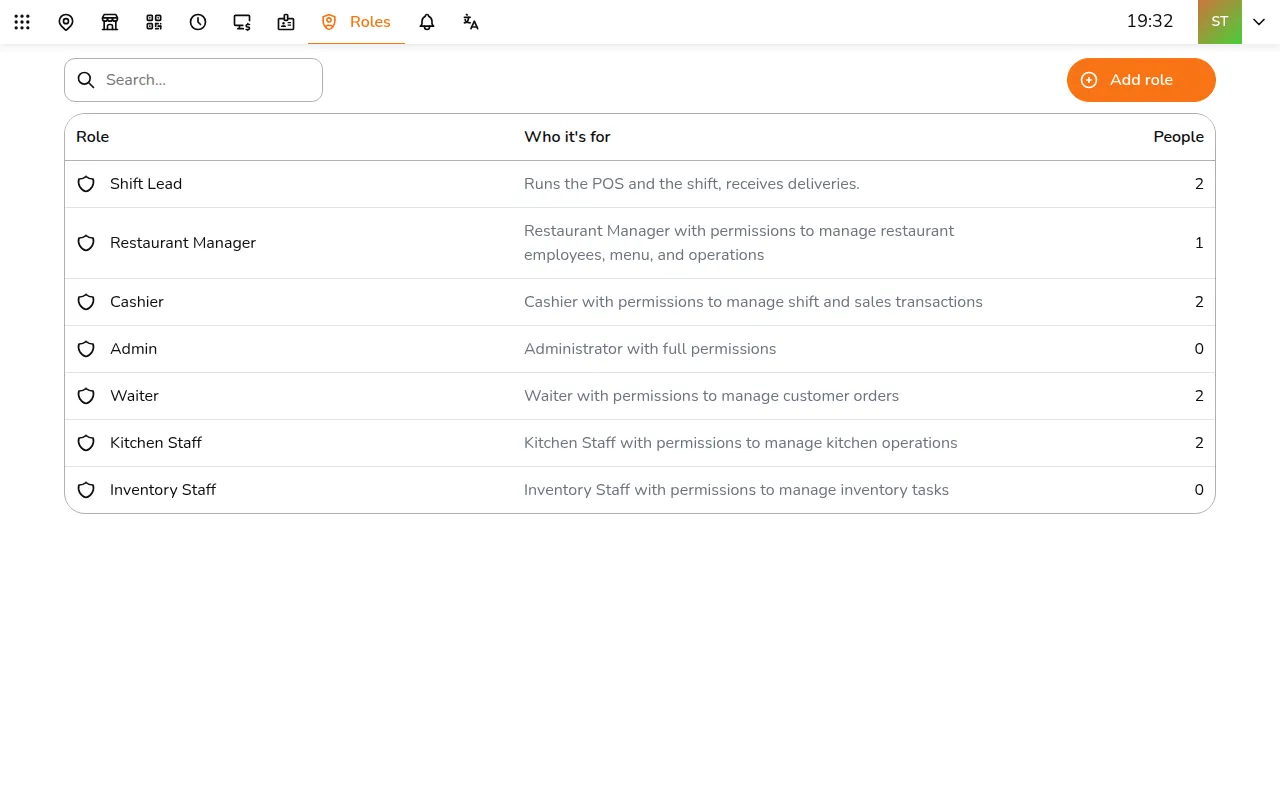
Step 1/10Tap Add role, or tap a role to change it. Copy from starts a new role from an existing one
- Tap Add role, or tap a role to change it. Copy from starts a new role from an existing one
- Enter the Name and Who it's for
- Set Where it applies:
- Their locations: sales, kitchen, team and money work only at the stores on each person's profile
- All locations: at every store Menu, stock, daily logs and roles are never limited to a store
- In each area, set every line to Off, View or Manage. Some lines are a simple on or off
- Under People with this role, add the people who do this job
- Tap Save
The areas follow the app: Sales and POS, Kitchen, Team, Money and reports, Menu, Stock and Setup. Each line says in plain words what View allows and what Manage adds.
Good to know
- A line that another line needs cannot be turned off, and says which line uses it
- Admin can do everything everywhere and cannot be changed or deleted
- Giving a role Manage on Roles lets its people change their own permissions, so keep it for managers you trust
- The account owner can always do everything