Clock In and Out
Who is this article for?
Everyone with an employee profile at the store. Clocking in needs no role.
Included in the Manage and Grow plans.
Staff clock in and out on their own phone, in My work. The phone's location proves they are at the store, and each clock-in is matched to their shift, so the timesheet and pay follow without paperwork.
Set up the store
A manager turns on staff operations for each store in All apps > Setup > Staff operations. Pick the store with in the top bar, set the fields and tap Save:
- Enable staff operations: turns on clock-in, checklists and issues for the store. The other fields show once it is on
- Allowed radius (meters): how close to the store staff must be. Allow a little more than the building
- Block clock-out after (hours): on a day without a shift, how long after clocking in staff can still clock out
- Allow clocking in/out outside the area: for stores where the signal is poor
- Require a scheduled shift to clock in/out: only let people clock in when they have a shift
- Early clock-in (minutes): shown when a scheduled shift is required. How many minutes before the shift starts staff can clock in. Pay still starts at the shift start. 0 means 15 minutes
- Clock-out grace after shift ends (minutes): how long after the shift ends staff can still clock out
- Late threshold (minutes): how late a clock-in still counts as on time. 0 means 10 minutes
- Require clock-in to use the POS: staff must be clocked in before they can take orders
Set up your phone
Every clock-in and clock-out saves where you are, so Smatyx needs your precise location. That is not GPS alone: indoors the phone also uses Wi-Fi and the mobile signal. With only an approximate location, the phone can place you a few kilometres away, and clock-in says Out of range. Do this once on each device you clock in from.
iPhone and iPad
- Open Settings > Privacy & Security > Location Services and turn on Location Services
- In the same list, tap Safari Websites (or your browser, such as Chrome), choose While Using the App and turn on Precise Location
- In Smatyx, tap Allow when the browser asks for your location
Android
- Open Settings > Location and turn on Use location
- Touch and hold your browser's icon, such as Chrome, then tap App info > Permissions > Location. Choose Allow only while using the app and turn on Use precise location
- In Smatyx, tap Allow when the browser asks for your location
Windows
- Open Start > Settings > Privacy & security > Location and turn on Location services and Let apps access your location
- In the browser, click the icon at the left of the address bar, open the site's permissions and set Location to Allow
A computer finds itself through Wi-Fi. One on a cable without Wi-Fi can be placed far from the store, so clock in from a phone instead.
Mac
- Open System Settings > Privacy & Security > Location Services, turn it on and allow your browser
- In Safari, open Safari > Settings > Websites > Location and set Smatyx to Allow. In Chrome, use the icon at the left of the address bar
Missed a step? When location is blocked, My work shows How to enable location with the steps for the device you are on.
Clock in
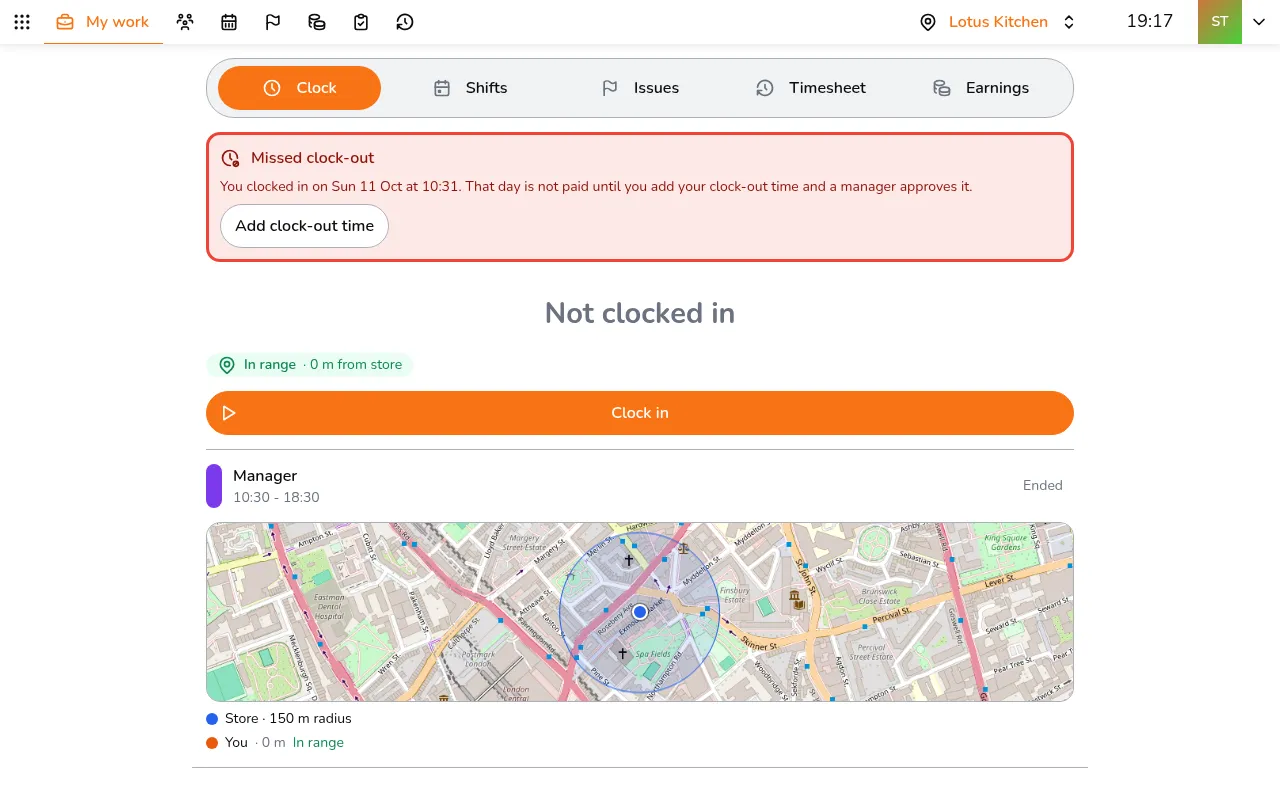
- Open My work and stay on the Clock tab
- Allow location if the browser asks
- Check the green In range line and today's shift. The map shows the store's radius and where you are
- Tap Clock in
My work is in All apps > Team & Operations. On a phone, All apps is More in the bar at the bottom, and once My work is open it shows in that bar.
At the end of the shift, open My work again and tap Clock out.
If My work shows Location is blocked, tap How to enable location and follow the steps for your device. If it shows Out of range while you are at the store, check that precise location is on (see above), then move closer to the door or a window and try again. Otherwise ask a manager to add the time for you.
When the store requires a scheduled shift, you can clock in from 15 minutes before your shift starts, or the number of minutes the store set. Pay still starts at the shift start.
A red Missed clock-out card means an earlier day was never closed. To add that time, or fix a wrong clock-in or clock-out, see Fix your clock times or ask for overtime pay.
See your shifts
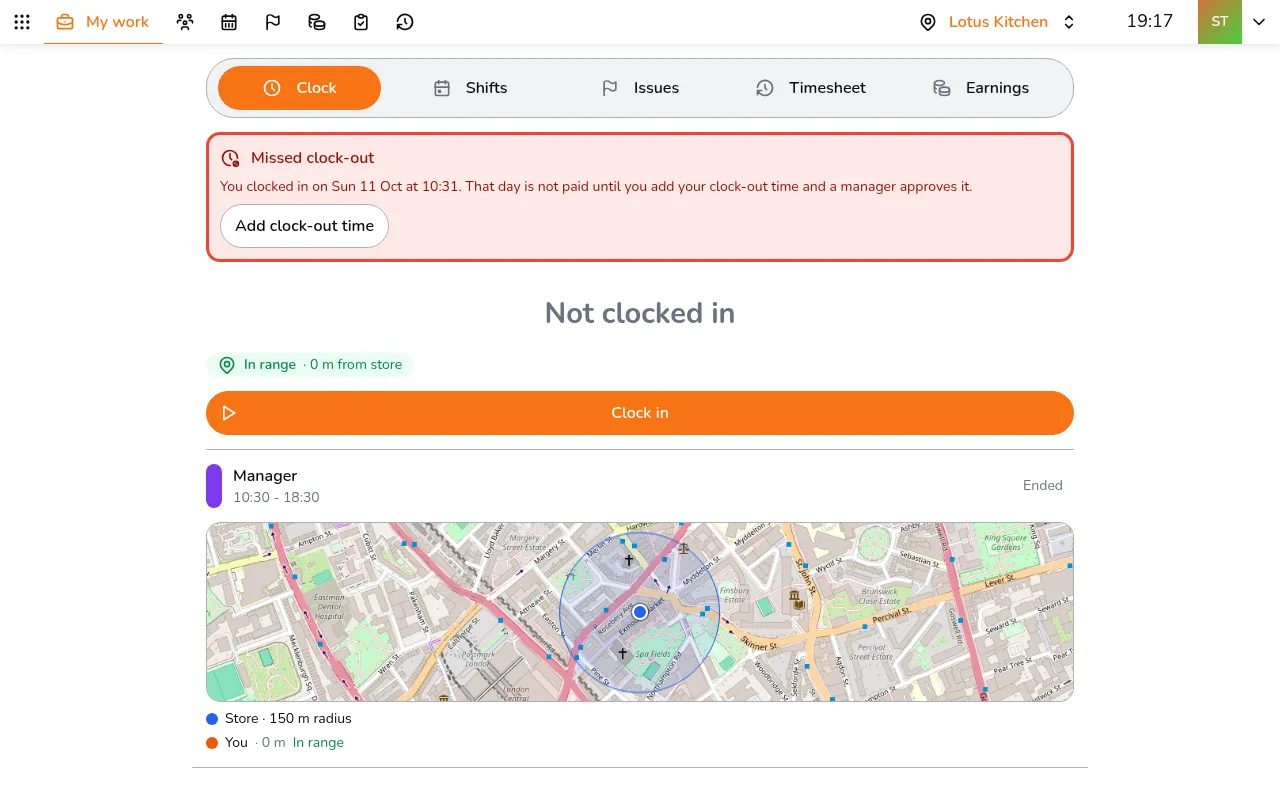
- Open My work and tap the Shifts tab. It lists your shifts for the week
- Tap a shift to see its times, your clock-in and the checklists you are responsible for
The other tabs show the issues about you, your timesheet and your earnings so far.
Good to know
- You can be clocked in at one store at a time
- Clocking out also takes you off the POS sales shift at that store
- Past the shift's end plus the grace time, clocking out is refused and the day counts as a missed clock-out until the time is added