Timesheet
Who is this article for?
Account owners, or team members whose role has:
- Work schedule and timesheet set to View to see the timesheet, or Manage to correct it
Set roles in All apps > Setup > Roles.
Included in the Manage and Grow plans.
The timesheet puts each person's clock-ins next to their shifts, so you can see at a glance who was late, who never came and whose day still needs fixing.
Read the week
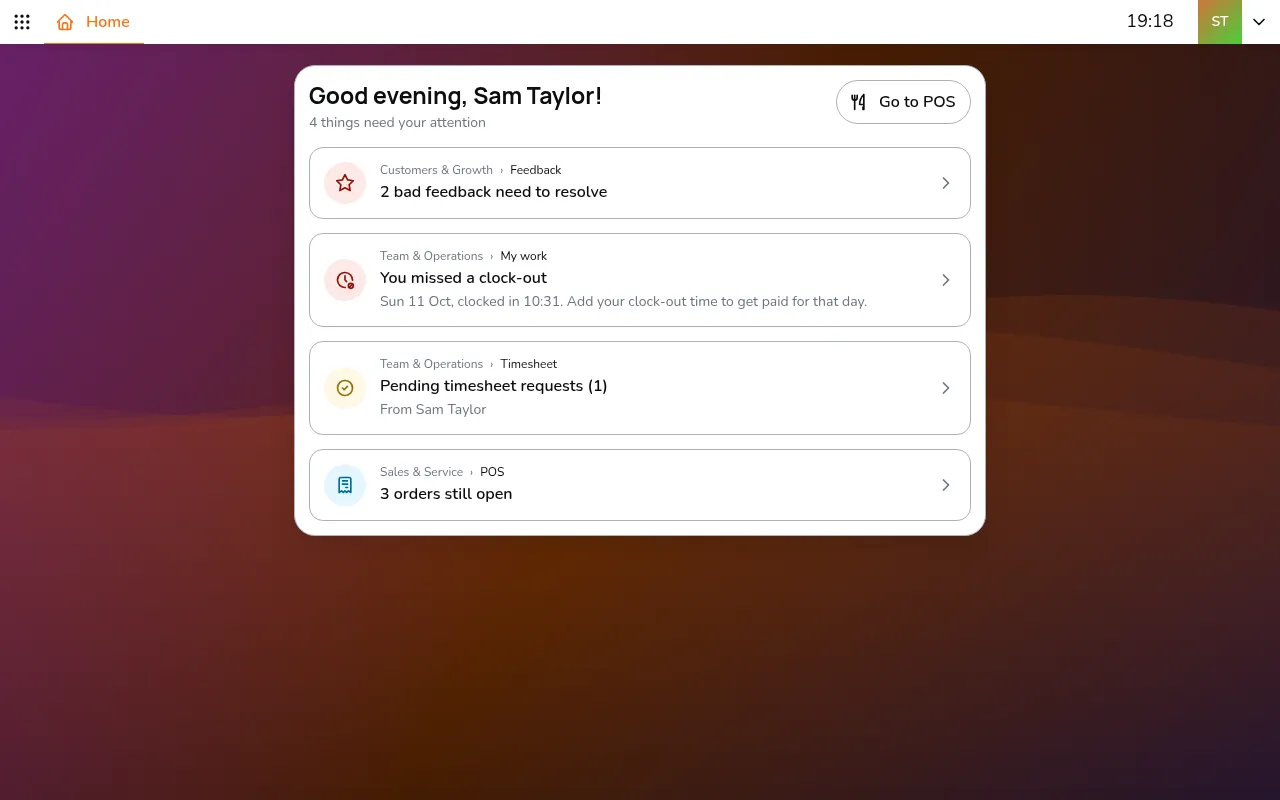
- Go to All apps > Team & Operations > Timesheet
- Pick the store in the top bar and the dates in the toolbar
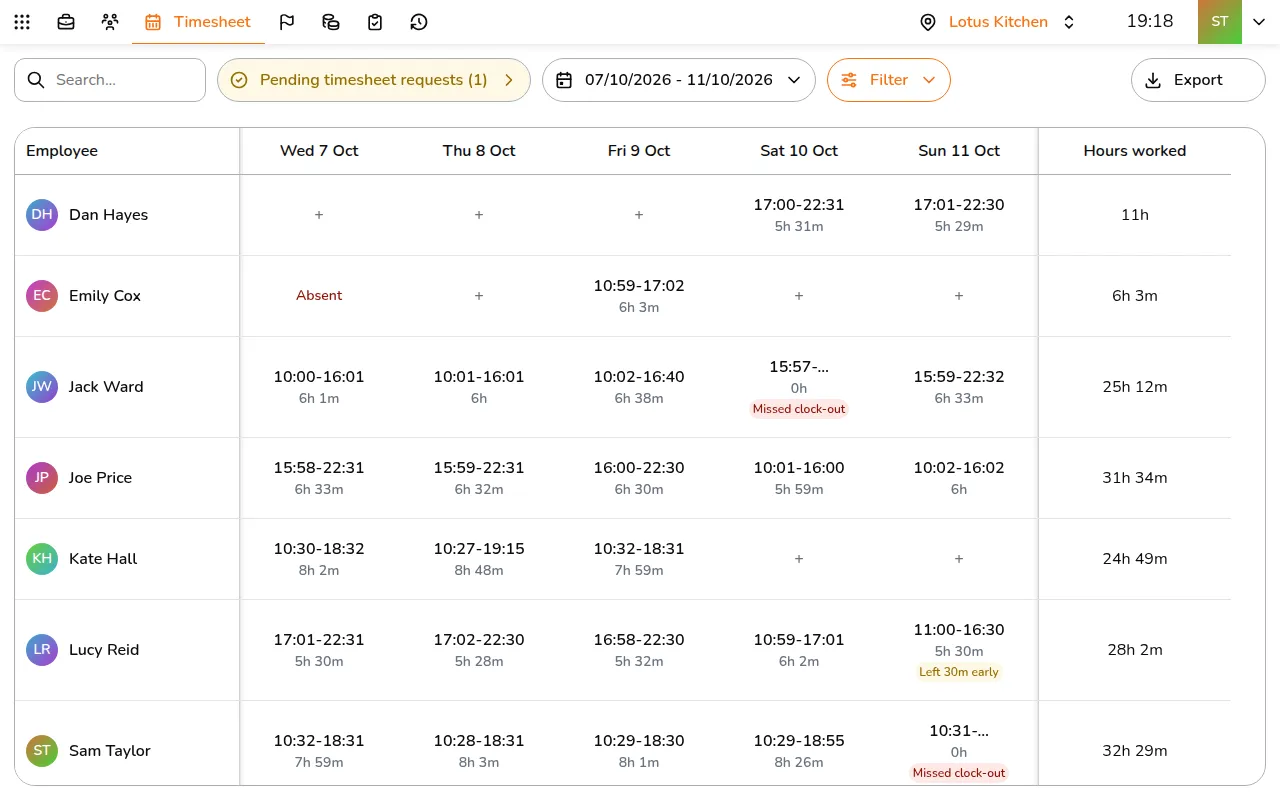
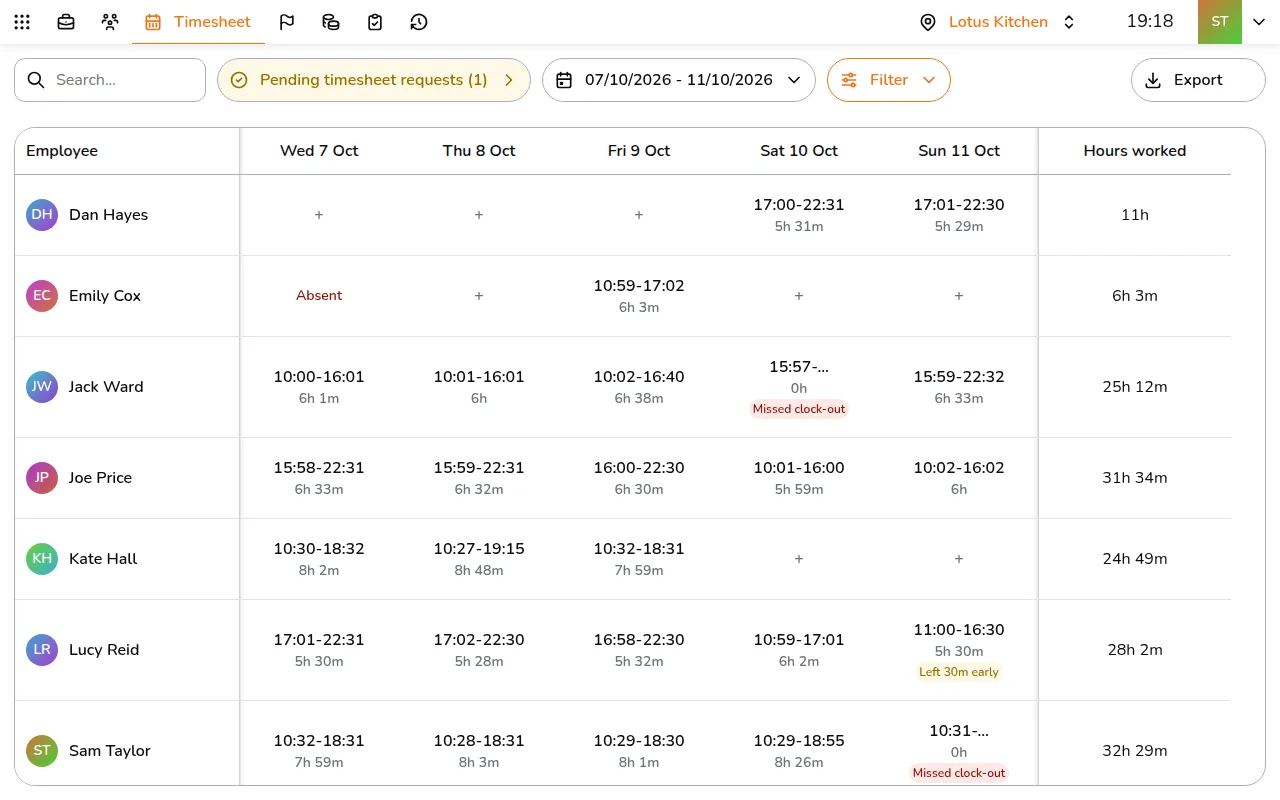
Each cell shows the clock-in and clock-out times and the hours worked. On a phone, each person is a card with a line per day. Labels point out what needs a look:
- Late and Left early, with the minutes: compared with the shift, beyond the store's late threshold
- Absent: a shift with no clock-in, once the shift is over
- Missed clock-out: clocked in but never out. Once a clock-out time is waiting for approval, it reads Clock-out time pending approval in amber
- At another store and No scheduled shift: clocked in somewhere else, or without a shift
Hours worked adds up clock time. What is paid can differ: see Payroll.
The toolbar also has Search, to find a person by name, and Export, for a CSV.
Filter the list
- Tap Filter in the toolbar
- Pick people under Employee, choose Active or Terminated staff (terminated staff are hidden until you turn it on), and turn on Missed clock-out to list only the days that need a clock-out time
- Tap Apply
Look at a day
Tap a day to see its records and how much of it is paid.
Correct a record
- Tap the record
- Change the Clock-in time or Clock-out time. Tap Ongoing if the person is still at work
- To pay the time worked after the shift, turn on the overtime switch, such as Pay 40m overtime. Lower Minutes to pay to pay only part of it
- Add a Reason so the team knows why it changed
- Tap Save
To add a day someone forgot to clock in, tap the empty cell (+): it opens Add attendance. A day that already has a record lists it with Add attendance below.
Good to know
- Pay starts at the shift start. Clocking in early adds nothing, and a clock-in within the late threshold is paid from the shift start
- Overtime is time after the shift. Anything within the late threshold counts as none
- Changing a shift recalculates the pay of the records it covers
- Every change shows who made it and when
- Editing a record replaces any request waiting on it
- Future days cannot be edited