Issues
Who is this article for?
Account owners, or team members whose role has:
- Issues set to View to see issues, or Manage to log and edit them
Set roles in All apps > Setup > Roles.
Included in the Manage and Grow plans.
Issues are the record of what went wrong and who it involved: a late arrival, a no-show, a freezer left open, a cash drawer that did not add up.
See the issues
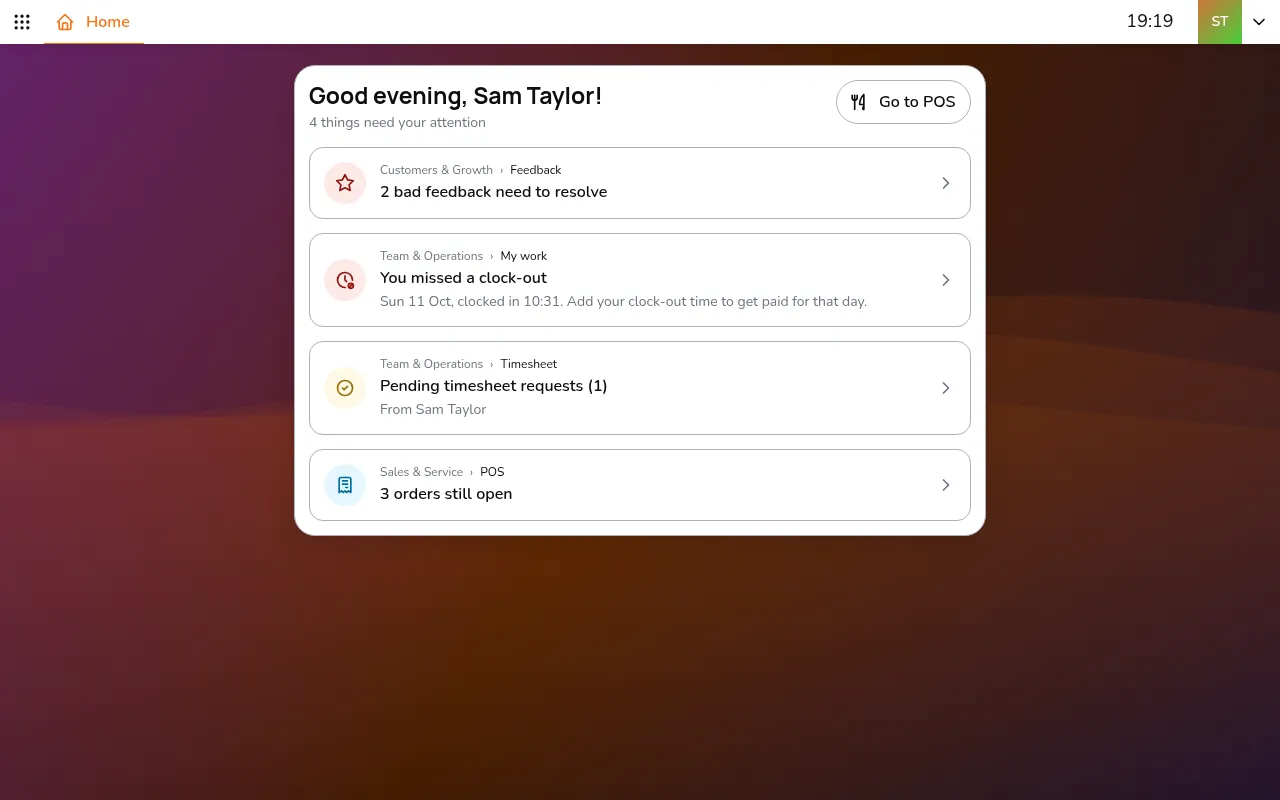
Step 1/9Go to All apps > Team & Operations > Issues
- Go to All apps > Team & Operations > Issues
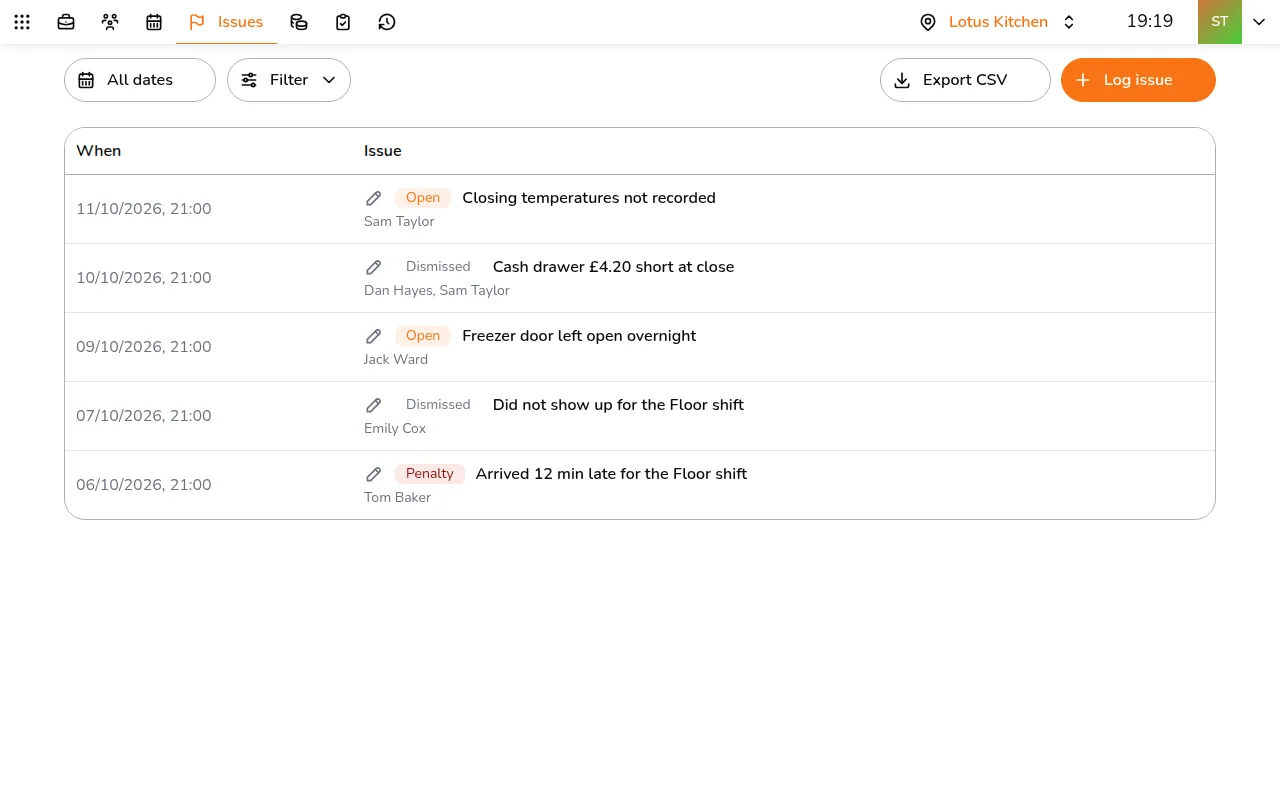
- Pick the store in the top bar. The newest come first, each with its status:
- Open: still to look at
- Dismissed: looked at, no action
- Penalty: counted against the people involved
- Use All dates and Filter to narrow the list, and Export CSV for a copy
Log an issue
Step 1/9Tap Log issue
- Tap Log issue
- Enter a Title and, if useful, Details
- Set the day it Occurred on and its Status
- Under Attributed staff, tap Add staff and pick the people involved
- Tap Save
Issues logged for you
Each morning Smatyx logs yesterday's late arrivals, early leaves, no-shows, missed checklists or temperature checks, and checklist photos that did not pass the AI check as Penalty, and refunds, food returns and bad reviews as Open. Managers get a summary by email.
A penalty is a record, not a deduction: it does not change pay. Staff see the issues about them in My work, on the Issues tab.