Daily Checklists and Temperatures
Who is this article for?
Account owners, or team members whose role has:
- Daily logs set to Fill in to record today, or Manage to edit checklists and fridges
- Past logs turned on, to look back at earlier days
Set roles in All apps > Setup > Roles.
Included in the Manage and Grow plans.
Daily logs replace the clipboard on the kitchen wall: the opening and closing checks, and the fridge and freezer temperatures food-safety inspectors ask to see.
Tick today's checklists
- Go to All apps > Team & Operations > Daily logs
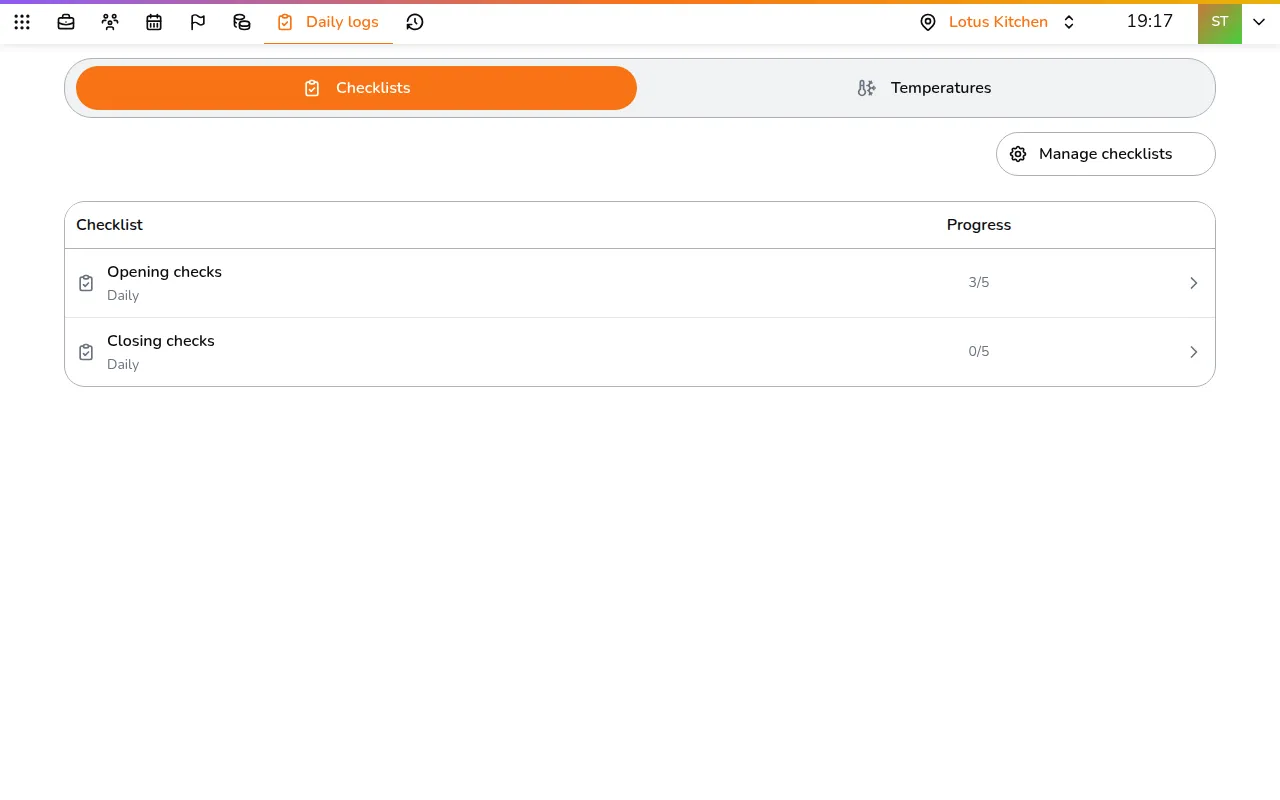
- Pick the store in the top bar. The Checklists tab lists today's checklists and how far along each is
- Tap a checklist, then a task. Add a note or photos if it helps
- Tap Complete
A task can carry Criteria and Sample photos that show what done looks like. A task with a sample photo needs a photo before Complete works: the task says Take a photo to complete this task. Photos are taken with the camera. When a task has criteria and you add a photo, the photo is checked against them, and AI Evaluation shows PASS or NOT MET.
Each task shows who did it. Managers can tap Change under Done by to record someone else.
People whose role has Daily logs set to Fill in see only the checklists on their own shifts that day. Manage or Past logs shows them all.
Log temperatures
- Open the Temperatures tab. Each fridge and freezer shows its safe range
- Tap Log now under Opening or Closing
- Type the reading in °C and confirm
A reading outside the safe range asks what you did about it. Tap the pencil to correct a reading. Managers can set Done by on a reading too.
Set up checklists and fridges
- Manage checklists adds or edits checklists: a name in each language, how often it runs, and its tasks with criteria and sample photos
- Manage fridges & freezers adds each unit with its type
Checklists apply to every store, unless turned off for one. To make someone responsible, add the checklist or fridge to their shift in the Work schedule.
Look back
- Go to All apps > Team & Operations > History
- Pick the dates. Green days were finished, amber days were started but not finished
- Tap a day to see each task: who did it and when, the note, the photos and the photo check, AI · PASS or AI · NOT MET. A red ! on a day means a photo did not pass
To correct a past day, tap it and then Edit, or tap an empty day: you can tick tasks, add notes and set Done by. Past days do not need a photo. This needs Daily logs set to Manage.
- Open the Temperatures tab. It lists every reading, with the out-of-range ones in red next to what was done about them
With Manage, Edit day opens that day's readings to correct them. Export PDF, on a computer, gives you a copy for an inspection.