Purchase Orders
Who is this article for?
Account owners, or team members whose role has:
- Stock movements set to View to see orders, or Manage to create and send them
Set roles in All apps > Setup > Roles.
Included in the Grow plan.
A purchase order is what you ask a supplier for. It does not change stock: the delivery does, when it is received.
See your orders
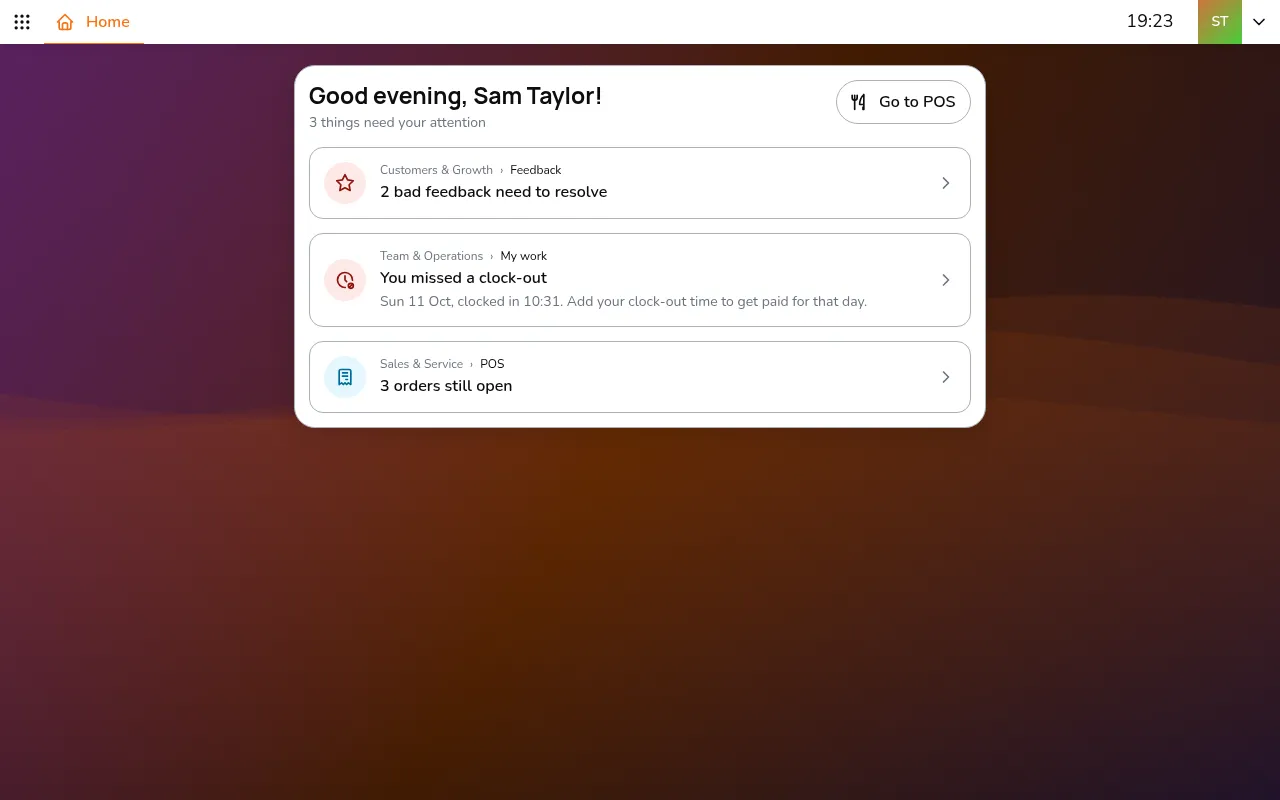
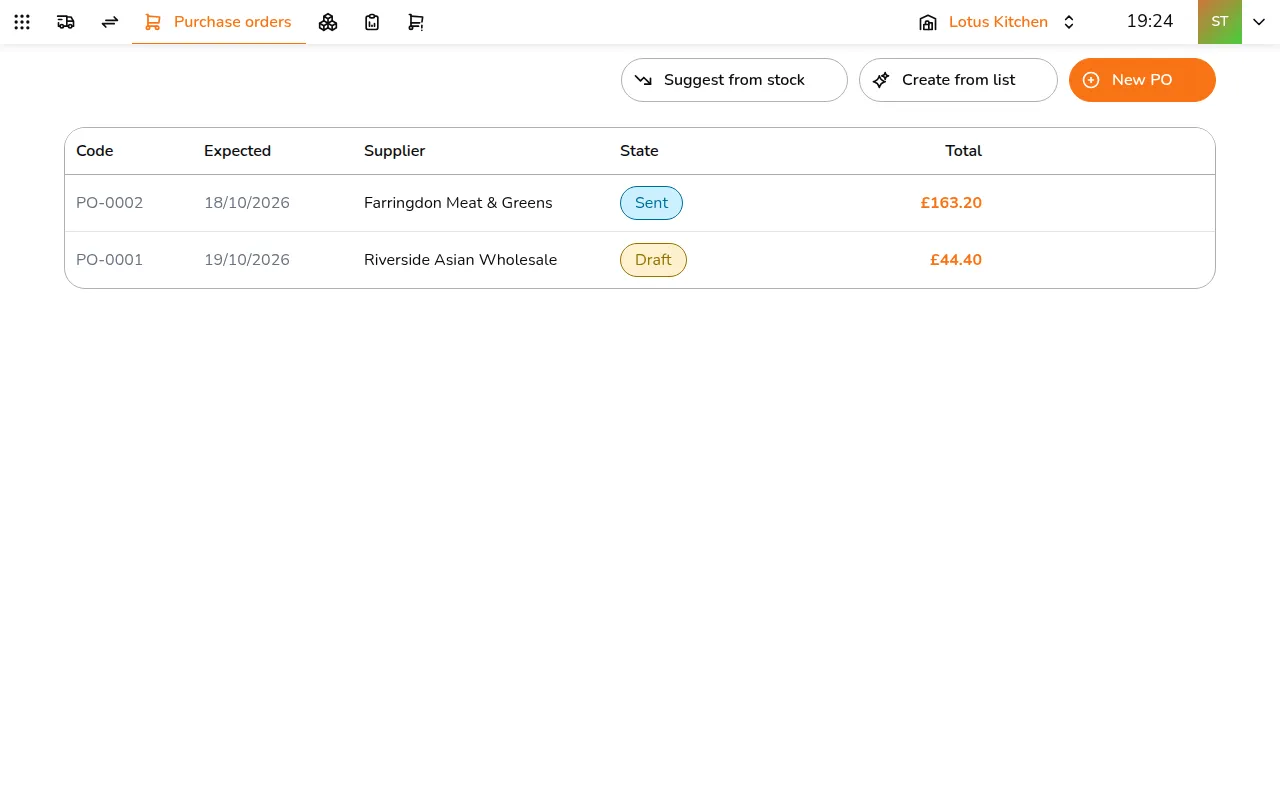
Step 1/5Go to All apps > Inventory & Purchasing > Purchase orders. Each order shows its supplier, when it is expected and its state: Draft, Sent or Cancelled
- Go to All apps > Inventory & Purchasing > Purchase orders. Each order shows its supplier, when it is expected and its state: Draft, Sent or Cancelled
Create an order
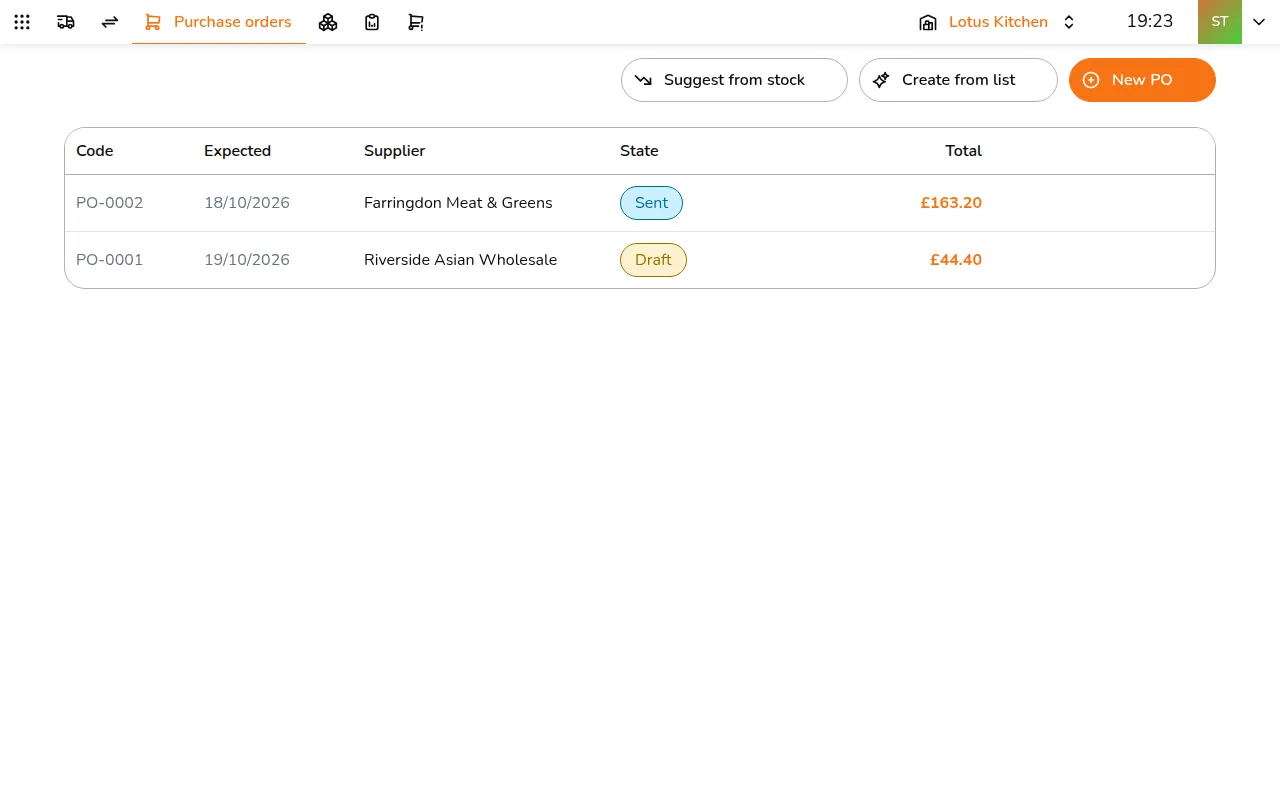
Step 1/13Tap New PO
- Tap New PO
- Pick the Supplier, the Location and the Expected date
- Tap Add item and enter the quantity, unit and price of each
- Tap Save. The order is a draft and can still change
- Tap Send to print it or save it as a PDF for the supplier. The order becomes Sent
Receive the delivery
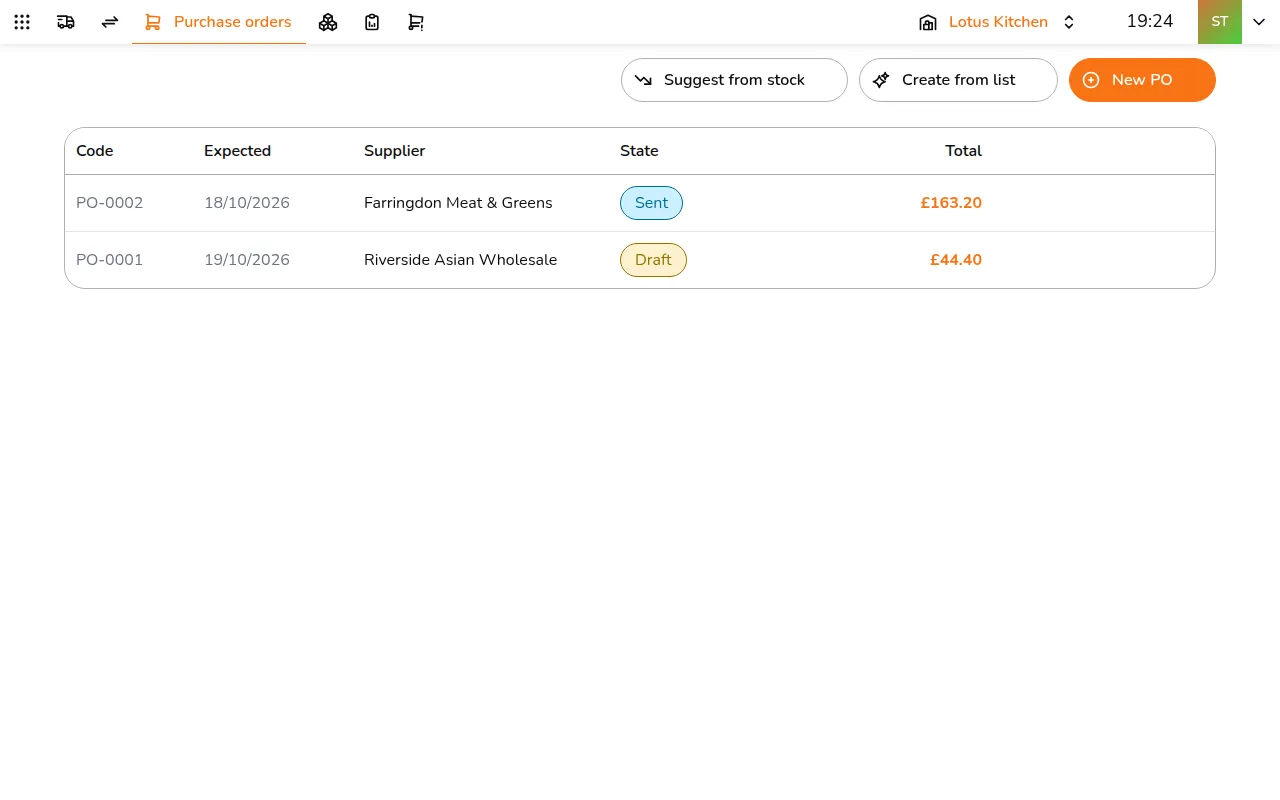
Step 1/5When the delivery comes, open the order and tap Create goods receipt
- When the delivery comes, open the order and tap Create goods receipt
- A delivery opens, already filled in from the order. Check the quantities and tap Create
- Tap Receive goods
Let Smatyx suggest the order
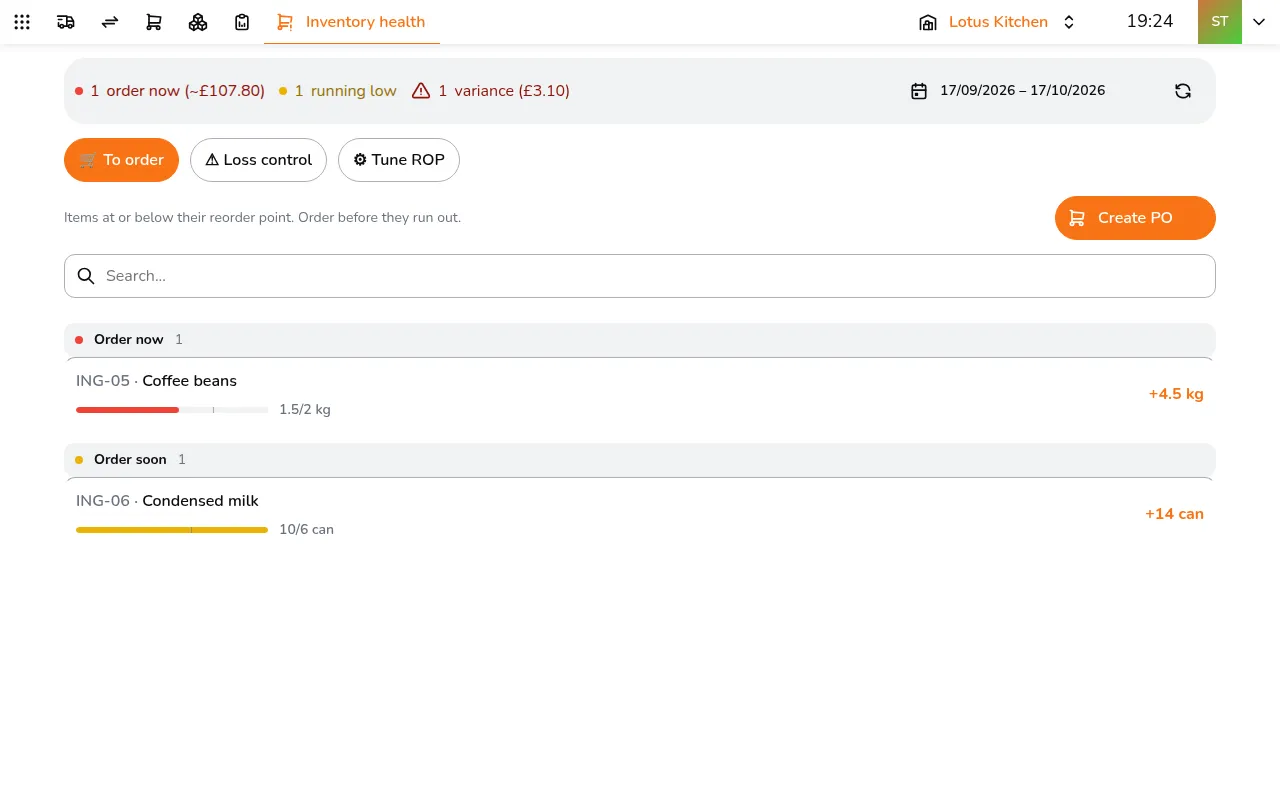
Step 1/5In Inventory health, tap Create PO. Everything that needs ordering is split into one order per supplier, at each supplier's price
- In Inventory health, tap Create PO. Everything that needs ordering is split into one order per supplier, at each supplier's price
- Tick Include "order soon" to add what is running low too, and change any quantity
- Tap the create button, such as Create 1 PO(s)
Paste a shopping list
Step 1/3Tap Create from list
- Tap Create from list
- Paste or type the list as you would write it
- Tap Match items
Each line is matched to your items with AI, and new items can be added on the spot. The result is one draft order per supplier.