Ingredients and Recipes
Who is this article for?
Account owners, or team members whose role has:
- Menus and items set to Manage
Set roles in All apps > Setup > Roles.
Included in the Grow plan.
Stock is counted in the things you buy: beef by the kilo, noodles by the kilo, condensed milk by the can. A recipe says how much of each goes into a dish, so every dish sold can take its ingredients off the stock.
Add an ingredient
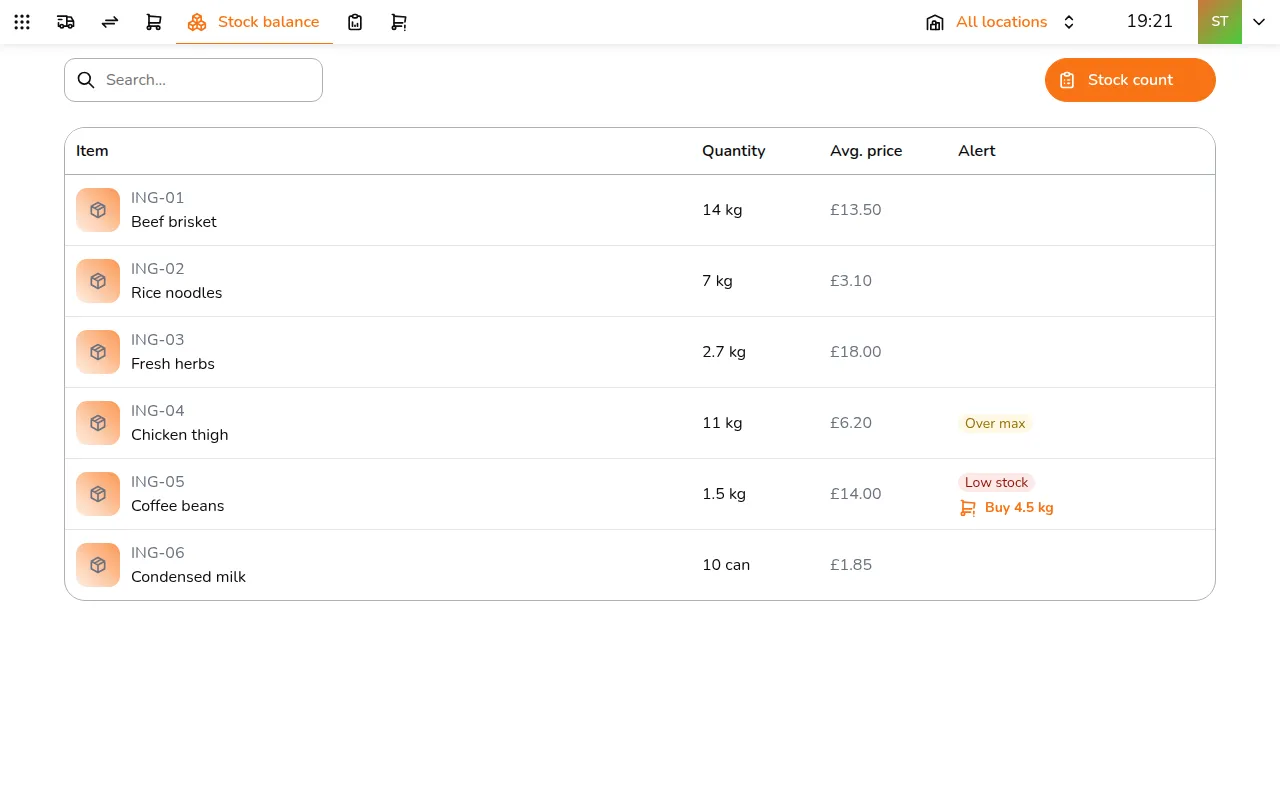
Step 1/14Go to All apps > Menu & Products > Items and add an item
- Go to All apps > Menu & Products > Items and add an item
- Under Item usage, turn off selling and turn on This item is tracked in stock/inventory
- Under Inventory & Production, pick the Unit you count it in and the Shelf life (days), which fills in expiry dates when it is delivered
- Under Unit conversions, add the other units it arrives in, such as a box of 24 cans
- Tap Create
Add a recipe to a dish
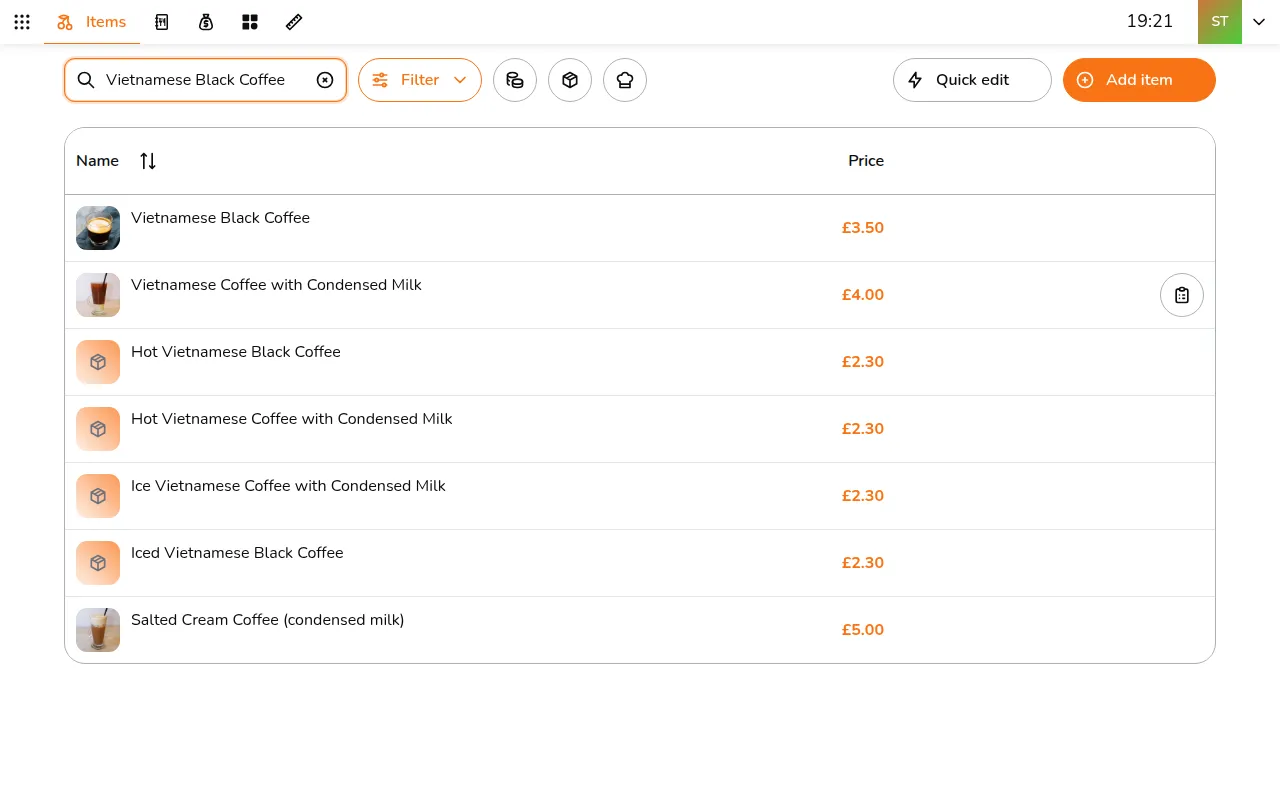
Step 1/7Open the dish
- Open the dish
- Under Recipe, set the Output quantity: how many servings the recipe makes
- Tap Add ingredient for each ingredient and enter how much goes in, in its unit
- Tap Save
Take stock off as dishes sell
Go to All apps > Setup > Sales, pick the store in the app bar, and under Stock deduction turn on Enable stock deduction. Stock then goes down when a dish is sent to the kitchen or paid. The Deduction mode decides how:
- Auto: take the dish itself if it is stocked, otherwise its recipe
- Recipe only: always take the recipe's ingredients
- Direct item: take the dish itself
With deduction on, Stop selling when out on an ingredient takes dishes made from it off sale when it runs out. Keep it for the few things that really run out mid-service.