Stock Levels and Reordering
Who is this article for?
Account owners, or team members whose role has:
- Stock balance set to View to see stock, or Manage to set reorder levels
- Stock movements set to Manage, to count stock
Set roles in All apps > Setup > Roles.
Included in the Grow plan.
See what is in stock
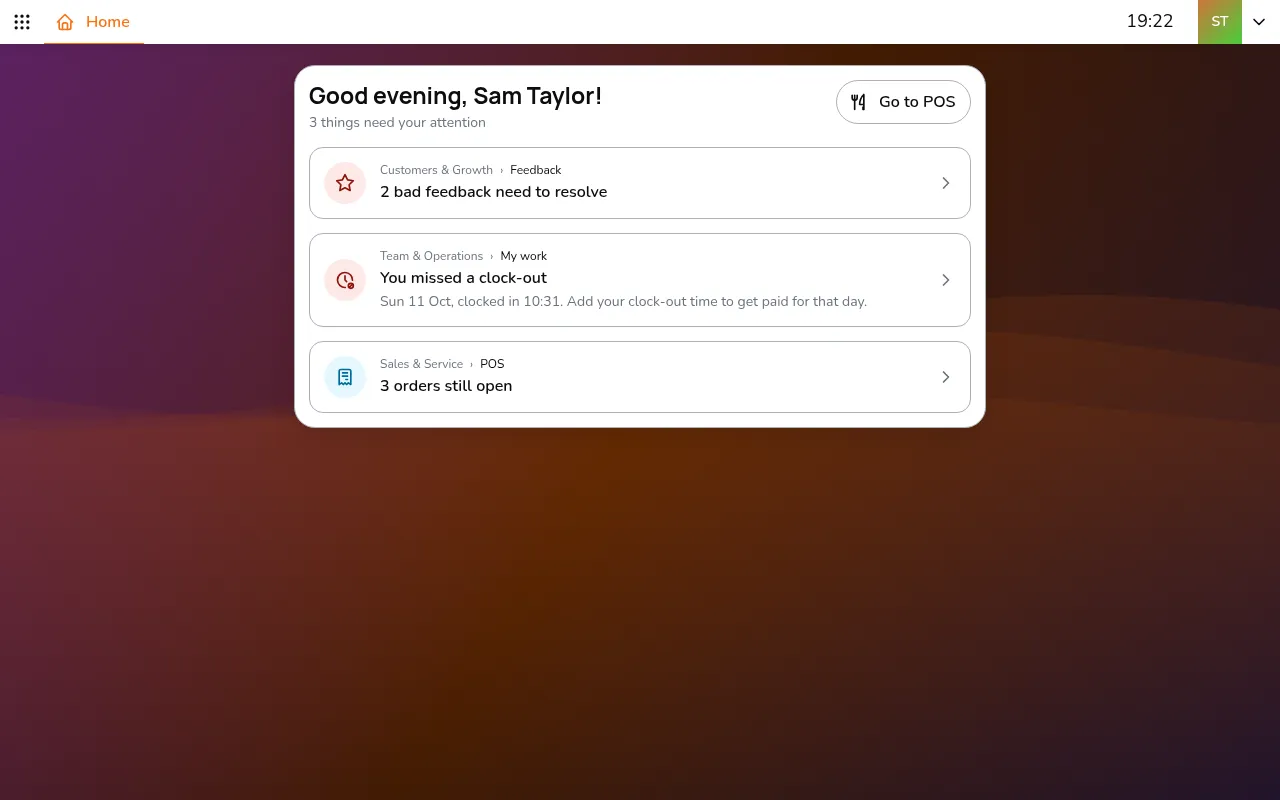
Step 1/7Go to All apps > Inventory & Purchasing > Stock balance
- Go to All apps > Inventory & Purchasing > Stock balance
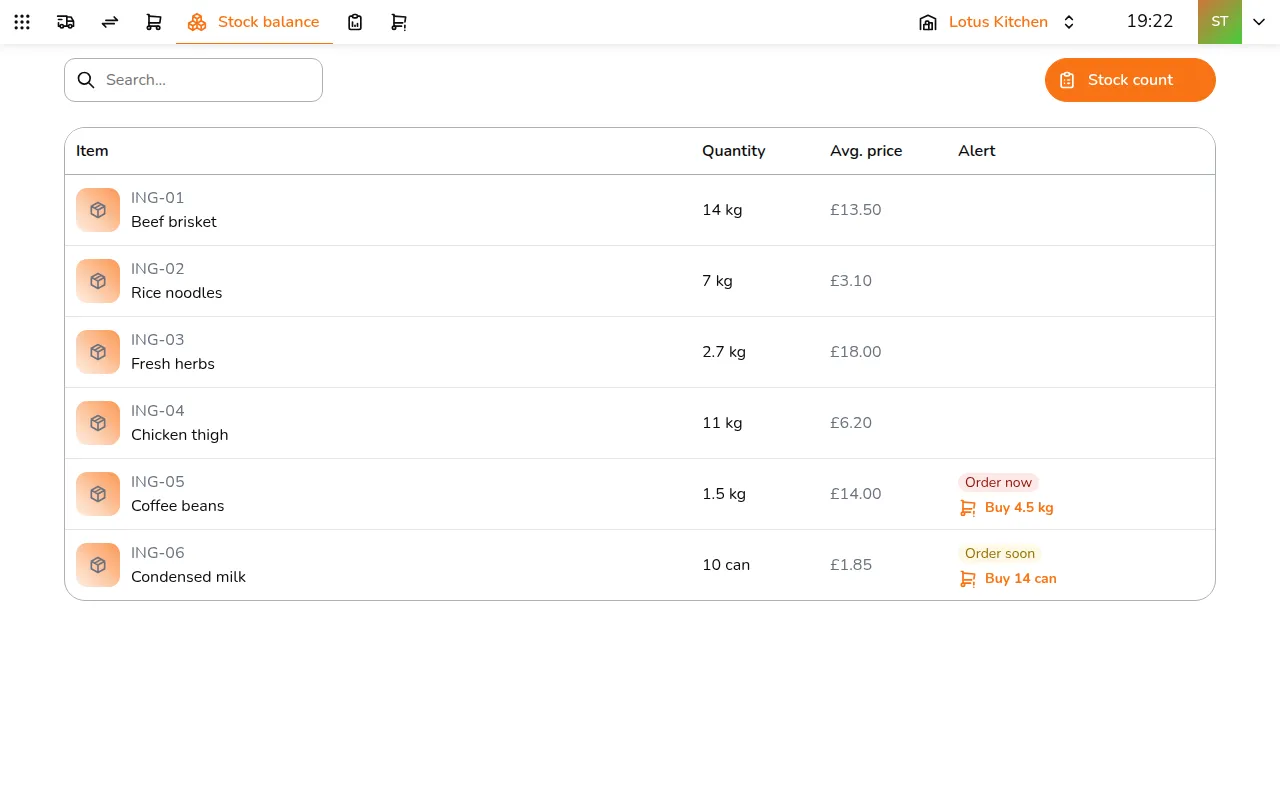
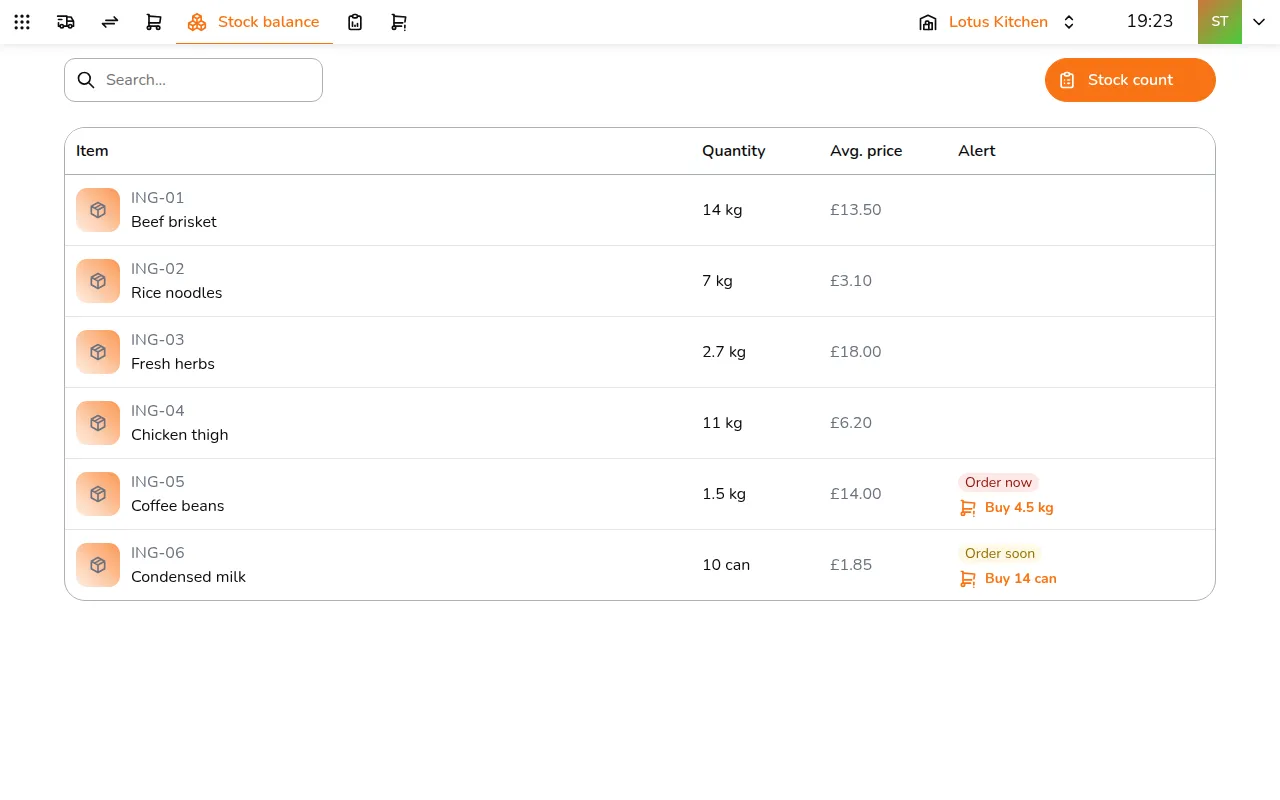
- Pick the store. Each item shows the quantity on hand, its average price, and an alert when it needs attention, such as Order now with how much to buy, Order soon, or Over max
Set reorder levels
Step 1/7Tap an item to see its batches with their expiry dates, and its Reorder thresholds for each store
- Tap an item to see its batches with their expiry dates, and its Reorder thresholds for each store
- Set the levels for the store:
- Min: at or below this, order now
- Max: what to order up to
- Reorder point: the level you usually reorder at
- Stop selling when out: takes the dishes made from it off sale at that store when it runs out. It needs stock deduction turned on at that store; until then the switch is locked. See Item availability
- Tap the save icon on the row
Count stock
Step 1/5Tap Stock count
- Tap Stock count
- Tap each item and enter what is really on the shelf under Actual. You can count by batch or in total
- Tap Finish stock count (Finish on a phone)
The count is recorded as an adjustment for the difference. Check it in Stock movements and tap Confirm adjustment.
Follow the stock over time
Step 1/7Go to All apps > Inventory & Purchasing > Stock ledger. For each item it shows what you had at the start of the dates you pick, what came in, what went out and what was left
- Go to All apps > Inventory & Purchasing > Stock ledger. For each item it shows what you had at the start of the dates you pick, what came in, what went out and what was left
- Tap an item for every movement behind the numbers
Know what to order
Step 1/4Go to All apps > Inventory & Purchasing > Inventory health. It lists what to order now and what is running low, with the quantity to buy
- Go to All apps > Inventory & Purchasing > Inventory health. It lists what to order now and what is running low, with the quantity to buy
It learns from the last four weeks: items that sell use their average daily use, and items that have not moved fall back to their Min and Max.
Loss control compares your counts with what sales and recipes say should be left, and points at the likely cause: waste that was not logged, loss, or deliveries counted wrong. Tap Create PO to turn what needs ordering into purchase orders. See Purchase orders.