Item Availability
Who is this article for?
Account owners, or team members whose role has:
- Sales shifts set to Manage, to switch dishes off and set limits
- Stock movements set to Manage, to count an ingredient from this screen
Set roles in All apps > Setup > Roles.
Included in every plan. Taking dishes off when an ingredient runs out needs stock tracking, in the Grow plan.
Ran out of something mid-service? Item availability is where each store says what it cannot sell right now. The POS and guests ordering from their phone see the change at once: a dish that is off shows Out of stock and cannot be added.
Open item availability
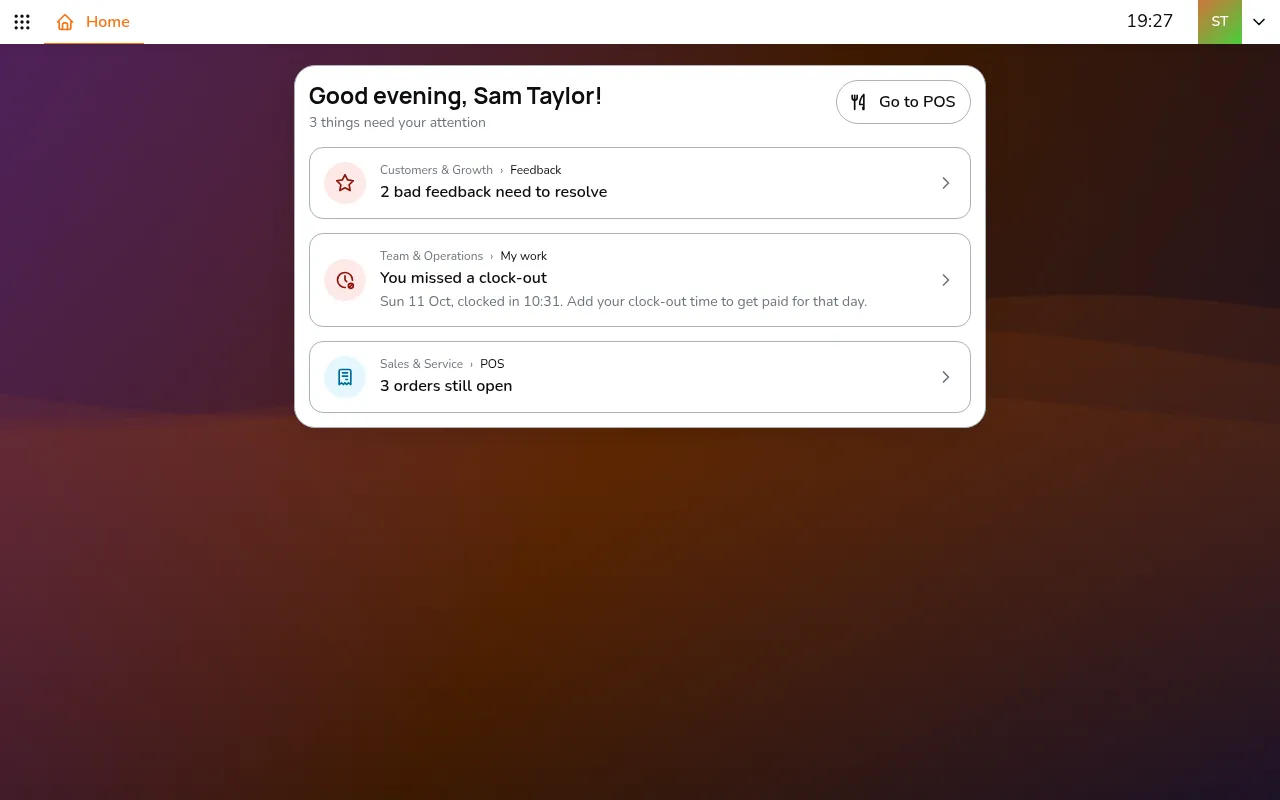
- Go to All apps > Sales & Service > Item availability
- Pick the store in the top bar. Each store has its own list
Switch a dish off
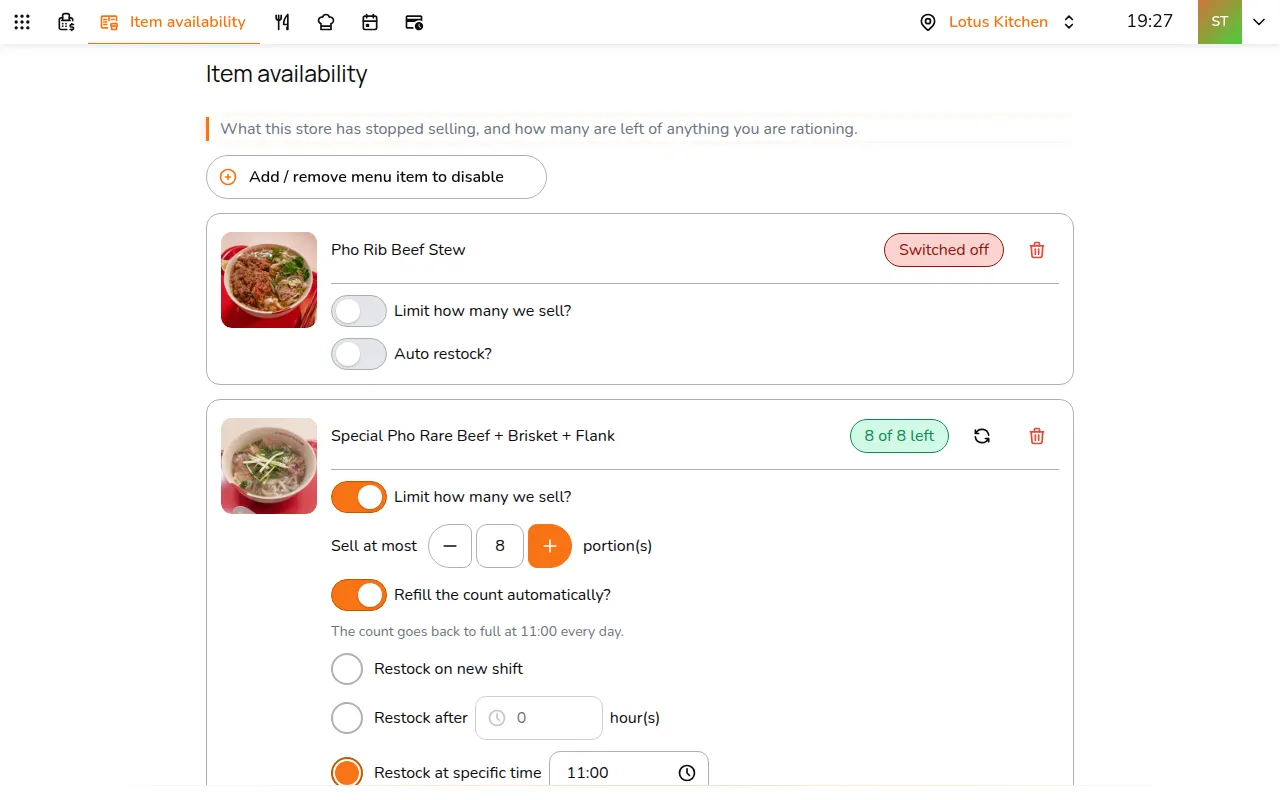
- Tap Add / remove menu item to disable and tick the dishes. A dish added here is Switched off
- To bring it back by itself, turn on Auto restock? and pick when:
- Restock on new shift: when the next sales shift opens
- Restock after a number of hours
- Restock at specific time of day
- Tap Save
The tag then says when the dish is back, such as Back on at the next shift. To bring a dish back yourself, tap the bin next to it and Save.
Limit how many you sell
For a dish you make in a batch, such as a daily special:
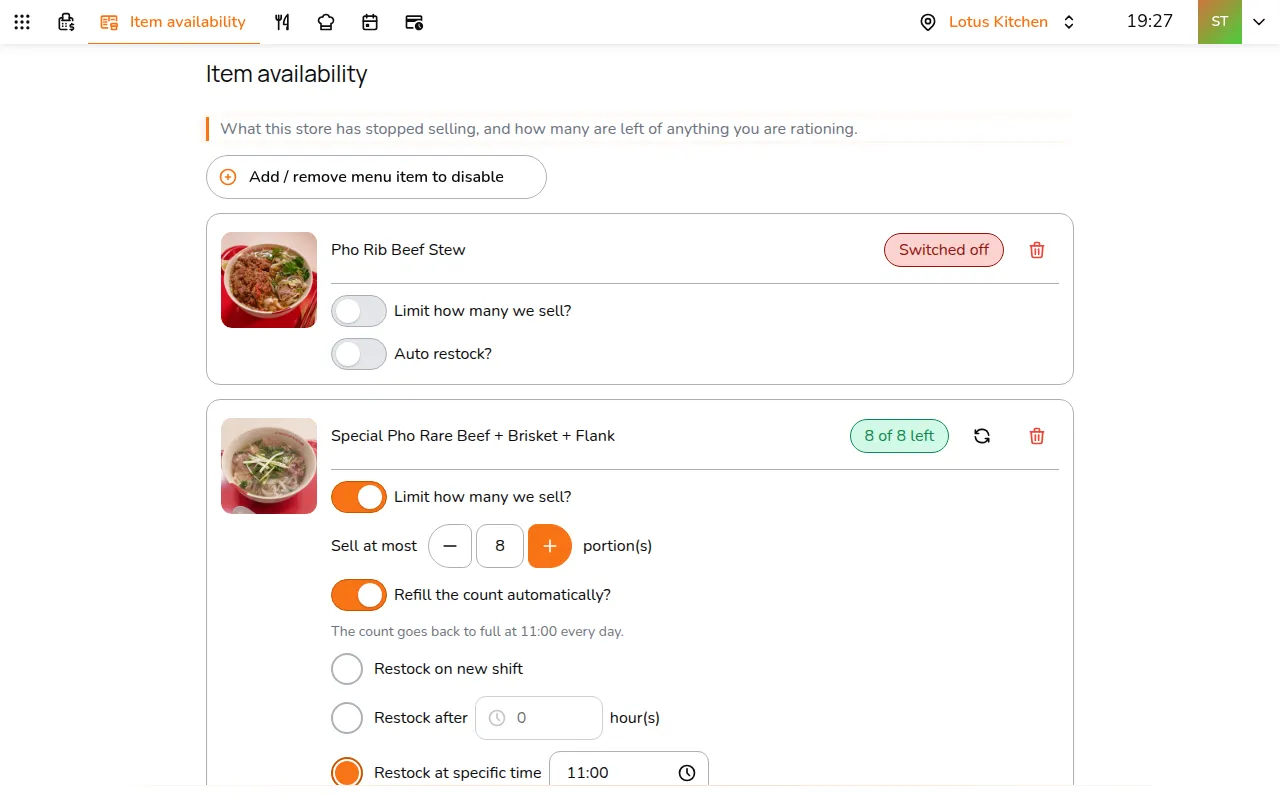
- Add the dish as above
- Turn on Limit how many we sell? and set Sell at most, in portions
- Turn on Refill the count automatically? to start the count again on a new shift, every few hours, or at a time each day
- Tap Save
The tag counts down, such as 8 of 8 left. At zero it says Sold out and the dish comes off until the count refills.
Made more? Refill the count:
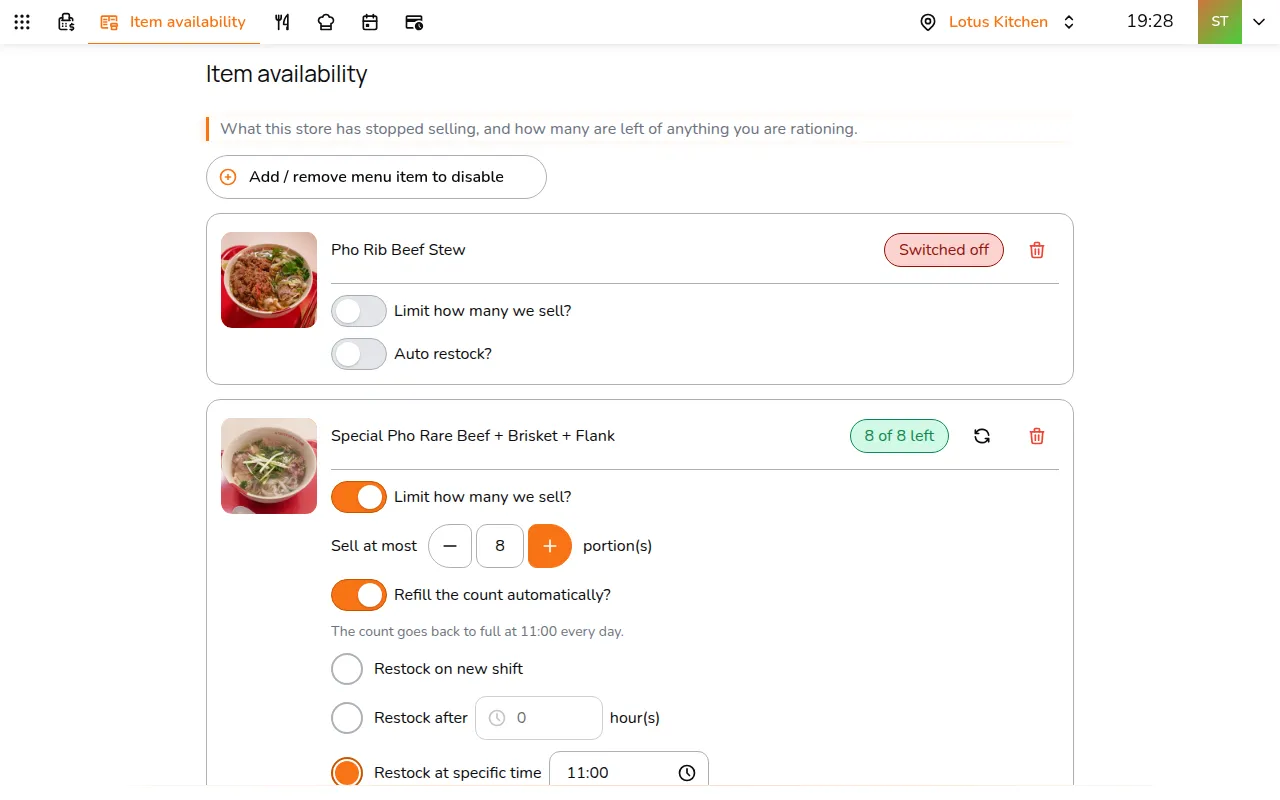
- Tap the refresh icon next to the tag
- Enter how many you made and tap Apply
- Tap Save
Selling starts again from that number.
When an ingredient runs out
At a store with Stock deduction on, dishes can come off by themselves when an ingredient runs out. Turn it on for the few ingredients that really run out mid-service: in Inventory & Purchasing > Stock balance, tap the ingredient and turn on Stop selling when out for the store. See Stock levels.
Item availability then shows a card for each of those ingredients, with how much is left and how many dishes use it. When one runs out, the dishes made with it hang under its card as Out of stock. They cannot be edited here: count the ingredient instead.
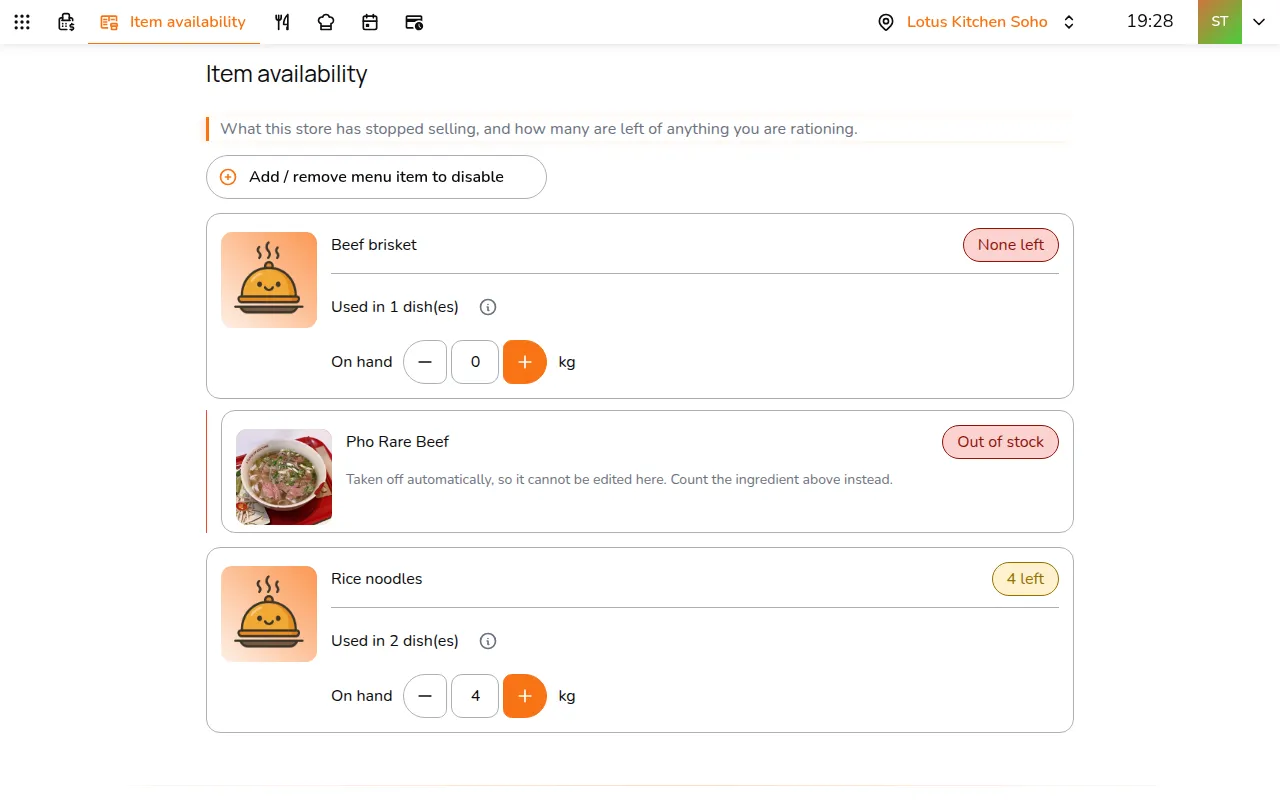
- Type what is on the shelf in On hand
- Tap Save
This records a stock adjustment, and the dishes come back as soon as there is enough to make them.
To see which dishes use an ingredient and how much each takes:
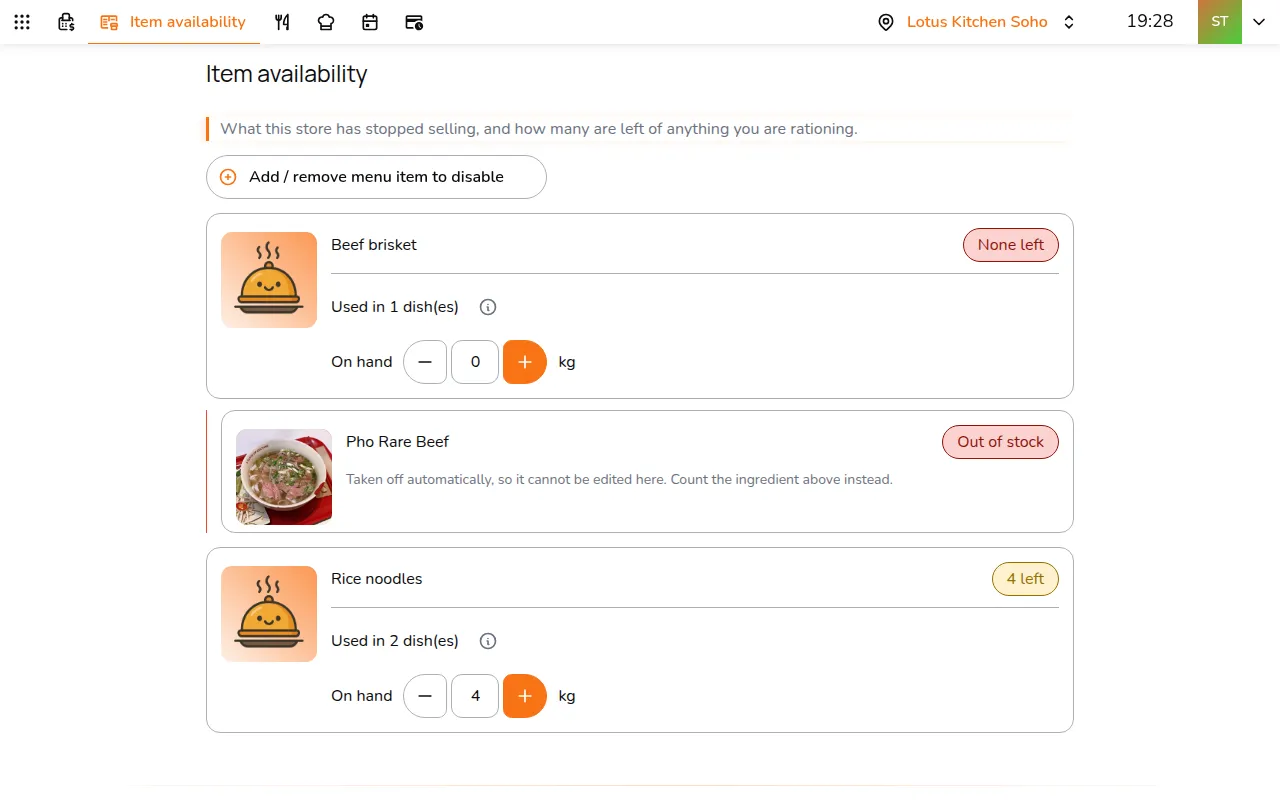
- Tap the info icon on its card
On the POS
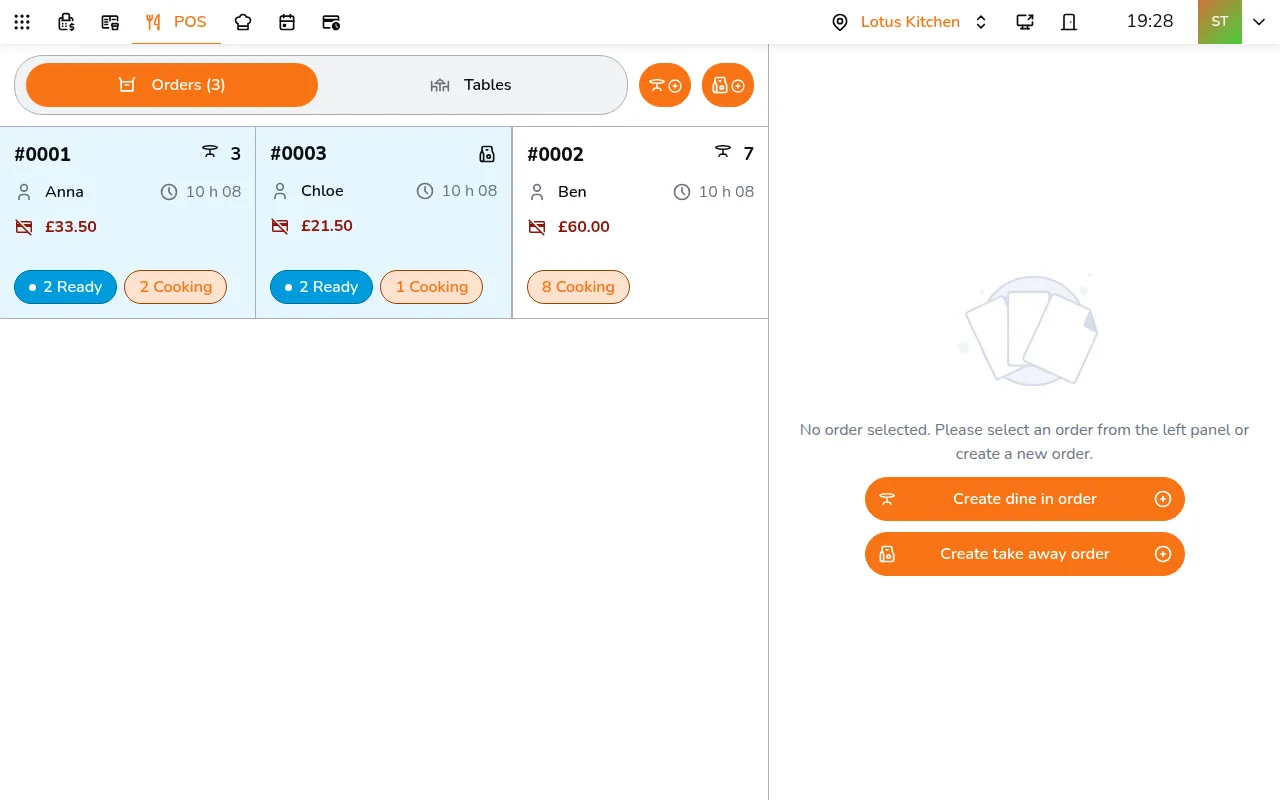
- Open an order on POS and tap the button to add dishes
- Find the dish on the menu. A dish that is off shows Out of stock across its picture, and a limited dish shows how many are left once it is down to 10
Item availability is per store. To stop selling a dish everywhere, make it inactive on the dish itself, in Menu & Products > Items.