Printing
Who is this article for?
Account owners, or team members whose role has:
- Take orders, to open the POS. Printer settings belong to the device
Set roles in All apps > Setup > Roles.
Smatyx prints receipts and kitchen tickets through the browser, through a print service on your network, or through another device's printer.
Accessing printer settings
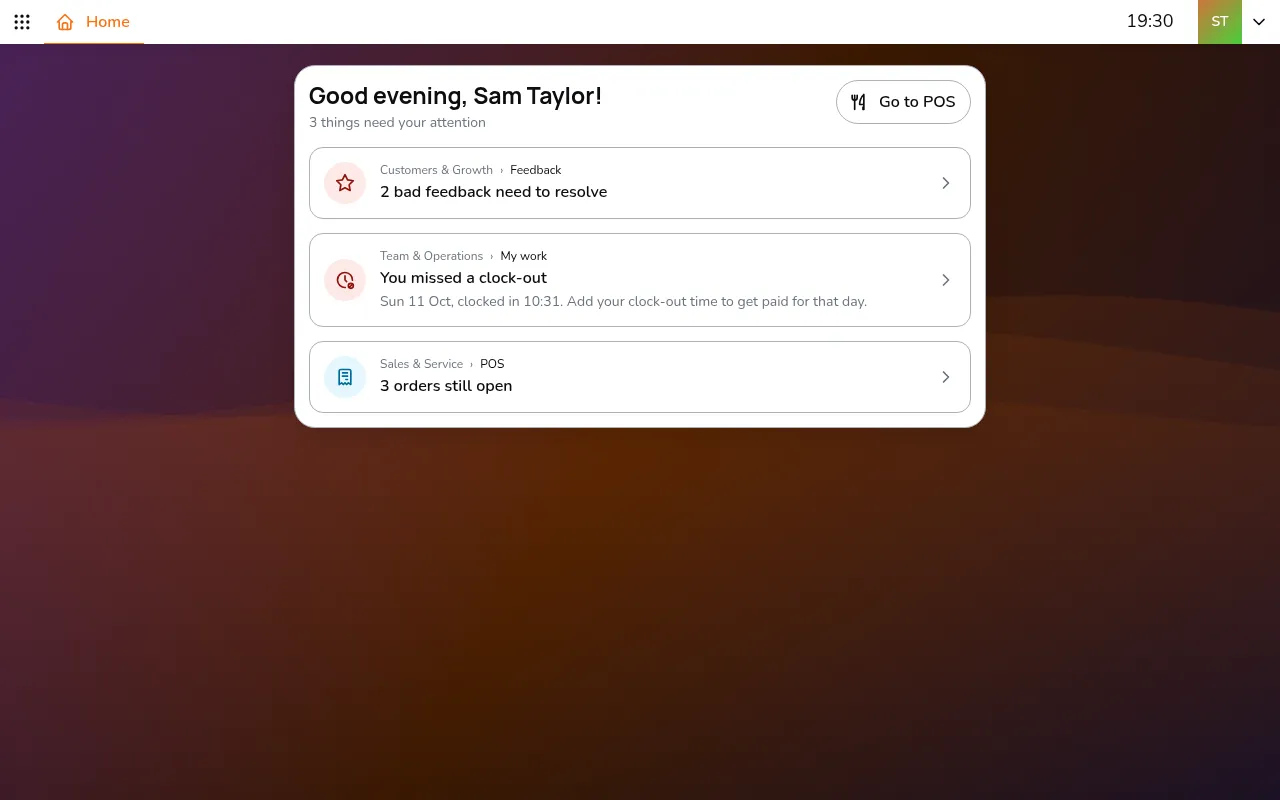
- Go to All apps > Sales & Service > POS
- Tap your avatar in the app bar
- Under This device, select Printer
Printer settings are kept on each device, for whoever uses it.
Browser printing
The simplest option. When you print, the browser's print dialog opens. Works with any printer your device can see. No setup needed.
Daemon printer
For automatic printing without the browser dialog. A small print service runs on a computer in your network and handles print jobs silently. Download it from the smatyx-daemon.exe link at the top of the Printer settings.
Setup
On the POS, tap your avatar in the top bar, then Printer:
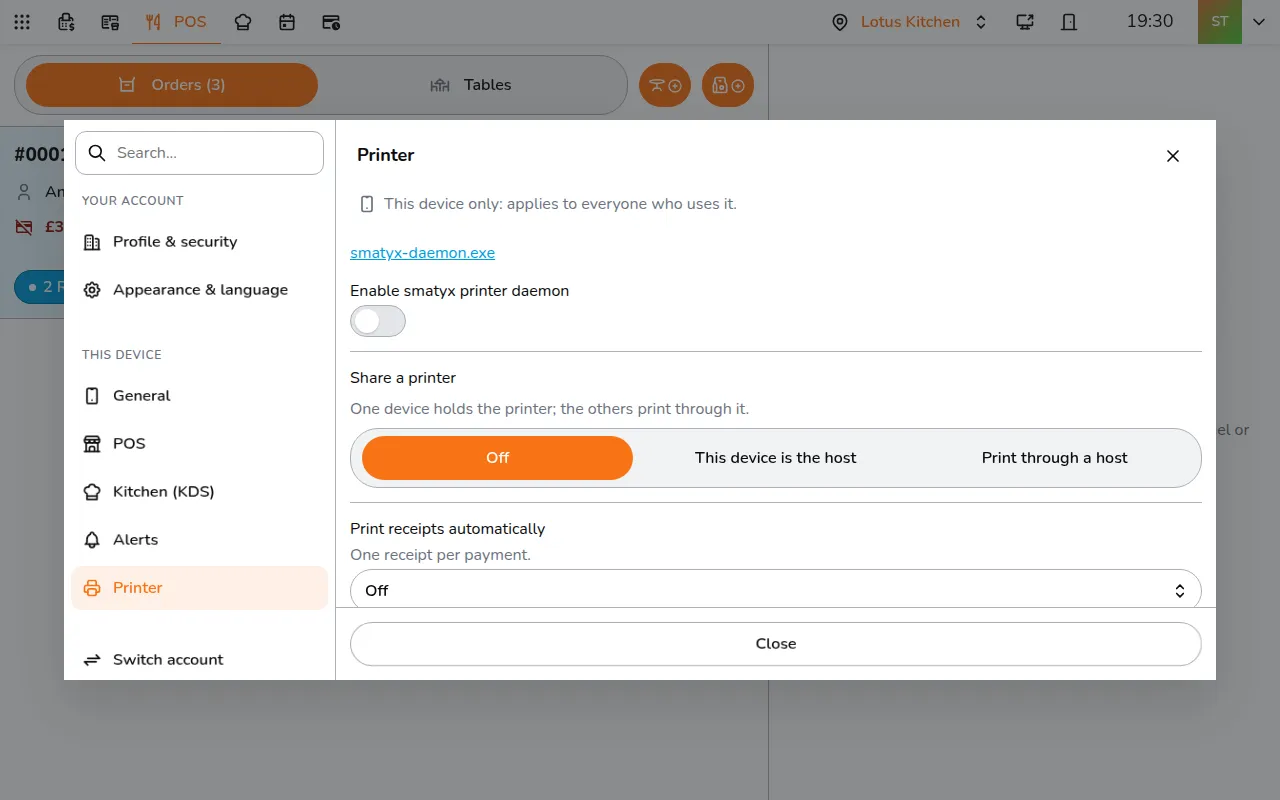
- Turn on Enable smatyx printer daemon
- Enter the Printer Daemon URL (the address of the computer running the daemon)
- Pick the Receipt Printer here, and the KDS Printer for kitchen tickets on the Kitchen (KDS) page of the same settings
Kitchen tickets print separately when orders are confirmed and sent to the kitchen.
Share a printer
One device holds the printer, and the others print through it. In the same Printer settings, under Share a printer:
- On the device with the printer, pick This device is the host and tap Start hosting
- On each of the others, pick Print through a host, enter the host's ID in Printer Peer Host Id and tap Connect
Give each host its own Printer Host Id when several devices host a printer.
Automatic receipts
In the same Printer settings, Print receipts automatically prints one receipt per payment:
- Off
- When a payment is created: prints as soon as the payment is created, before it completes
- When a payment completes