Order Flow
Who is this article for?
Account owners, or team members whose role has:
- Take orders
Set roles in All apps > Setup > Roles.
Included in every plan.
This is how an order goes on the POS, from the table to payment. The POS takes orders once your store is picked and you have joined its sales shift. See Sales Shifts.
1. Start an order
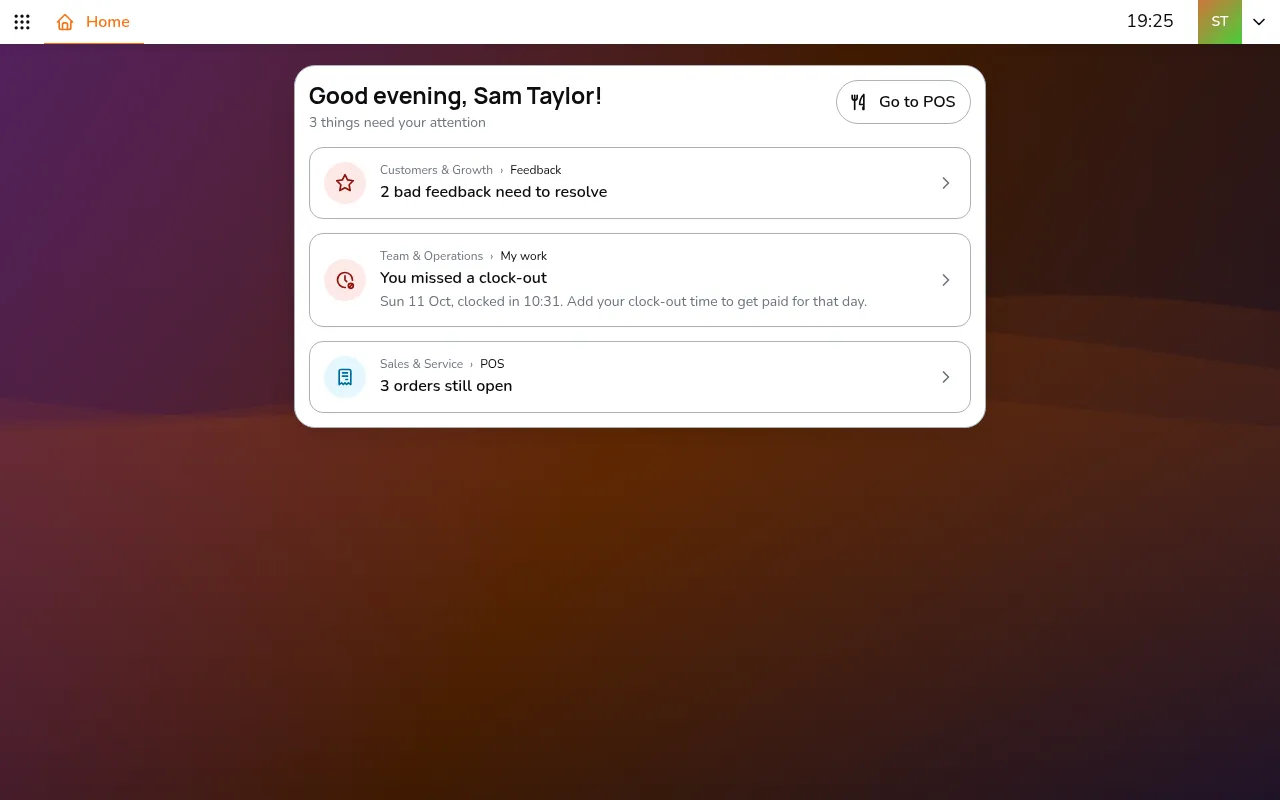
- Go to POS
- Tap Create dine in order and pick the table. For a take-away order, tap Create take away order instead
On a computer or tablet, both are the icon buttons next to the Orders and Tables tabs. On a phone, tap the button in the bottom bar first.
Tables that already have an order are highlighted, with how many orders are open on them.
If the POS is set to Require customer details before creating an order, it asks about the guest first.
2. Add dishes
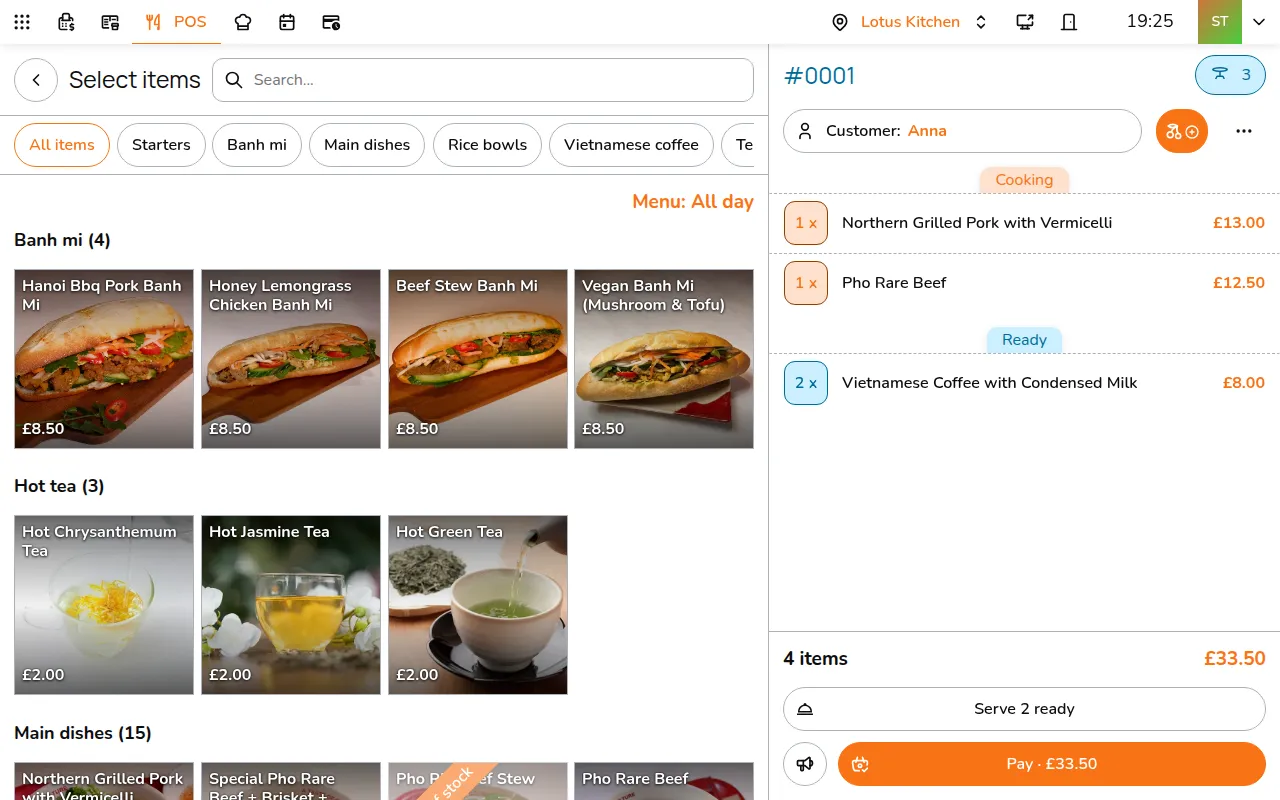
- Tap a dish on the menu. The groups along the top and the search box help you find it. On a phone, the button next to the search box lists the groups
- A dish with options opens them first. Pick the options, add a Note for this item for the kitchen if needed, set the quantity and tap Add
- Check the cart: the dishes wait there as New until you send them. On a phone, tap the basket button at the bottom to see it
A dish's options show on one red line under its name, and its note under that.
3. Send to the kitchen
Tap Send 2 to kitchen: the number is how many new dishes go. The dishes go to the kitchen display, each to its own station, and show as Cooking on the order.
When the kitchen marks dishes ready, Serve 1 ready appears next to it. Tap it once they are on the table.
4. Take payment
- Tap Pay · £…
- Check the total, then pick how the guest pays: Cash, one of your card readers, or Multiple methods to split the bill
On a computer or tablet, the payment screen also lists the dishes still unpaid.
- To add a discount, surcharge or tip, tap Edit Surcharge, Discount and Tip. See Apply a discount at the POS
- To split the bill, see Split Payments
5. More options
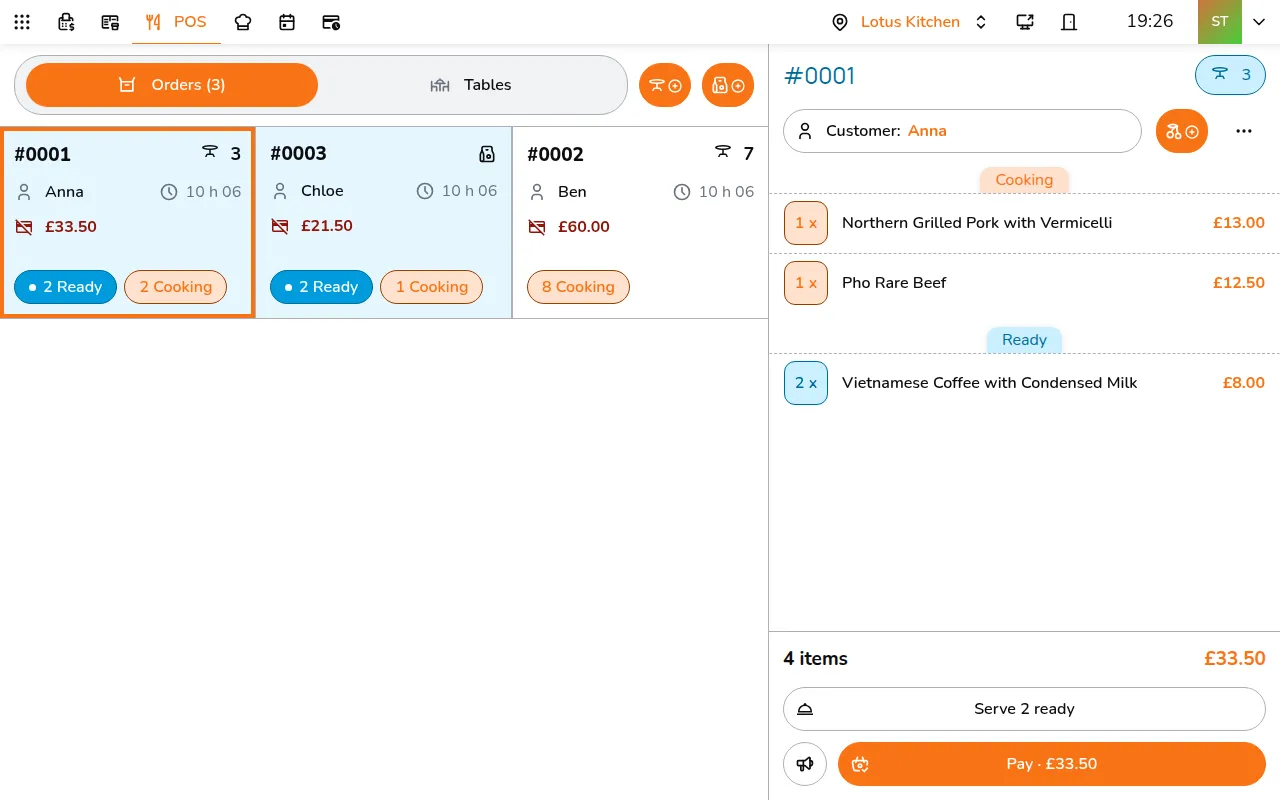
- Tap ⋯ on the order
- Pick what you need:
- Add extra item: something that is not on the menu. It needs Discounts and price changes in the role
- Print receipt, and Send receipt email when the order has the guest's email
- Edit Surcharge, Discount and Tip
- Change table, and Switch to take away or Switch to dine in
- Show guest QR: at stores where staff give guests a code for their table, so they can order and pay from their phone
- Payment details: the payments taken so far
- Issue refund, once something is paid. See Refunds
- Cancel order, while nothing is paid. It cancels straight away, with no second question. Once the kitchen has started on it, it needs Voids in the role
- Complete order: closes the order. If anything is still unpaid, the POS tells you how much first
The order list
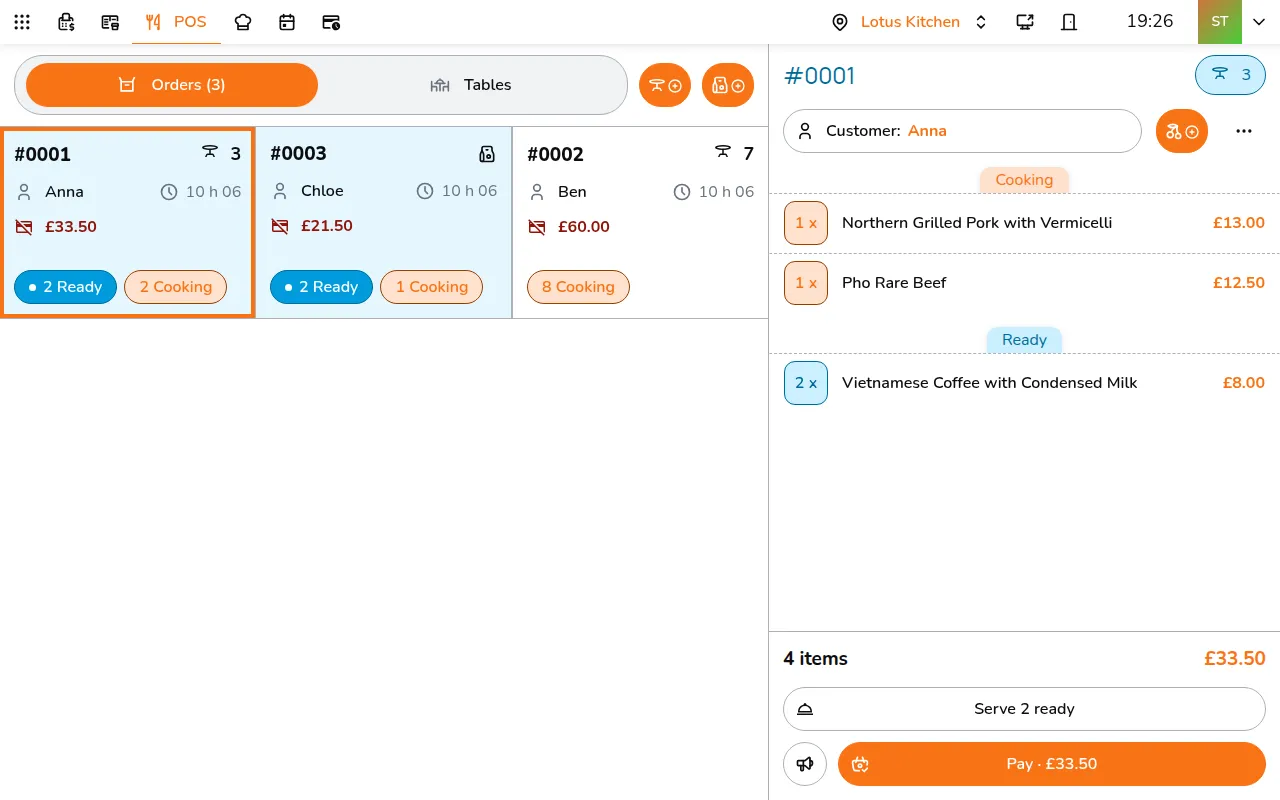
Each open order is a tile: its number, the table or a bag for take-away, the guest, how many minutes it has been open, and what is still to pay in red (Paid · £… in green once it is settled). Chips say what needs doing: Asks to pay, 2 Ready, 3 Cooking, 1 Served, 1 not sent.
To show the list another way, tap your avatar in the top bar, then POS under This device, and pick Order display in POS: Modern (tiles, the default), Classic or Detail (a table).